

Now we are ready to generate the remaining code.
Follow these steps:
Additionally, we defined a flow between the two client procedure steps and changed the Windows user interface. So the Window Manager needs to be regenerated.
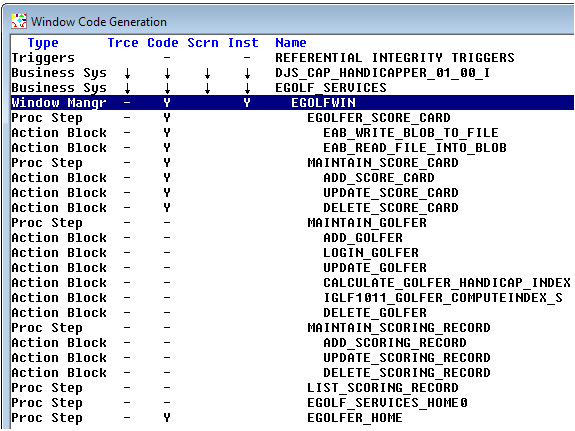
Select the down arrow under the Code column for the window manager. That will select all of the action diagrams for code generation. But we also want them to be compiled and linked, so select the down arrow under the Install (Inst) column.
If we wanted to be more efficient in our generation, and we had already generated and tested the application earlier, we could clear the selection of the portions of the load module that have not changed as follows, otherwise leave everything selected:

Go to your models “C” directory and locate the RDBLOB.c file. Open the file with Notepad.
What you will find is the shell of a C program with parameters defined corresponding to the import and export views defined in our EAB action diagram. If you scroll to the bottom of the diagram you will see a section with the note;
/* User-written code should be inserted here */
So now someone who wanted to write their own code would take this stub as a starting point, copy it to another directory and add their code to it, being careful not to change the properties of the parameters already defined. Then they would compile it like they would any program they were handwriting and make the external code available to the Gen generated application through an external library.
For an example of this, locate the same C file in the extrn folder. Open it and scroll to the bottom to see where someone added the code to read the BLOB from a file location provided to it in its import parameter and put its contents into the export parameter. It was then compiled and made available through the extrnc.lib.
|
Copyright © 2013 CA.
All rights reserved.
|
|