- Now we need to define the Link between the EGOLFER_HOME procedure step and the EGOLFER_SCORE_CARD procedure step. Return to the Window Navigation Diagram. In the Window Navigation Diagram, ensure that you are in the EGOLF_WEB_SERVER navigation diagram. In the EGOLF_WEB_SERVER navigation diagram you will now see the new client and server procedure steps as follows:
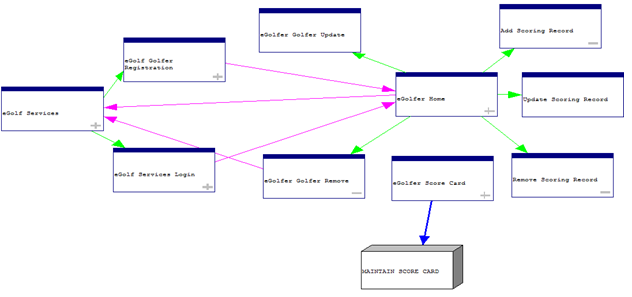
- In the window navigation diagram, select the eGolfer_Home window first. Then using the Ctrl key, select the eGolfer_Score_Card window. Then from the Menu Bar click Edit, Join. The Dialog Flow Browser opens.
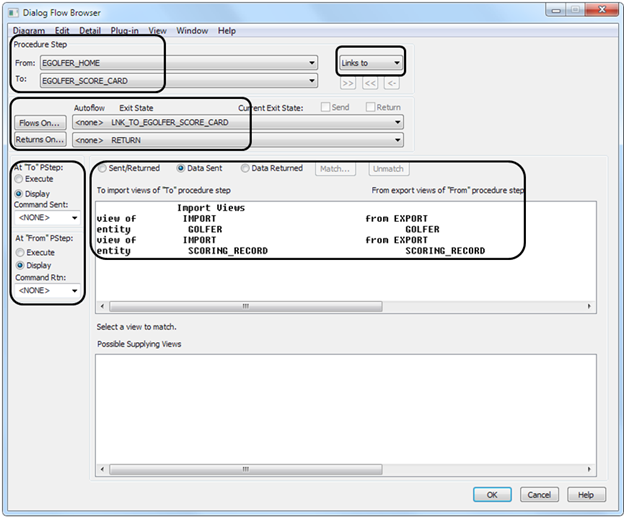
If you clicked the two procedure steps in the correct order, the From Procedure Step will be EGOLFER_HOME and the To Procedure Step the EGOLFER_SCORE_CARD procedure step. If they are not, Cancel out and try again.
- To the right of the From Procedure Step, you can see that the flow defaulted to Links to, which is what we want. Make no changes here.
The Flows On and Returns On exit state values have not been set. Click the Flows On button. The Exit State Selection dialog opens. Scroll down and select the EGOLF_SERVICES business system. Click the Expand/Contract button. With EGOLF_SERVICES still selected, click the Add button. In the (new object) Properties dialog, enter the exit state name “lnk to egolfer score card” as follows:
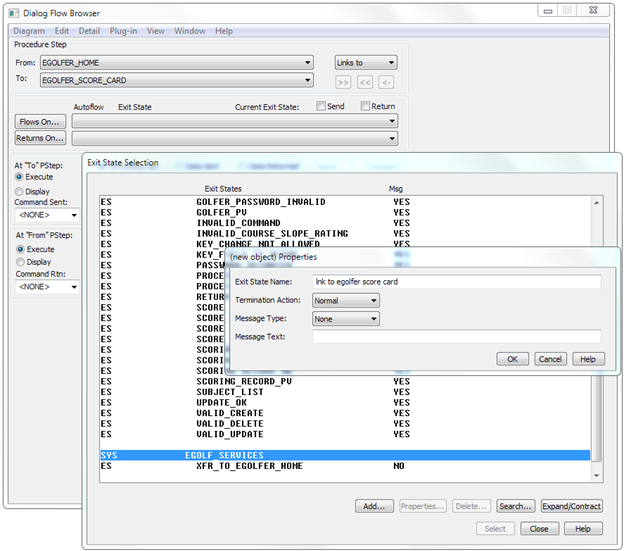
- Click OK. The new exit state value will be added to the EGOLF_SERVICES business system.
- Select the new LNK_TO_EGOLFER_SCORE_CARD exit state and click the Select button. The Exit State Selection dialog will close and the Flows On exit state value in the Dialog Flow Browser will show LNK_TO_EGOLFER_SCORE_CARD.
- Click the Returns On button. In the Exit State Selection list expand the <Global Exit States> and select the RETURN exit state. Click the Select button. The Exit State Selection list closes and the Returns On exit state value in the Dialog Flow Browser will show RETURN.
- Below the Flows On and Returns On buttons are the At To and At From PStep options. Select the Display radio button for both.
- Finally, we have to pass data from one client procedure step to the other along the flow. To the right of the At To PStep radio buttons are the data sent and returned radio buttons. Select the Data Sent radio button. When you do that, the top panel shows the import views of the EGOLFER_SCORE_CARD procedure step. We want to match those views to export views from the EGOLFER_HOME procedure step. Select the IMPORT GOLFER view. When you do that the bottom panel shows the views of Golfer in the export view of EGOLFER_HOME. Select EXPORT GOLFER and click the Match button above the panels. Select the IMPORT SCORING_RECORD in the top panel. Select the EXPORT SCORING_RECORD in the bottom panel and click the Match button.
We do not have to return any data from the EGOLFER_SCORE_CARD procedure step.
- The completed Dialog Flow Browser is as follows:
- Click OK to close the Dialog Flow Browser.
- Back in the window navigation diagram, the new flow is depicted with a dashed line as follows:
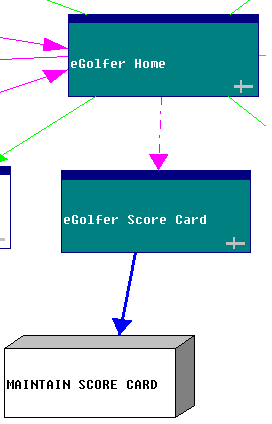
The dashed line indicates that we have not set the exit state value in the eGolfer Home procedure step to initiate the flow. Double-click eGolfer Home to open its window design. The window opens as follows:
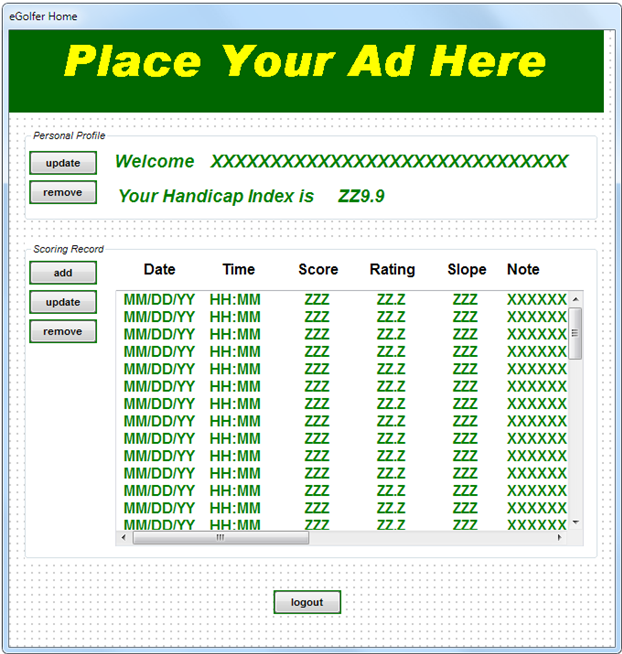
- Right-click the Scoring Record remove push button and drag it down leaving room between it and the update push button for another button.
- From the Menu Bar click Add, Push Button. In the Push Button Properties dialog enter “score card” for the text. Click the Events push button. In the Events Processing dialog click the Add button. It will add a new event to the list of events. Click the Close button on the Event Processing dialog and the OK button on the Push Button Properties dialog. Position the new push button between the update and remove push buttons.
- Click the Scoring Record add push button. Using the Ctrl key select the update, score card, and remove push buttons in that order. All of the Scoring Record push buttons will be highlighted. From the Menu Bar click Edit, Position. In the Field Positioning dialog select the Equal Height and Equal Width checkboxes. Select the Align Vertically Left checkbox. Select the Separate Vertically checkbox and enter the Distance 5. Click OK.
We need to update the video display properties of the score card push button. Select the score card push button. From the Menu Bar click Detail, Video Properties. In the Push Button Video Properties dialog clear the selection of Automatic for the Foreground Color, Background Color, and the Font selection. For the Font, click the Select button. In the Font dialog, select Bold in the Font Style list and click OK. Then click OK on the Push Button Video Properties dialog. The eGolfer Home page will look as follows:
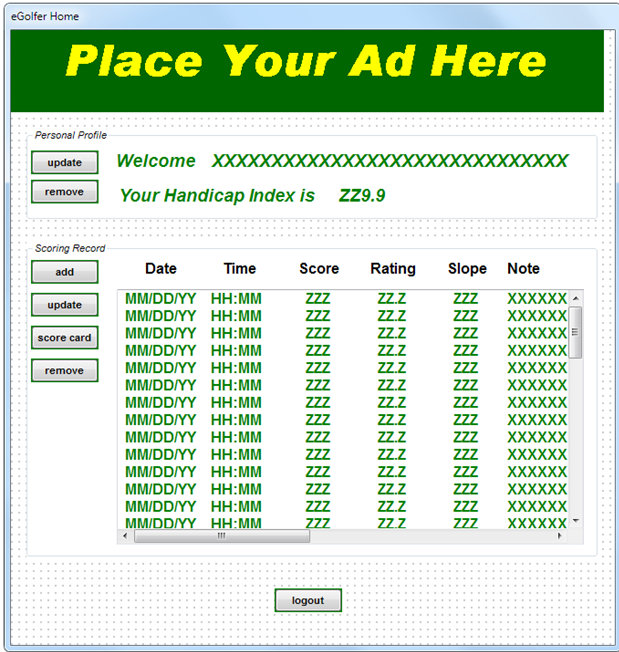
- The score card push button must be disabled if no scoring records are selected. Select the score card push button in the window design. From the Menu Bar click Detail, Disabled By. In the Disabling States dialog select THE Push Button ‘score card’ IS DISABLED WHEN line in the top panel. Select the listbox ‘Date’ has none selected in the bottom panel. Then click the Add push button. The Disabling States dialog will look as follows:
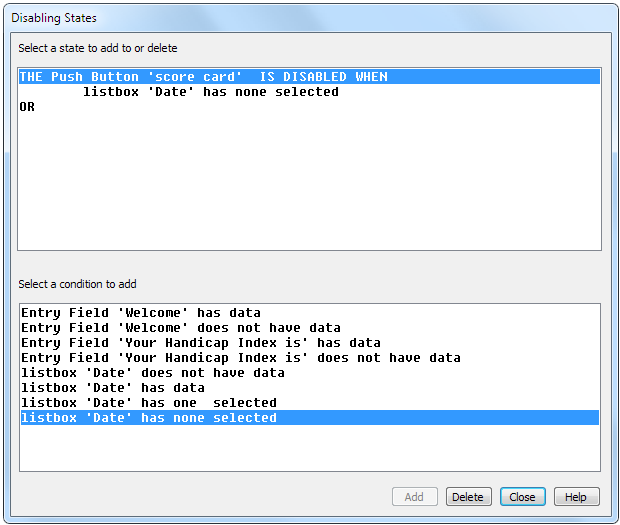
- Click Close.
- Open the eGolfer Home procedure step action diagram. Scroll to the very bottom where the new event has been added. The only thing that is necessary to do here is get the row highlighted in the import group of scoring records and move it to the export scoring record. Then set the Exit State value to LNK_TO_SCORE_CARD. The statements to get the row highlighted can be copied from other events. Then add the EXIT STATE IS statement. The completed event is as follows:

- Close the EGOLFER_HOME action diagram. In the window navigation diagram the flow between the two procedure steps will now be a solid line.
- Save the model.

