Previous Topic: Add the pushbuttons and define their actionsNext Topic: Add the client logic


Position the pushbuttons

Follow these steps:

  1. You will now have four push buttons along the bottom of the window. We want to make them look a little nicer and distribute them evenly across the bottom of the window. Select the button on the bottom left, which should be the select image push button. By default, its height is about 32. You can look in the bottom right side of the Window Navigation Diagram and it gives the coordinates along with its size. Resize the height to about 26.
  2. With focus still on that push button, use the Ctrl key and click the other 3 push buttons. All four should show they are selected. From the Menu Bar click Edit, Position.
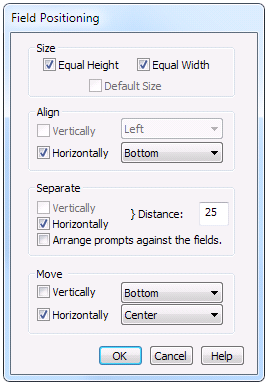
  3. In the Field Positioning dialog select Equal Height and Equal Width, Align Horizontally (along the Bottom), Separate Horizontally and enter the Distance of 25, and Move Horizontally and select Center from the dropdown. The Field Positioning dialog will look as follows:

    Field Positioning Dialog after you select the given options.

  4. Click OK .

    The four push buttons will still be highlighted, sized equally, and placed evenly across the bottom of the window. With the four push buttons still highlighted, from the Menu Bar click Detail, Video Properties and clear the selection of the Automatic options for both Background Color and Font. The Video Properties dialog will look as follows:
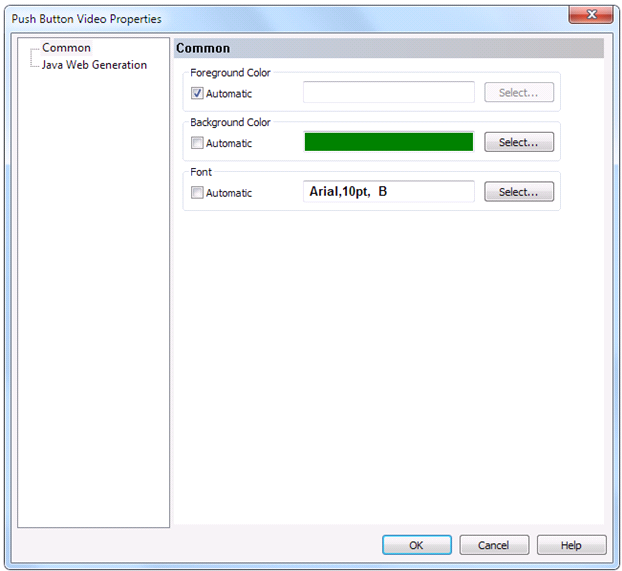
    Video Properties Dialog to clear the selection of the Automatic options for both Background Color and Font

  5. Click OK .

    Your window will now look similar to the following image:
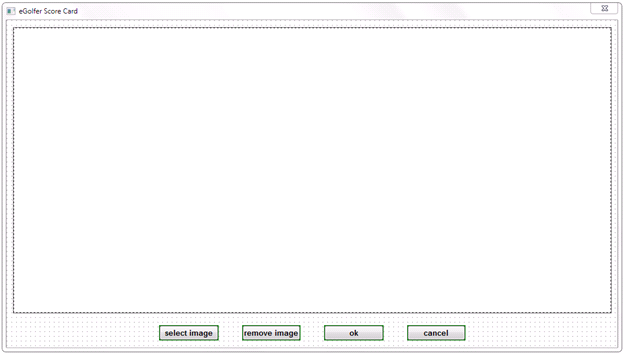
    Click Ok in the Push Button Video properties Dialog, the eGolfer Score Card opens