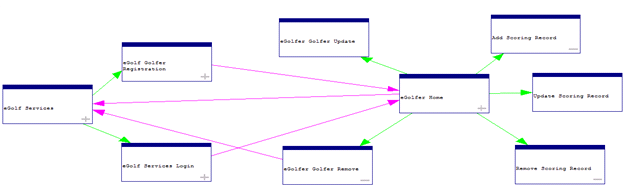
From the Menu Bar click Diagram, Open. Open the EGOLF WEB SERVER diagram. It will look similar to the following image:
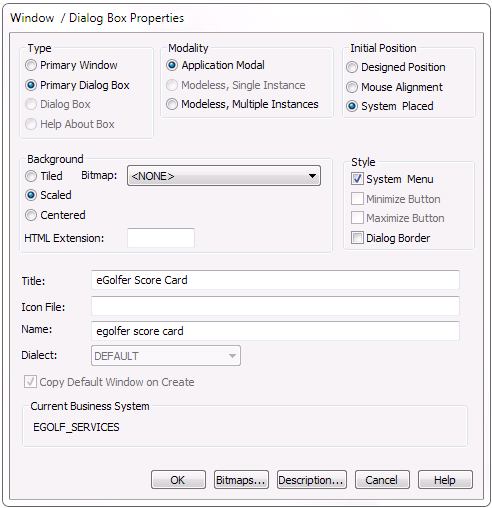
Add a Window to the Navigation Diagram, below the eGolfer Home window. Set the properties as follows:
Note: Be sure to select the Type of Primary Dialog Box.
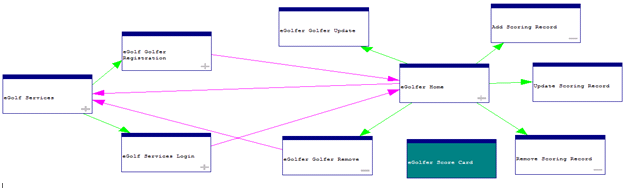
The Window Navigation Diagram will now look as follows:
We now want to save this “new” diagram. From the Menu Bar click Diagram, Create Diagram and select EGOLF_WEB_SERVER from the Create Diagram dialog. Click Save and then click Yes when prompted if you want to replace it.