

BLOB › Analysis › Activity Model
Activity Model
In the activity model, the following steps will be performed:
- Update the Activity Hierarchy Diagram to account for the elementary processes required to maintain the new entity type.
- Utilize Process Synthesis to create a first cut at the logic for each process action diagram.
- Review and modify each generated action diagram as necessary.
- Perform a Consistency Check on the activity model.
Follow these steps:
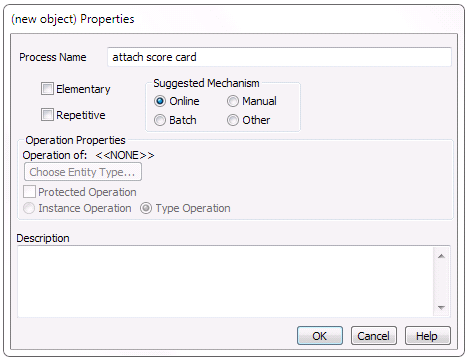
- Open the Activity Hierarchy Diagram. Expand the GOLFER MANAGEMENT function. With GOLFER MANAGEMENT selected, add a new Process with the properties as follows:
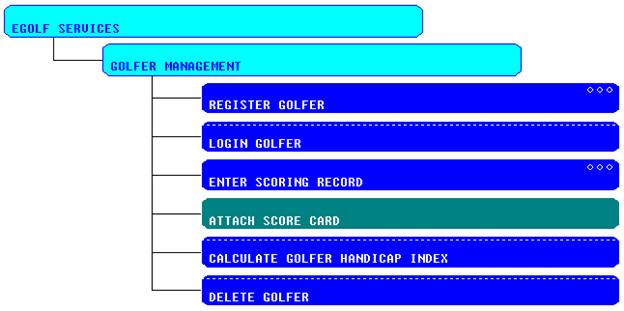
- Select and drag the new ATTACH SCORE CARD process positioning it in the hierarchy as follows:
- We need elementary processes to create, update, and delete SCORE CARDs. But rather than add them manually, we are going to use Process Synthesis to create them. Process Synthesis is much like Action Block Synthesis that we used back in Chapter Two of the Tutorial, but Process Synthesis will create multiple process action diagrams at the same time.
- Select the ATTACH SCORE CARD process. From the Menu Bar select Generate, Process Synthesis.
- In the Process Synthesis dialog select SCORE_CARD. Clear the selection of Review Default Actions and Consistency Check on Entity Type. Rename CREATE_SCORE_CARD to ADD_SCORE_CARD. Clear the selection of the Populate checkboxes for the last two Candidate Processes. Your completed dialog must look as follows:
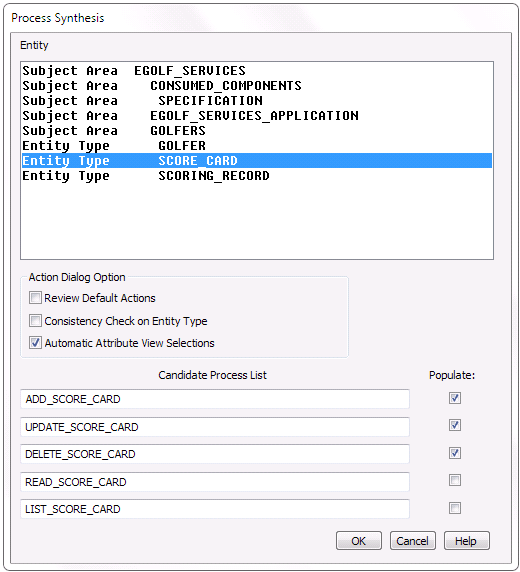
Click the OK button.
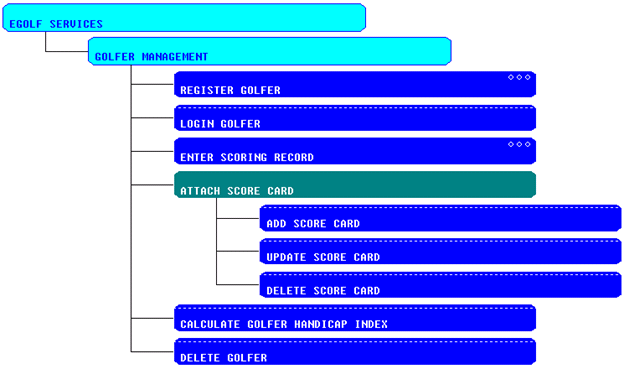
- Elementary Processes have been created to add, update, and delete SCORE_CARDs. Expand the ATTACH SCORE CARD process. Your hierarchy will now look as follows:
- The generated process action diagrams need a little cleanup. Open the ADD SCORE CARD action diagram. Expand the views. While all of the import views are required, the export views contain no new information and can be removed. However, before removing the views we need to remove the statements referencing the views. Highlight the two MOVE statements and delete them as follows.
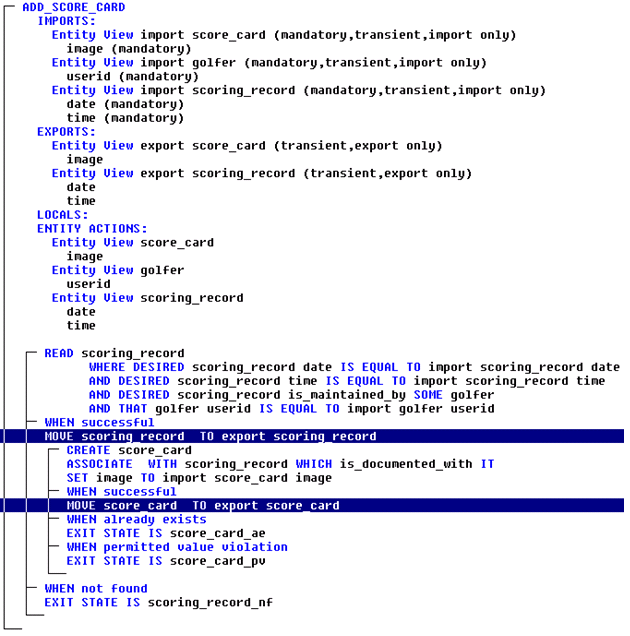
- Delete the export views.
The completed ADD SCORE CARD action diagram will look as follows:
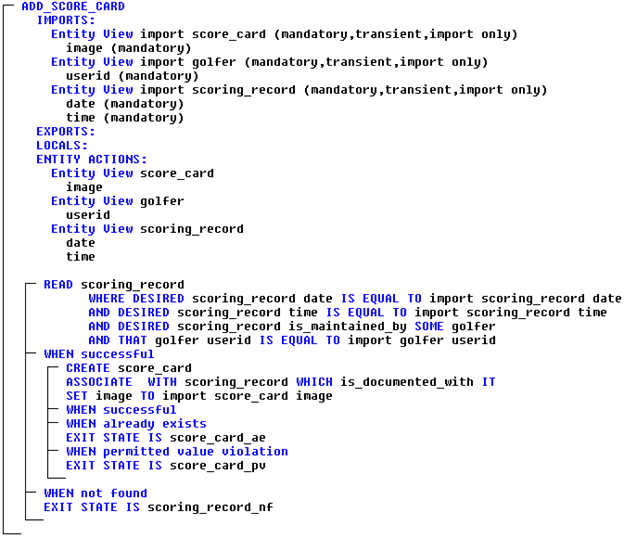
- Open the UPDATE SCORE CARD action diagram and expand the views. Again, the export views are not necessary. Delete the MOVE statement and then delete the export view. The completed diagram will look as follows:
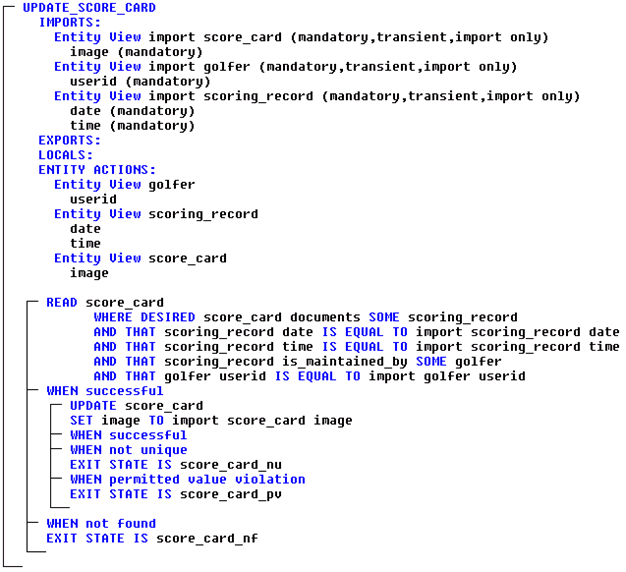
- Finally, open the DELETE SCORE CARD action diagram and expand the views. Once again, the export view is not necessary and should be removed. Delete the MOVE statement and then delete the export view. The completed diagram will look as follows:
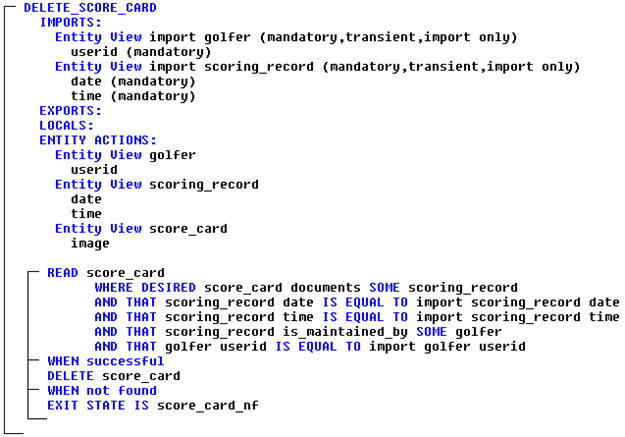
- Save the model. Select the EGOLF SERVICES function and perform a Consistency Check.
You may receive several Warnings and Errors this time. The errors will be referencing the fact that the new entity type, attribute, and relationship are not yet in the Technical Design. This will be fixed in a later section.
Copyright © 2013 CA.
All rights reserved.
|
|