

BLOB › Analysis › Data Model
Data Model
In the data model the following steps will be performed:
- Resize the Golfers subject area.
- Add the Score Card entity type.
- Add the BLOB attribute to the Score Card entity type.
- Create a relationship between the Scoring Record and Score Card entity types.
- Define an Identifier for the Score Card entity type.
- Perform a Consistency Check on the data model.
Follow these steps:
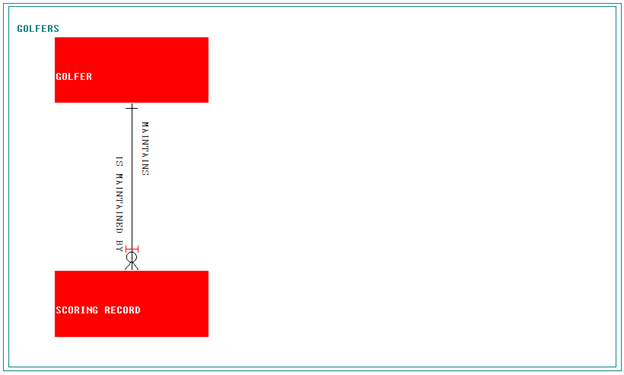
- Open the Data Model. Click the Golfers subject area and expand it if necessary.
- Resize the subject area to make room for adding the new entity type to the right of SCORING RECORD.
It should look similar to the following:
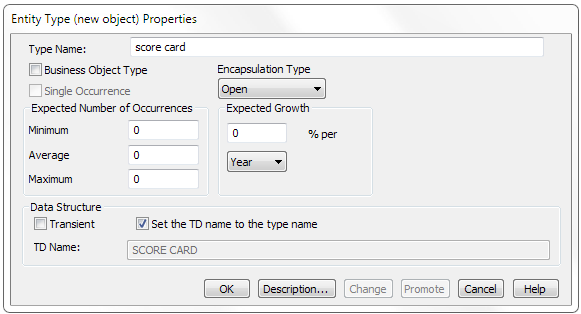
- Click the Golfers subject area to gain focus on it and add a new entity type. Specify the properties as follows:
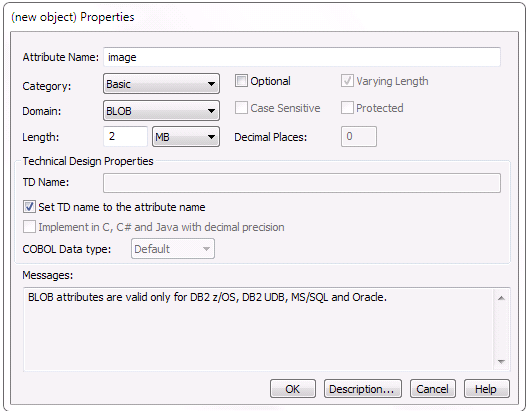
- Select the SCORE CARD entity type and add a BLOB attribute to it. Set the properties as follows:
- Select the SCORING RECORD entity type, then holding the Ctrl-key select the SCORE CARD entity type. Both entity types must be highlighted. Join the two with the following relationship:
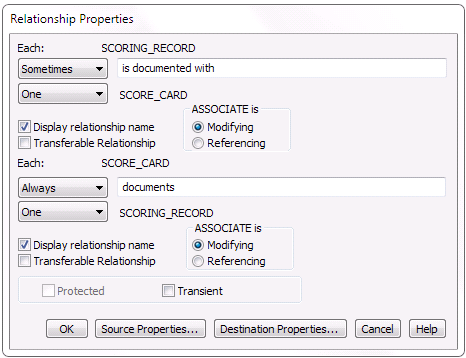
- Because the relationship between SCORING RECORD and SCORE CARD is a one-to-one relationship, the Identifier for the SCORE CARD can be the relationship to its SCORING RECORD. Select the SCORE CARD entity type. From the Menu Bar select Detail, Identifiers to bring up the list of identifiers currently defined for SCORE CARD. Currently there are none. Select the relationship DOCUMENTS SCORING_RECORD and click the Add push button to add an identifier with the properties as follows:
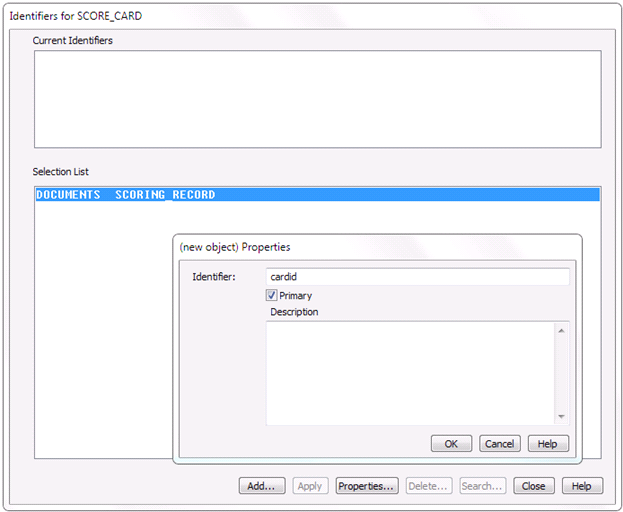
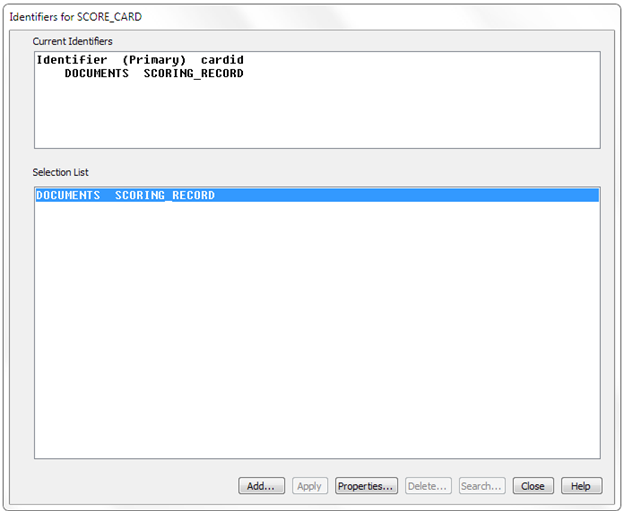
- When you are finished, the Identifiers for SCORE_CARD will look as follows:
- Click the Close push button.
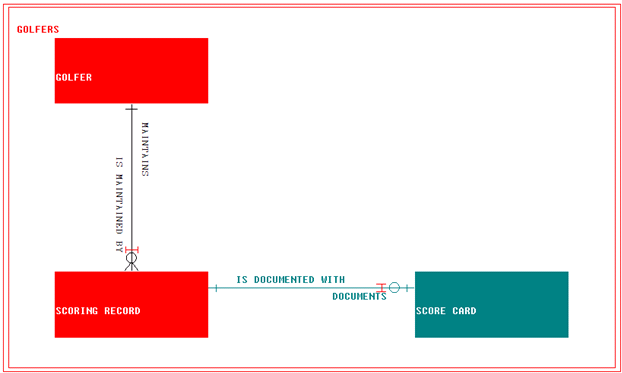
The completed Data Model should now look as follows.
- Select the new entity type and relationship and run a Consistency Check on them.
You should receive no Errors.
- If you have not done so lately, save the model.
Copyright © 2013 CA.
All rights reserved.
|
|