Previous Topic: Lesson ActivityNext Topic: Generate the Application for the Web


Package Our application for Cooperative Processing

Follow these steps:

  1. From the Tree Control, scroll down to the Construction folder and double-click Packaging.
  2. From the Tool Palette, select the Cooperative Packaging Package Our application for Cooperative Processing icon.
  3. In the Cooperative Packaging diagram, select the EGOLF_SERVICES Business System.
  4. From the Tool Palette, select the Add Load Module… Package Our application for Cooperative Processing icon. In the (new object) Properties dialog, enter webapsvr for the Load Module name, select Server Mangr for the Type of load module, and then select the Add Psteps… push button.

    Notice that while we have five procedure steps in our model, we can only select three. That is because these were the only procedure steps defined as servers.

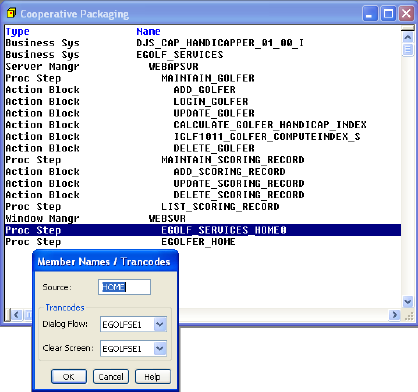
  5. Select each procedure step (Proc Step), and with all three highlighted, select the OK push button. Then select OK on the (new object) Properties dialog to add the Server Manager to the Business System. Select the Add Load Module icon again. In the (new object) Properties dialog enter websvr for the load module, change the Type of load module to Window Mangr, and then select the Add Psteps… push button. This time we are just presented with the two client procedure steps. Select both procedure steps, and then select the OK push button. Then select OK again to add the new Window Manager to the Business System.
  6. To complete the packaging, select each load module in the Cooperative Packaging diagram and then, from the Tool Palette, select the Complete Package Our application for Cooperative Processing icon.
  7. Double-click the EGOLF_SERVICES_HOME0 procedure step and make note of the Dialog Flow Trancode name. More than likely it will be called EGOLFSE1.
  8. Save your model.

    Package Our application for Cooperative Processing