

Follow these steps:
 icon.
icon.
Note: A very common generation mistake is failing to fully expand a module for generation and, subsequently, not generating all of its sub-modules. However, you should strive to only generate the modules that require generation, and avoid falling into the bad habit of regenerating everything all the time.
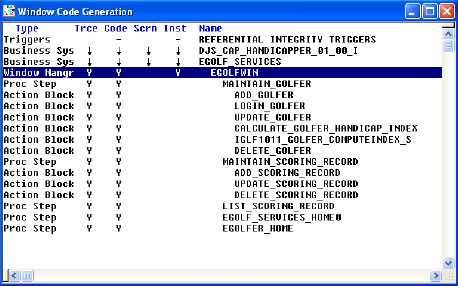
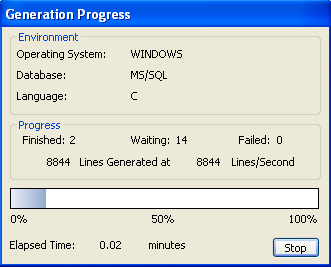
 icon from the Tool Palette. Depending on the speed of your workstation, you will briefly see the Generation Progress dialog shown below, which will close automatically if the code generation is successful.
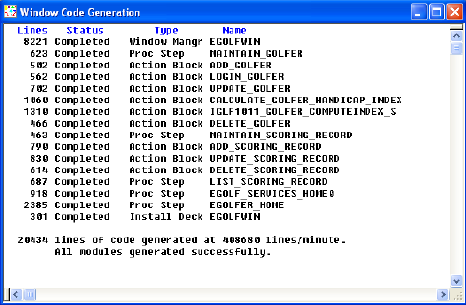
If the generation is successful, in the Window Code Generation diagram you will see that the list of modules to be generated has been replaced with a count of the total number of lines of source code generated for each module.
The code generation happens in foreground, which means you cannot use the Toolset while the generation is taking place. The installation happens in background by starting up the Build Tool. If everything works successfully, the Build Tool displays the Build-OK status message as shown below.
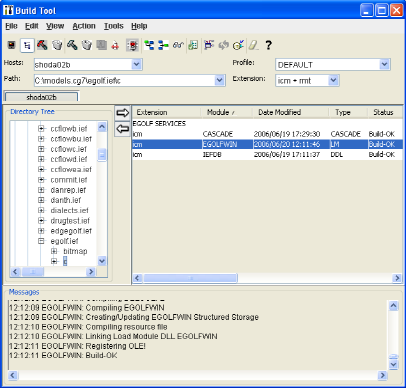
You can review the results of the installation by selecting the Load Module in the Build Tool as shown above and then selecting the Review  icon on the Toolbar.
|
Copyright © 2013 CA.
All rights reserved.
|
|