

Construction and Test › Generating the Application › Lesson Activity › Configure the Build Tool to Support Component Linking
Configure the Build Tool to Support Component Linking
As part of the application generation, we need to link the code from the component DJS_CAP_HANDICAPPER_01_00_I into our generated application.
Follow these steps:
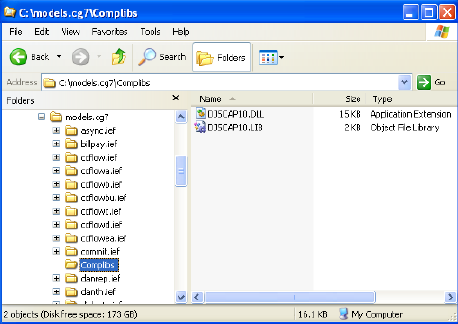
- Using Windows Explorer or a Command Prompt, create a folder to contain all of your consumed components operations libraries. For example, in the directory containing your models, C:\Models in our case, create a folder called Complibs.
- Copy the DJS_CAP_HANDICAPPER_01_00_I components operations LIB and DLL into this folder. The operations LIB and DLL are called DJSCAP10, and can be found in the C sub-directory within the components model (djscap1a.ief), which should be in your model directory.
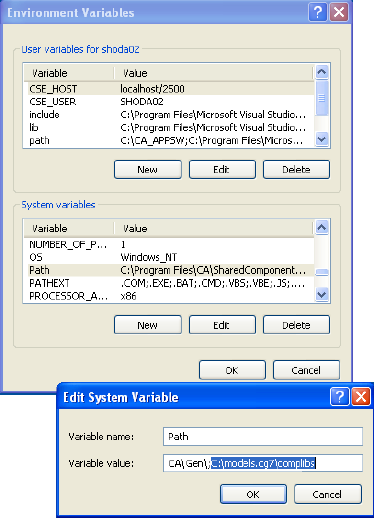
- Update the System Environment Path variable to include the path to the Complib directory so that the DLL can be found when it is needed. To do so, right-click My Computer on your desktop (if it is there) and select Properties from the pop-up menu. Then, from the System Properties dialog, select the Advanced tab, and then select the Environment Variables push button. Under the System variables select the Path variable, then select the Edit push button. Add the fully qualified path to the Complibs directory.
- If you have already closed the Build Tool, you can reopen it again by going to the Start menu, selecting Programs, and then follow the path to your CA Gen installation. Most likely, this will be CA, Gen rX (where X is the release number), and then Build Tool.
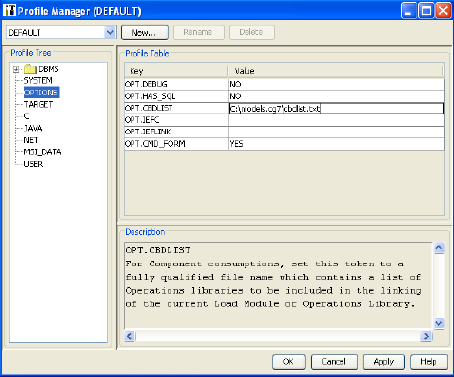
From the Build Tools Main Menu, select Tools and then select Profile Manager… to open the appropriate Profile Manager, most likely the Default. Select OPTIONS from the Profile Tree on the left. Double-click the Value cell opposite the OPT.CBDLIST token and enter the fully qualified path to a text file which will contain a listing of all of the component libraries used by this application. In the example below, we have used C:\Models\cbdlist.txt.
- Finally, we need to create the text file containing the list of components in the path we specified in the Build Tool. Open Windows Notepad and select File, select Save, and then select New.
- In the new untitled Notepad text file, enter the fully qualified path to the components Operations Library. Continuing with our example, it would be C:\Models\Complibs\DJSCAP10.LIB. Then from Notepad's Main Menu, select File, select Save As… and save this file as cbdlist.txt in the path C:\Models that we specified in the Build Tool.
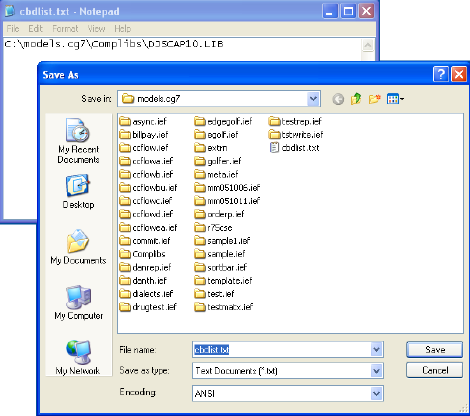
To summarize, in the Build Tool we have a token (OPT.CBDLIST) that points to a text file (C:\Models\cbdlist.txt). In this text file, we have a fully qualified listing of all the component libraries used by our application. In our particular case, it is only the one component and its LIB is in C:\Models\Complibs. Within the C:\Models\Complibs directory, we have copied the components LIB and DLL. And finally, we have identified the path to this directory to the operating system by updating the operating system's System Environment Path variable so it can pick up the DLL when it is needed. Normally this configuration is only done once. Any new components needed would be copied into the Complibs directory and the cbdlist.txt file would be updated.
Copyright © 2013 CA.
All rights reserved.
|
|