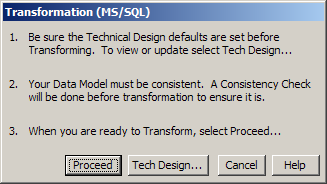
In the Tree Control, scroll down to the Technical Design folder and start the Transformation Wizard by double-clicking Transformation in the Tree Control. The Transformation Wizard dialog will open.
Note: The activated DBMS Technical Design (in this case MS/SQL) is indicated in the Title Bar.
We have already set the Technical Design defaults. Our Data Model should still be consistent. Select the Proceed push button to initiate the transformation.
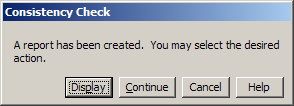
If a Consistency Check dialog pops up as shown below, then that indicates that your Data Model has Errors or Warnings. If the Continue button is disabled, then you have Errors that must be corrected before Transformation can take place. If you only have Warnings then you can continue the Transformation Wizard, but you should strive to understand the Warnings so as to determine their impact on your database generation.
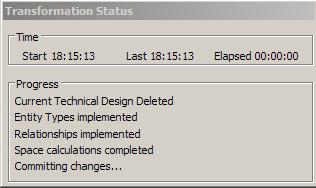
If you have a clean Consistency Check or Continue the Transformation with only Warnings, the Transformation should complete successfully. Notice from the messages in the Transformation Status dialog that the current Technical Design (if any) is deleted and replaced with a new Technical Design with no customizations. Therefore, had you previously done a Transformation and customized the Data Structure List and the Data Store List, transforming the Data Model again to pick up changes would remove those customizations. To preserve changes to the two diagrams after an initial transformation, use Retransformation.
Click Ok on the Informational dialog indicating the successful Transformation.