Previous Topic: Lesson ActivityNext Topic: Transform the Data Model


Select the Defaults for Technical Design

Follow these steps:

  1. If necessary, open the eGolf Services model.
  2. In the tree control, scroll down to the Technical Design folder and double-click Technical Defaults.
  3. In the list of Technical Designs, select your target DBMS. In the example shown in step 4, the target DBMS is Microsoft's SQL Server (MS/SQL).
  4. From the Toolbar, select the Open… Select the Defaults for Technical Design icon to activate the selected Technical Design. The two asterisks next to the selected Technical Design indicate that the design has been activated.
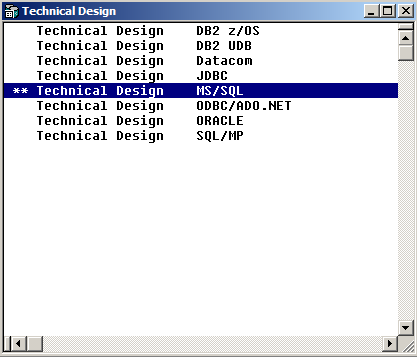
    Gen--Select the Defaults for Technical Design (2)

  5. If you would like to review the default Technical Design Properties,
    double-click the selected Technical Design. These settings influence the DDL and DML (Data Manipulation Language) that subsequently are generated. Review the Help for information on each control.

    When you are finished reviewing the properties, select the Cancel push button so as not to make any changes.

  6. Close the list of Technical Designs.
  7. Save your model.