

Design › Designing Client Procedures › Lesson Activity › eGolfer Home › Remove Scoring Record
Remove Scoring Record
See the example Web pages shown earlier and familiarize yourself with the Remove Scoring Record Web page. Most of the skills that we need to build this dialog have already been discussed, so the steps to complete this dialog are going to be more abbreviated than the steps for the other dialogs. See prior examples if you need help in accomplishing a particular step.
Follow these steps:
- Copy the Update Scoring Record dialog design to the Remove Scoring Record dialog.
- Change the literal Update Scoring Record to Remove Scoring Record.
- Change the literal Please note that the… to Are you sure you would like to remove this Scoring Record?
- Delete the literal Please update the following information….
- In the properties panel of the following fields, ensure that the Margin Box check box is un-checked and that the Read Only check box is checked:
- Adjusted Gross Score
- Course Rating
- Course Slope Rating
- Note
- Delete the literal Review your information before….
- Change the update Button Text to be remove, ensure it Is the Default Push Button, remove the Click event ADD SCORING PB ADD CLICK, delete the ADD SCORING PB ADD CLICK event name from the Action Name: entry field and allow the Toolset to add a new click event for this push button.
- Re-Position the fields as necessary.
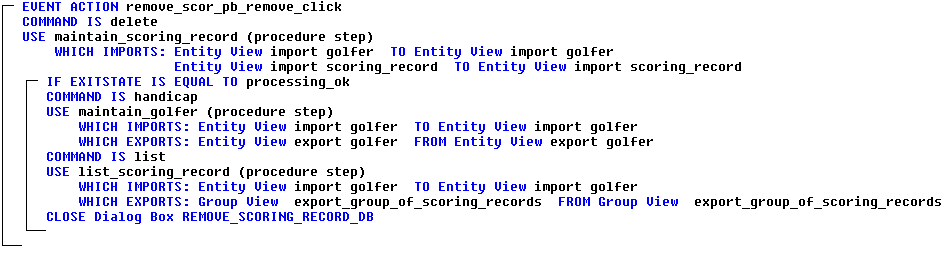
- Locate the new event handler in the action diagram. Copy all of the statements from the EVENT ACTION update scor pb add click event handler into the new event handler. In the new event handler, change the COMMAND IS update statement to COMMAND IS delete.
- Change the CLOSE Dialog Box UPDATE SCORING RECORD DB to CLOSE Dialog Box REMOVE SCORING RECORD DB.
The completed event handler should look like the following example:
- Save your model.
Copyright © 2013 CA.
All rights reserved.
|
|