Open the action diagram. Locate the event handler the Toolset created for us. Its name should be EVENT ACTION add scoring pbadd click.
Move, do not copy, the two procedure step USE statements added to create views into the EVENT ACTION add scoring pb add click event handler. To move both of them, using the Ctrl key, select each USE statement, press F7 on your keyboard, and with the cursor (which now resembles a hand), scroll down (if necessary) and select EVENT ACTION add scoring pb add click.
This event is also going to need to use the List Scoring Records server procedure step. We created an open event that uses the List Scoring Records server procedure step. Locate the EVENT ACTION egolfer home open and copy (do not move) both of its statements into our Add Scoring Record event. To copy them, select the statements, press F8 on your keyboard, and with the cursor (which now resembles a hand), scroll down (if necessary) and select EVENT ACTION add scoring pb add click.
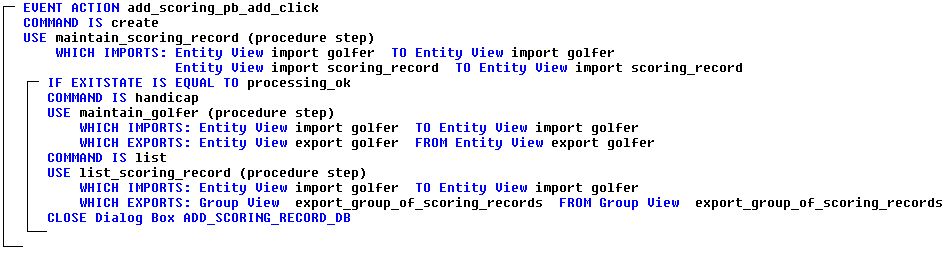
Rearrange or copy the statements in the EVENT ACTION add scoring pb add click event handler to produce the following logic. You will need to add an IF statement in addition to the GUI CLOSE statement. The completed event handler should look like the example: