

Design › Designing Client Procedures › Lesson Activity › eGolfer Home › Detail the Logic to Open the Secondary Dialogs
Detail the Logic to Open the Secondary Dialogs
We can now detail the logic for the six events we added. If you recall, we added one event for each push button we added. For the most part, each event is going to open a secondary dialog. Before we can open a secondary dialog, we first have to create the secondary dialogs.
Follow these steps:
- Close the eGolfer Home primary dialog design by selecting the Close Window icon from the Toolbar. Then, from the Tool Palette, select the Add Dialog icon and click directly on the eGolfer Home primary dialog. In the Window / Dialog Properties, change the Initial Position to System Placed, un-check System Menu, enter Update eGolfer for the Title:, and enter update egolfer db for the Name:, then select the OK push button. Locate the new dialog on the Navigation Diagram and drag it to the position roughly indicated in the picture of the Navigation Diagram earlier.
- Add the four remaining secondary dialogs in the same manner. See the following table for the titles and names of the dialogs. If your cursor indicates that you cannot select the primary dialog, ignore it.
|
Title
|
Name
|
|
Remove eGolfer
|
remove egolfer db
|
|
Add Scoring Record
|
add scoring record db
|
|
Update Scoring Record
|
update scoring record db
|
|
Remove Scoring Record
|
remove scoring record db
|
- From the Navigation Diagram, select the eGolfer Home primary dialog. From the Toolbar, select the Action Diagram icon. Your action diagram should now contain the six empty event handlers as in the following example. We will detail each of these event handlers in the next section.
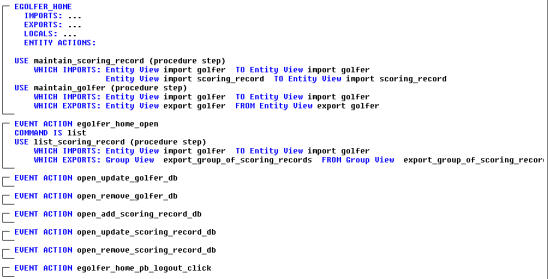
- Save your model.
Copyright © 2013 CA.
All rights reserved.
|
|