

The following steps describe how to generate a proxy from a Windows CSE. You can use CSE Construction Client Menu navigation to designate diagrams and dialogs. Other navigation techniques can also be used to achieve the same result.
Note: Proxy clients may only be generated from a Windows CSE and is not supported from a UNIX CSE.
Follow these steps:
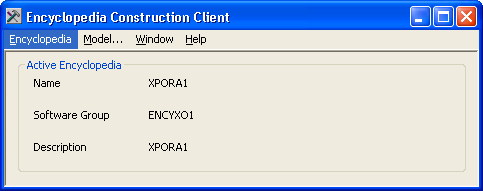
The Model List dialog opens.
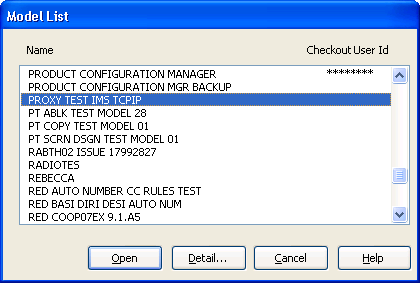
The Construction Model Selection window opens.
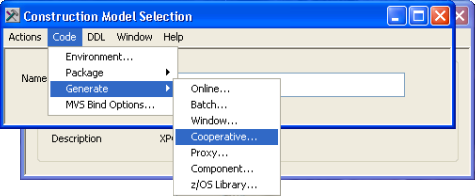
The Cooperative Code Generation window opens.
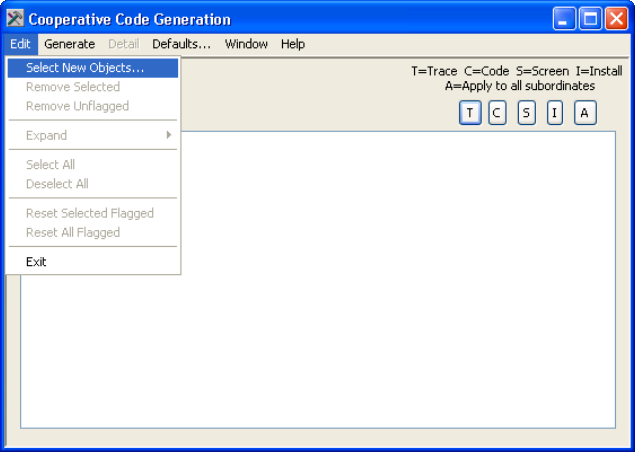
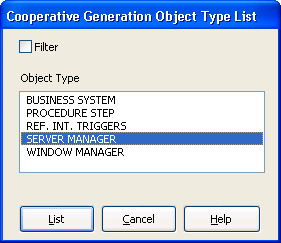
The Cooperative Generation Object Type List dialog opens.
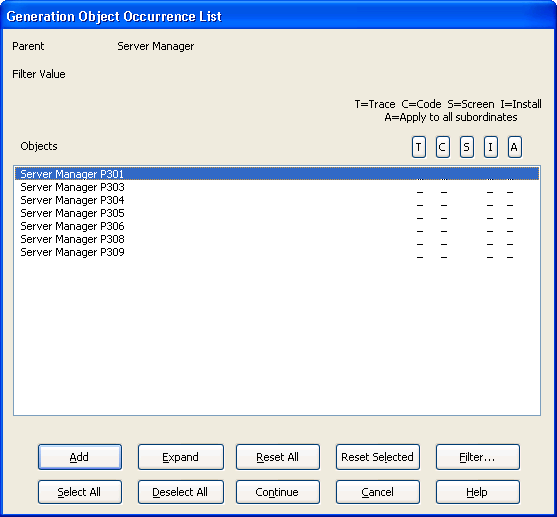
The Generation Object Occurrence List opens. A list of server managers is displayed.
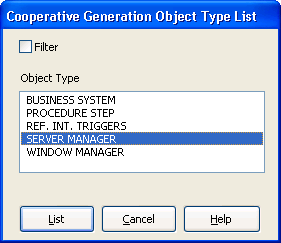
This adds the Server Manager to the Cooperative Application Generation, closes the Generation Object Occurrence List, and returns to Cooperative Generation Object Type List.
This closes the dialog and returns back to Cooperative Code Generation.
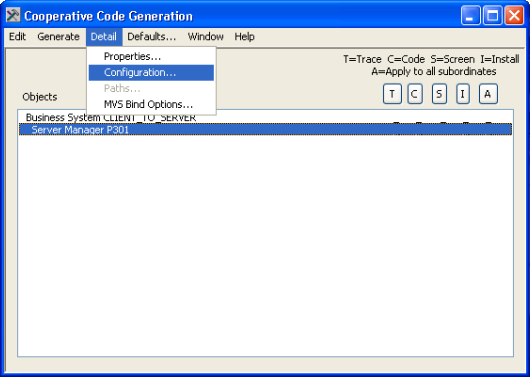
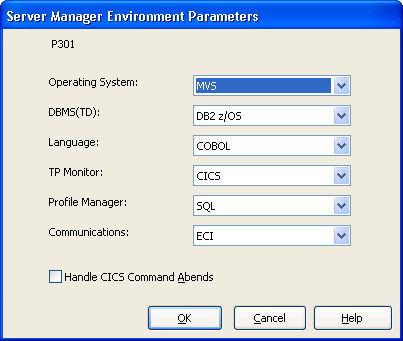
The Server Manager Environment Parameters dialog is displayed for the selected Server Manager.
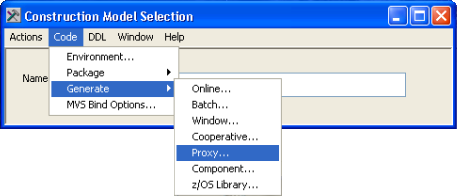
The Proxy Code Generation dialog opens.
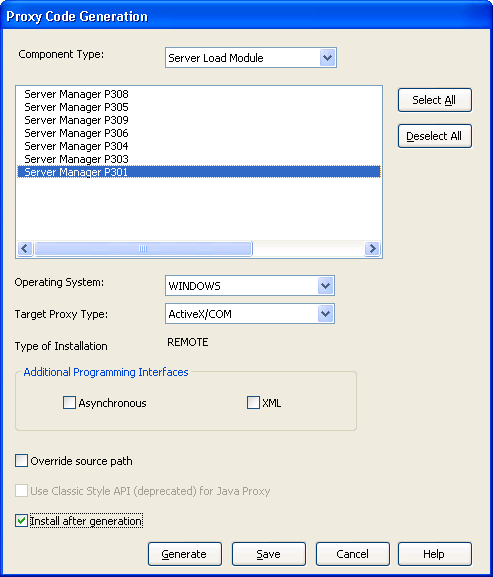
Note: When a model contains no CBD or CBD 96 components but does contain cooperative server load modules, the Server Load Module component type is automatically selected.
Note: The Generation process always generates all interfaces and methods associated with the selected component.
Note: The Java proxy generates only for the JVM operating system. The Windows Build Tool builds the generated code and you can deploy it to any Java-compliant environment.
From the Target Proxy Type list, select the type of generated code you want for the proxy.
The following table lists the Target Proxy Type options for a given operating system:
|
Operating System |
Target proxy type |
|---|---|
|
Windows |
ActiveX/COM, C |
|
JVM |
Java |
|
UNIX |
C |
|
CLR |
.NET |
Note: The Additional Programming Interfaces option is disabled when generating C Proxies. The C proxy is a generated C language header file. The C proxy runtime provides the supported programming Interfaces. The Override Source Path option specifies whether to override the default destination source path with the value specified in the entry field.
If Override source path is selected, the value you enter in the entry field is used as the destination source path in the target environment.
Select Install after generation to automatically package the generated files into a remote file.
Note: The Install after generation option is disabled when generating C proxies. The C proxy is a generated C language header file. The C proxy does not need the Build Tool, as the generated source code is compiled by the user.
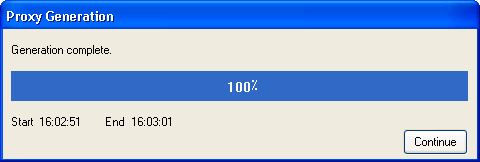
The Proxy Generation dialog opens. After the generation completes, it displays a Generation Complete message.
The Proxy Generation Report opens in a new window. The status of proxy generation can be verified from this.
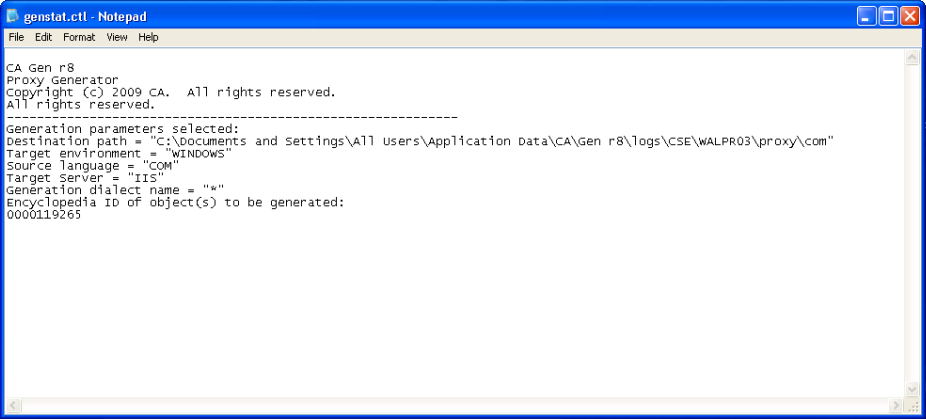
The Proxy Generation produces a list of generated source files. If the option Install after generation is selected on the Proxy Generation dialog, a remote file is also generated.
You can find the source files in the server directory specified in the Override source path on the Proxy Generation dialog. If the source path is not specified, the source is generated in the CSE directory under the userid initiating the generation. Proxy Generation always produces a proxy directory and a subdirectory for the Target Proxy Type.
For the previous example, you can find the source code in: \CA\CSE\ENCY\proxy\com\src.
|
Copyright © 2015 CA Technologies.
All rights reserved.
|
|