

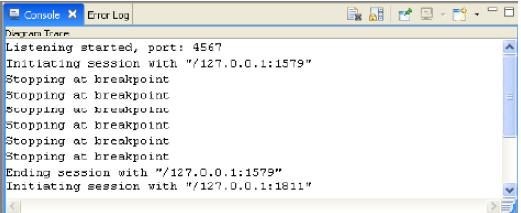
The Diagram Trace Utility logs all standard output in the Console view, which is a read-only view. You can review the contents of all the messages in the Console view during a debugging session. The following illustration shows sample messages logged in the Console view:
You can also search for specific text in the Console view.
To search for text in the Console view
Follow these steps:
The Find/Replace dialog appears.
Example: The following illustration shows a search initiated to find the phrase Initiating session:
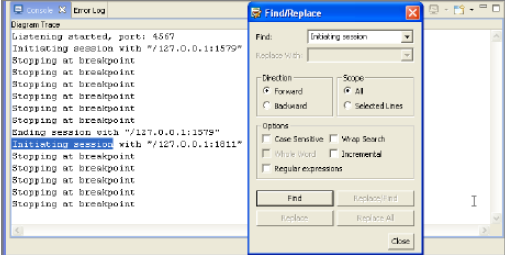
Note: The Console view is read-only and does not support the Replace/Find, Replace, or Replace All options.
The Diagram Trace Utility finds and highlights the next occurrence of the specified text in the Console View.
Note: You can type a different word or phrase in the Find box and repeat Steps 1 and 2 to find the occurrences of the new text.
The Find/Replace dialog closes.
|
Copyright © 2013 CA.
All rights reserved.
|
|