

You can add bookmarks to your Action Diagram to help you navigate quickly in the PAD statements.
Follow these steps:
The Bookmarks view appears in the Diagram Trace Utility main window.
The Add Bookmark dialog appears.
The new bookmark is added to the Bookmarks view.
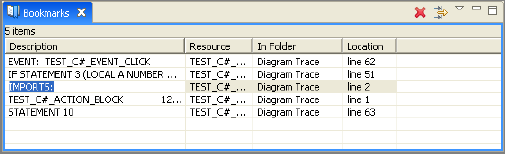
Example: The following illustration shows a sample bookmarks that has been added to the Bookmarks view.
|
Copyright © 2013 CA.
All rights reserved.
|
|