

Navigating the Diagram Trace Utility › Import Preferences or PAD Files into a Debug Session
Import Preferences or PAD Files into a Debug Session
The Import Preferences feature provides a wizard that lets you import preference settings from a file using the following import options:
- Import preference settings from a previously exported Preference file saved on the local system.
- Import CA Gen PAD files from generated Action Diagram code in a generated target language source file. The file to be imported must be one of the following generated source file types:
- .c or .sqc (C language)
- .java (Java language)
- .cs (C Sharp.NET language)
Follow these steps:
- Select File, Import from the main menu.
The Select an Import Source dialog appears.
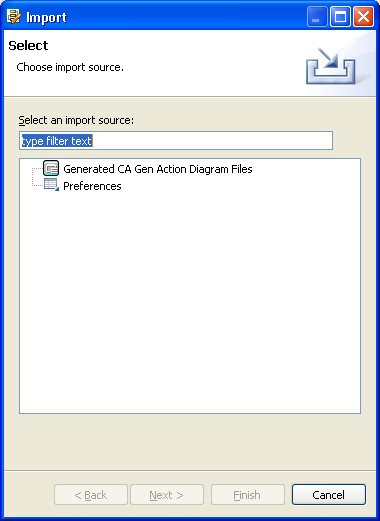
- Click Preferences and click Next.
The Import Preferences dialog appears.
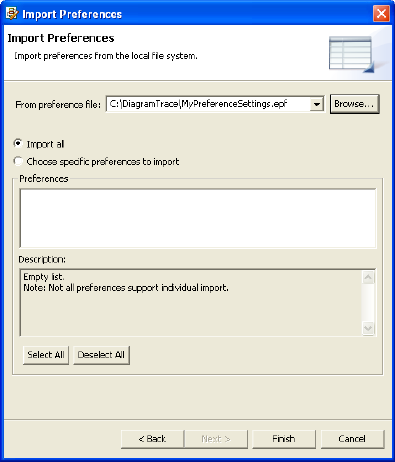
- Click Browse to open the Windows Import from File dialog and select the file that contains the Diagram Trace Utility Preference settings you previously exported, and then click OK.
The path for the selected file appears in the From preference file field.
Note: The name of the specified preference import file must have an .epf suffix.
- Select Import All or select specific preferences to import from the displayed selection list and click Finish.
The preferences you selected are imported into the current debugging session.
Note: The Diagram Trace Utility does not support the Choose specific preferences to import option.
To import CA Gen PAD files from generated Action Diagram code
- Select File, Import from the File menu on the main menu bar.
The Select an Import source dialog appears.
- Select Generated CA Gen Action Diagram Files and click Next.
The Import PAD files dialog appears.
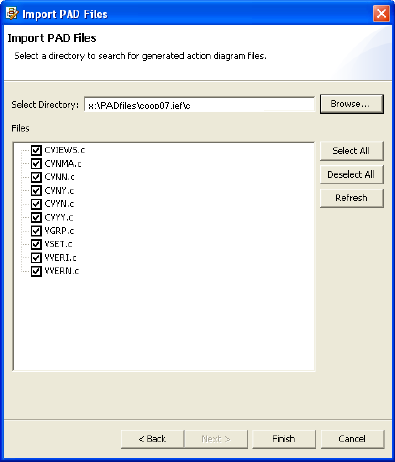
- Click Browse to open the Window Browse for Folder dialog and select the folder containing the generated PAD files to import.
The path to the selected folder appears in the Select Directory: field.
- Click Select All to select all PAD files and click Finish.
Note: If you do not want to import all files, you can deselect one or more PAD files or you can click Deselect All, and then select the PAD files to be imported.
All selected PAD files are imported into the current Diagram Trace Utility debug session. You can view the PAD files in the PAD Code View editor.
Copyright © 2013 CA.
All rights reserved.
|
|