

Scrolling through the display of a single repeating group can be handled automatically, providing that the contents of the repeating group will never be too large for the generated transaction to handle.
For a large group, or for more than one group on a screen, a procedure can handle scrolling explicitly by tracking the values of key fields used in the last display of the screen, and explicitly indexing and retrieving data as required by scrolling commands entered by the user.
The following illustration is an example of a procedure called List Customers. This procedure produces a list of CUSTOMERS.
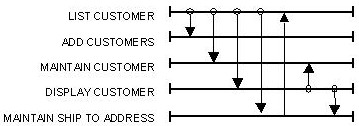
The following illustration shows how the procedure, based on the value of an action code next to each, flows to a process-implementing procedure.
The following screen illustrates the screen layout for the procedure List Customers:
TRANCODE                                                               MMDDYY
                               CUTOMER LIST                            HH:MM:SS
                                                                       <USERID>

STARTING CUSTOMER NUMBER: 9999999999  LIST SEQUENCE (NAME OR NUMBER) XXXXXX
STARTING CUSTOMER NAME: XXXXXXXXXXXXXXXXXXXXXXXXXXXXXX

ACT Number       Name                          Status     Credit Rating
X 9999999999     XXXXXXXXXXXXXXXXXXXXXXXXX       XX            9
X 9999999999     XXXXXXXXXXXXXXXXXXXXXXXXX       XX            9
X 9999999999     XXXXXXXXXXXXXXXXXXXXXXXXX       XX            9
X 9999999999     XXXXXXXXXXXXXXXXXXXXXXXXX       XX            9
X 9999999999     XXXXXXXXXXXXXXXXXXXXXXXXX       XX            9
X 9999999999     XXXXXXXXXXXXXXXXXXXXXXXXX       XX            9
X 9999999999     XXXXXXXXXXXXXXXXXXXXXXXXX       XX            9

ACT  X-Full Screen Display  M-Maintain Customer Details  S-Maintain Ship To Info
Command ===>
F3=EXIT    F7=PREVIOUS    F8=NEXT
The user can choose between displaying the customers in NAME or NUMBER sequence.
The user can request a DISPLAY by entering DISPLAY in the Command field or by pressing the function key associated with the command value “display.” This causes LIST CUSTOMERS to build a list starting with the customer specified in the STARTING CUSTOMER fields.
The user can requests a NEXT operation by entering a command or pressing the appropriate function key. This will cause the last populated item in the incoming repeating group view to be used as the starting point of the list. Assuming that the example screen does not use the automatic scrolling feature, this will result in the last entry on the screen before the NEXT operation appearing at the top of the list after the NEXT operation.
The NEXT action in this example works whether or not the automatic scrolling feature is used.
If automatic scrolling were specified for the screen, the CA Gen Dialog Manager would handle all NEXT operations until the user displayed the final item of the repeating group.
If the user were to enter NEXT again, the Dialog Manager would pass the next command to the Procedure Action Diagram for processing.
The following sample code, View Definitions for List Customers, shows the views for the procedure List Customers:
Import Views
------------------------------------------------------------------------------
Group View IN_REPEATING
     Cardinality Min: 1  Max: 10  Avg: 10
     Optional Import
View IMPORT_REPEATING of entity CUSTOMER
     Optional_Import
     Attributes:
          NUMBER
          NAME
          STATUS
          CREDIT_RATING
View IMPORT_REPEATING of work group LINE_ITEM
     Attributes:
          LINE ACTION
View IMPORT_STARTING of entity CUSTOMER
     Attributes:
          opt NUMBER
          opt NAME
View IMPORT_STARTING of work group LINE_ITEM
     Attributes:
          opt SEQUENCE
------------------------------------------------------------------------------
Export Views
------------------------------------------------------------------------------Group View OUT_REPEATING
     Cardinality Min: 1  Max: 10  Avg: 10
View EXPORT_REPEATING of work group LINE_ITEM
     Attributes:
          LINE ACTION
View EXPORT_REPEATING of entity CUSTOMER
     Attributes:
          NUMBER
          NAME
          STATUS
          CREDIT_RATING
View EXPORT_STARTING of work group LINE_ITEM
     Attributes:
          NUMBER
          NAME
------------------------------------------------------------------------------
Local Views
------------------------------------------------------------------------------View LOCAL_STARTING of entity CUSTOMER
     Attributes:
          NUMBER
          NAME
------------------------------------------------------------------------------
Entity Action Views
------------------------------------------------------------------------------ View of entity CUSTOMER
      Attributes:
           NUMBER
           NAME
           STATUS
           CREDIT RATING
Procedure Action Diagram for List Customers (Part 1)
LIST_CUSTOMER
     IMPORTS:        Group View in_repeating
                     Entity View import starting customer
                     Work View import_starting line_item
     EXPORTS:        Group View out_repeating
                     Work View export_starting line_item
                     Entity View export_starting customer
     LOCALS:         Entity View customer
     ENTITY ACTIONS: Entity View customer
     EXIT STATE IS requested_operation_complete
     SET export_starting line_item sequence TO import_starting line_item sequence
     MOVE import_starting customer TO local_starting customer
          IF COMMAND IS EQUAL TO next
               FOR EACH in_repeating
                    IF import_repeating customer number IS NOT EQUAL TO 0
                    MOVE import_repeating customer TO local_starting customer
                    MOVE import_repeating customer TO export_starting customer
          IF import_starting line_item sequence IS EQUAL TO NAME
               READ EACH CUSTOMER
                    TARGETING out_repeating FROM THE BEGINNING UNTIL FULL
                    SORT BY ASCENDING customer_name
                    WHERE DESIRED customer_name
                         IS GREATER OR EQUAL TO local_starting customer_name
                    MOVE customer TO export_repeating customer
          IF out_repeating IS EMPTY
          EXIT STATE IS no_more_customers
          ELSE
               READ EACH customer
                    TARGETING out_repeating FROM THE BEGINNING UNTIL FULL
                    SORT BY ASCENDING customer_name
                    WHERE DESIRED customer_number IS GREATER OR EQUAL TO
                         export starting customer number
                    MOVE customer TO export_repeating customer
...
If the user requests a PROCESS operation, the first item in the list that has a valid line item action is used to trigger a process-implementing procedure (based on the setting of EXIT STATE in the action diagram in Procedure Action Diagram for List Customers (Part 1) and the flows shown in Dialog Flow Diagram for List Customers.
Assume that EXPORT_STARTING_CUSTOMER is specified as Data Sent on each of the flows from List Customers. Each of the flowed-to procedures will have their import views populated with the number of the selected customer when they begin execution if the flow action is Execute first. They will have their screens displayed if the flow action is Display First. This is illustrated in the following sample code.
Procedure Action Diagram for List Customers (Part 2)
...
               IF out_repeating IS EMPTY
               EXIT STATE IS no_more_customer

          ELSEIF COMMAND IS EQUAL TO process
               FOR EACH in_repeating
                    TARGETING out_repeating FROM THE BEGINNING UNTIL FULL
               MOVE import_repeating line_item TO export_repeating line_item
               IF import_repeating line_item line_action IS NOT EQUAL TO SPACES
               MOVE import_repeating customer TO export_starting customer
               SET export_repeating line_item line_action TO SPACES

               CASE OF import_repeating line_item line_action
               CASE M
               EXIT STATE IS link_to maintain_customer
               CASE S
               EXIT STATE IS link_to maintain_ship_to
               CASE X
               EXIT STATE IS link_to display_customer
               OTHERWISE
               EXIT STATE IS unknown_line_action
               SET export_repeating line_item line_action TO ?
               MAKE export_repeating line_item line_action ERROR

          ELSE
          EXIT STATE IS unknown_command
In the sample code, Dialog Flow Diagram for List Customers, notice that all flows are implemented as links.
Notice also that the logic in the Procedure Action Diagram sets the EXPORT LINE_ITEM_ACTION of the selected line item to spaces (line 66). Assuming that the flow action for the return of each link is Execute first, List Customers will be re-executed whenever one of the process-implementing procedures returns to it. If List Customers finds another valid line item action, it will trigger another flow.
To a user entering multiple valid line actions, it will appear that all those actions are processed without any intervening displays of the screen for List Customers.
|
Copyright © 2013 CA.
All rights reserved.
|
|