

This section describes how CA ERwin DM users can use a concurrent license with CA ERwin DM Standard Edition or Workgroup Edition.
Note: Before you start this procedure, your System Administrator must set up the License Server and import the license to it. You have the License Server details and know which edition to use.
In the concurrent licensing model, licenses are stored in a License Server. You check out a license to use CA ERwin DM; when you close the application, the license is checked in. The License Server increases or decreases the count of available licenses by one when you check in or check out a license.
Note: If all the licenses are checked out, you cannot open another instance of CA ERwin DM.
When using CA ERwin DM, if you lose connection to the License Server, the License Server recovers the license and CA ERwin DM closes. The recovery happens after four hours of disconnection and several warning messages.
The following diagram illustrates how to use CA ERwin DM with the concurrent licensing model:
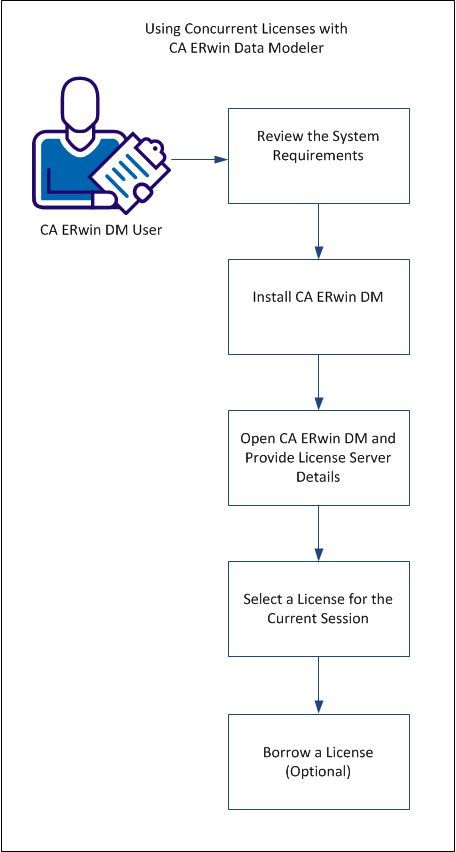
Perform the following tasks to use concurrent licenses:
Review the system requirements for the computer on which you want to install CA ERwin DM.
Note: CA ERwin DM support for Microsoft Windows 7 is certified on a 32-bit computer. CA ERwin DM is a 32-bit application. You may experience problems running CA ERwin DM on a 64-bit computer unless you have the 32-bit drivers installed.
Note: The minimum screen resolution supported is 1024 x 768. If your screen resolution is less than the minimum supported, some portions of the screen are not visible.
Install CA ERwin DM to create, update, and maintain conceptual, logical, physical, and dimensional models. For the Workgroup Edition, install CA ERwin DM on each computer that accesses Mart. Install CA ERwin DM Version 9 using the same executable file for Standard and Workgroup Editions.
Follow these steps:
The Installation Wizard opens.
The program files are copied and CA ERwin DM is installed.
Note: You can install CA ERwin DM Navigator from the ERwin.exe file or from a separate Navigator.exe file.
If you are using a concurrent license, when you close CA ERwin DM or disconnect from your network, your license is checked in to the License Server. When you launch CA ERwin DM again, select the license you want to use for that session.
Follow these steps:
The CA ERwin DM Licensing dialog appears.
Connects to the License Server and acquires a concurrent license for the Workgroup Edition. Suppose the Workgroup Edition license is not available. If you have purchased the Standard Edition license, then select If unavailable, attempt to acquire a concurrent Standard Edition license. A concurrent Standard Edition license is checked out, if available.
Connects to the License Server and acquires a concurrent license for the Standard Edition.
Connects to the License Server and acquires a concurrent use license for SQL Azure.
Note: To use a concurrent license for SQL Azure, select one of the concurrent license options mentioned previously, and then select this option.
Example: 27000@remotecomp1, 27000@255.255.255.255
CA ERwin DM opens.
Note: If no license is available, CA ERwin DM Community Edition opens.
You have selected a concurrent license to use CA ERwin DM.
|
Copyright © 2013 CA.
All rights reserved.
|
|
