

If you use the concurrent licensing model, you can borrow licenses to use CA ERwin DM on mobile devices that support CA ERwin DM. When you borrow a license, the license rights are available on your local computer. CA ERwin DM opens using the borrowed license when you are not connected to the License Server.
You can borrow a license from the Licensing dialog at the time of opening CA ERwin DM.
Note: To borrow a Navigator license, specify the server path that has a valid CA ERwin DM Navigator license.
Follow these steps to borrow a license at the time of opening CA ERwin DM:
The CA ERwin Data Modeler Licensing dialog appears.
This Server Path detail is reflected in the Help, Licensing dialog.
A license is checked out from the License Server and the rights are available on your local computer.
To return a license before it expires, start CA ERwin DM and enter the server path in the CA ERwin Data Modeler Licensing dialog. After CA ERwin DM opens, click Help, Licensing, and then click Return Borrowed Licenses Early.
Note: If a license expires or is returned before it expires, you have four hours of buffer time to save your work. After four hours of the expiry of the license, CA ERwin DM closes.
When the license expires, one of the following events happen:
Use a local license if one of the following requirements applies:
In this licensing model, the license is stored on your local computer.
The following diagram illustrates how to use a local license:
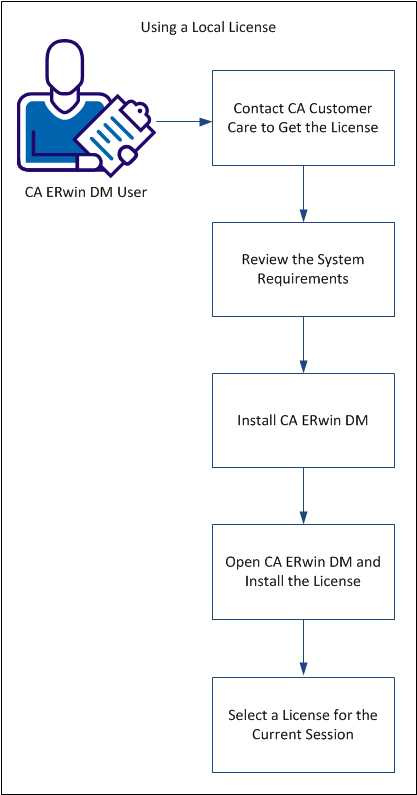
Perform the following tasks to use a local license:
Contact CA Customer Care by telephone or the web licensing form with the following items to receive your license files:
After you receive license files, copy them to a folder on the License Server.
Note: To get the MAC address, log on to CA ERwin License Administrator and click the System Information tab. You can also open the Windows command prompt on the License Server and type IPCONFIG /ALL.
Review the system requirements for the computer on which you want to install CA ERwin DM.
Note: CA ERwin DM support for Microsoft Windows 7 is certified on a 32-bit computer. CA ERwin DM is a 32-bit application. You may experience problems running CA ERwin DM on a 64-bit computer unless you have the 32-bit drivers installed.
Note: The minimum screen resolution supported is 1024 x 768. If your screen resolution is less than the minimum supported, some portions of the screen are not visible.
Install CA ERwin DM to create, update, and maintain conceptual, logical, physical, and dimensional models. For the Workgroup Edition, install CA ERwin DM on each computer that accesses Mart. Install CA ERwin DM Version 9 using the same executable file for Standard and Workgroup Editions.
Follow these steps:
The Installation Wizard opens.
The program files are copied and CA ERwin DM is installed.
Note: You can install CA ERwin DM Navigator from the ERwin.exe file or from a separate Navigator.exe file.
When you first open CA ERwin DM, the Community Edition opens. Provide the details of the license to use the edition that you have purchased.
Follow these steps:
The CA ERwin DM Community Edition opens.
The Licensing dialog appears displaying the MAC addresses discovered on your computer.
A message appears indicating that your license file was successfully moved to the application's data directory.
You have configured CA ERwin DM to use a local license.
If you need assistance with licensing, open an issue online at the CA ERwin Data Modeler support site.
Every time you launch CA ERwin DM, select the license you want to use for that session.
Follow these steps:
The CA ERwin DM Licensing dialog appears.
CA ERwin DM opens using the license stored on your local computer. If a local license is not available, an error message appears.
If you want to use SQL Azure, your SQL Azure license must also be available on the local computer.
You can select the Do not show this dialog again check box, so that you always use the license available on your computer.
Note: To restore the Licensing dialog, open CA ERwin Data Modeler, click Tools, Options, Reset all Messages, and close CA ERwin Data Modeler. The next time you open CA ERwin Data Modeler, the Licensing dialog appears.
You have selected a local license to use CA ERwin DM.
|
Copyright © 2013 CA.
All rights reserved.
|
|
