

CA DMM includes the following distinctive features:
Flexibility is critical to supporting complex migration scenarios. CA DMM is a premier solution for system migration and the first to offer two system migration methods:
Deferred migration is a two-step process. In step one, you create a DNA file from the source system (the old computer) and store the file on a local computer, network server, network appliance, or Apache Web server. The DNA file contains each users unique PC DNA. In step two, you apply the DNA file to the destination system (the new or refreshed computer) at any time. In secure environments, the DNA file can be password-protected.
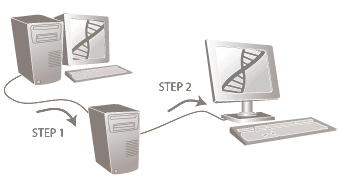
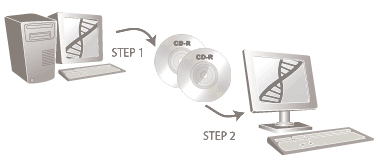
You do not have to save the DNA to a network drive; you can also save it to removable media, such as CD-ROM, DVD, Zip drives.
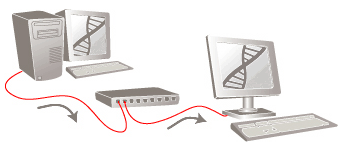
Real-time migration involves moving a PC’s DNA over the network from a source system to a destination system with no intermediary storage. In secure environments, the source system can be password-protected. CA DMM supports real-time migrations on both IPv4 and IPv6 environments.
When several users share computers, every users PC DNA must be effectively migrated to the new computer. CA DMM provides features for migrating user profiles, migrating from NT domains to Active Directory, creating accounts, redirecting users, and providing security.
CA DMM lets you migrate the currently logged in user or multiple users on a given PC. When performing a current user migration, all settings that are migrated from the source computer are selected from the user that is logged in to migrate. During a current user migration, no user profile settings are migrated. When migrating multiple users, CA DMM lets you selectively migrate any or all user profiles that exist on the computer with the settings and data for each user.
CA DMM creates new accounts on the destination computer when migrating multiple users. It provides three options regarding user passwords: leave the current password; randomly generate a password using rules that you define; or require the user to reset his/her password when logging in to the new system after the migration is complete. CA DMM fully supports the option to migrate users group memberships and NTFS (file and folder) security.
CA DMM migrates user profiles from NT domain systems into Active Directory (AD). Administrators can combine the two processes of desktop and AD migration into one easy-to-execute process. CA DMM redirects users into AD, renaming them to a new naming convention, and migrating the file/folder and group security simultaneously. It lets you migrate only those users who are active, effectively cleaning up your directory system by omitting obsolete users. Migrations from the NT domains to NT domains and AD to AD are also fully supported.
CA DMM automatically creates user account on a system when a user is redirected to a different path. The account is created when you rename or move the user into a different domain regardless of the source and destination OS.
You can dynamically select users during an automated migration process by using the command-line interface. CA DMM allows wild cards, explicit include/exclude rules and definition of date ranges of an accounts last access date, all of which help you eliminate the migration of obsolete users.
CA DMM migrates one of the most comprehensive sets of user-customized settings and includes advanced data collection capabilities for robust migration. This minimizes help desk calls, because users are not trying to reconfigure their own systems.
System settings are all of the configuration information for the operating system of a PC. They include wallpaper, keyboard configurations, mouse pointers, screen savers, network identification, and printers, and so on. CA DMM migrates thousands of these customized settings over 160 applications between same or different versions of those applications. This keeps users productive, as they do not have to recreate preferences such as custom dictionaries, macros, display properties.
CA DMM provides a filter mechanism to migrate files and folders from the source system. These criteria can include or exclude file name, location, modification or creation date, size and file types and can even omit specific files and folders from filter or from all filter processing.
File redirection lets the migration process capture all data from a source computer, wherever it is located, and save it in a predefined location on the destination, such as the user’s “My Documents” folder. Redirection lets you clean up the directory structure of data based on the same functionality of the data filters.
Depending on the migration needs, a DNA file can exceed 4-GB data. CA DMM can transfer large files regardless of networking limitations. You can save DNA files to your network, including network appliances and Apache Web servers. Additionally, you can save DNA files to CD-ROM, Zip disks, or other forms of removable media.
A comprehensive logging feature tracks the success of the migration and monitors the overall progress of an enterprise-wide migration process. You can reverse a migration and can examine detailed logs to help you develop an effective migration scenario. Some of the logs CA DMM provides are as follows:
You can redirect users, drives, data files and folders, and applications settings from the location on the source system to new locations on the destination. This lets you change and manage drive configurations, redirect the application settings to a new location, and better organize a users data file and folders on the destination system.
CA DMM provides support for Windows Mail on Windows Vista. You can migrate the Windows Mail settings from a Windows Vista source computer to a Windows Vista destination computer.
You can use Windows Mail script to migrate Microsoft Outlook Express settings from a Windows XP or Windows 2000 source computer to a Windows Vista destination computer, which in turn supports Windows Mail on Windows Vista while migrating from Windows XP or Windows 2000.
To reduce IT costs, you automate the migration process. Large-scale migration projects that span an enterprise may require integration into a larger overall process. To support both, you can run CA DMM from a central location using shared configuration resources, such as option files and templates. You can use environment variables that are unique for each PC in the process to differentiate homogeneous PC DNA. After the migration process is complete, you can use return codes to trigger the next steps in a larger process. And you can automate in “Quiet Mode,” invisible to the end user.
You can use the CA DMM command line to automate a migration process that can be integrated into a large-scale, enterprise-wide migration deployment using existing software investments.
CA DMM provides environment variables that you can use in command lines and the user interface. Variables let you uniquely name DNA files and log files, selectively identify the correct DMM template file to use for the migration, identify, and migrate selected users, and much more.
You need not install CA DMM in the traditional sense. It can be run from a network share, from a local drive or even directly from the installation CD. Any migration type (real-time, deferred, or removable media) can be performed without installing the product locally. The resources included in the product (such as the executable, template files, configuration files, and DNA files) can be accessed from a centralized location by multiple systems.
The DMM Options file is an XML-based file that lets you customize the configuration of the product. You can customize every aspect of how the product is configured to perform efficiently in any environment.
CA DMM returns codes upon completion of a migration. You can capture the return codes for use in a larger overall process to determine the next step in the process.
You can customize the wizard user interface to control access to only the pages or functions you want the technicians or end users to access. You have complete control over an automated migration process, and the flexibility to let the technicians or end users select certain items for migration, such as specific files or folders.
Each time that you edit your DNA files, CA DMM saves the changes as a revision. If you have to rollback to an earlier revision of a DNA file, you can. Additionally, you can use Always Current Scheduler to ensure that regular revisions of your PC's DNA are stored to a safe location.
While applying a DNA file on the destination, CA DMM gives you the choice to restore only relevant files and folders from the Files and Folders tree. You can customize the selection in the Files and Folders tree (on the apply side) for the files and folders that were selected on the source. This helps in logically separating and applying only those files and folders that are applicable to the requirements of a particular user group. You do not need to apply the entire Files and Folders tree on the destination.
You can also decide to enable or disable the Selective Apply feature, by using the Enable Selective Apply of Files and Folders option, depending on your requirements. For example, if you have many files to migrate and you want the migration to be faster, you can disable the Selective Apply feature and improve performance of the migration.
CA DMM lets you migrate open and locked files. You do not need to close the corresponding applications before starting the migration. As a result, no interruption in work takes place and you can continue working on the files even while you migrate. You can migrate open and locked files using deferred migration and real-time migration modes. In deferred migration mode, you back up open and locked files into a .dna file (or a self-extracting file). In real-time migration mode, you directly migrate open and locked files from a source computer to a destination computer.
CA DMM provides a flexible collection of time-saving automation tools: The Migration Toolkit reduces the time that is required to develop and refine a process of a new OS rollout, PC software/hardware refresh, or disaster management scenario.
Provides top-level command and control for large-scale enterprise migration to streamline the migration process. Wizards ask you key questions to facilitate the automation of your migration process, and then create the necessary elements for a smooth execution of the migration. In addition, DMM Director automatically logs the entire process.
Saves time and increases control over your migration process by creating custom templates that you can tailor to any user, department, or organization. DMM Template Editor lets you customize a migration regardless of the user environment.
Lets you examine the contents of DNA files easily, including revisions to the individual files, folders, and settings that are contained in the DNA file. You can also apply individual files, folders, or settings directly from DMM Explorer. Administrators can streamline, analyze, reference, troubleshoot, catalog, and fine-tune the automation process.
Lets you update and configure the DMM Options files without having to know or understand the XML file format.
Lets you create scripts to migrate in-house or custom applications. You can develop scripts to fit any situation or migration need.
Lets you migrate domain information, user profiles, application settings, data, and other resources, as is. Your existing settings, data, and other resources remain unchanged, though a new user ID and computer name are created.
|
Copyright © 2014 CA Technologies.
All rights reserved.
|
|