

To display the log data of multiple systems at the same time on your screen, use the NEW command. For example,
Command: NEW
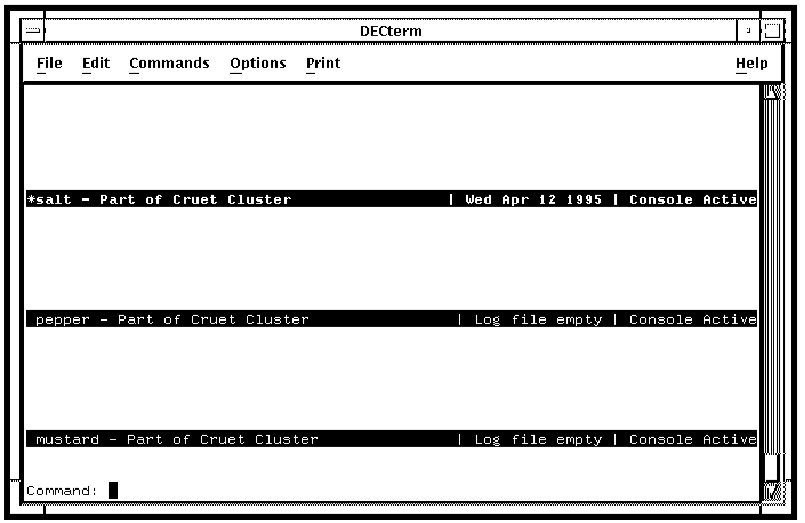
When you use the NEW command, the screen splits horizontally adding a new log window. The currently selected log window is indicated by its banner being in bold reverse video and by having an asterisk (*) to the left of the system name, as shown in the following figure. To select another log window, use the Up or Down arrow keys as described in Reading Current Console Log Data, earlier in this chapter, or the NEXT or PREVIOUS commands.
You can then use the VIEW command to change the system being displayed in the currently selected area. If you have not been given access to this system in the configuration database, you cannot view this information.
If your keyboard does not have the Up Arrow and Down Arrow keys, use the NEXT and PREVIOUS commands, shown in the table in the section Monitor Interface Commands, earlier in this chapter.
At any time you may use the TWO command. This causes your monitor interface session to be split between two log windows.
The following figure shows what multiple log windows look like using a workstation log window.
|
Copyright © 2010 CA.
All rights reserved.
|
|