

|
|
|
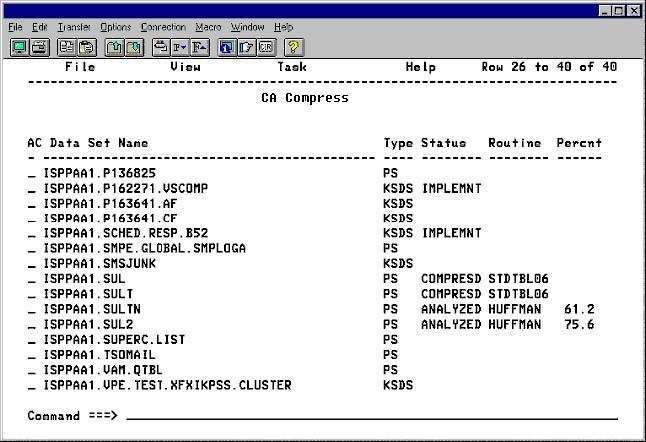
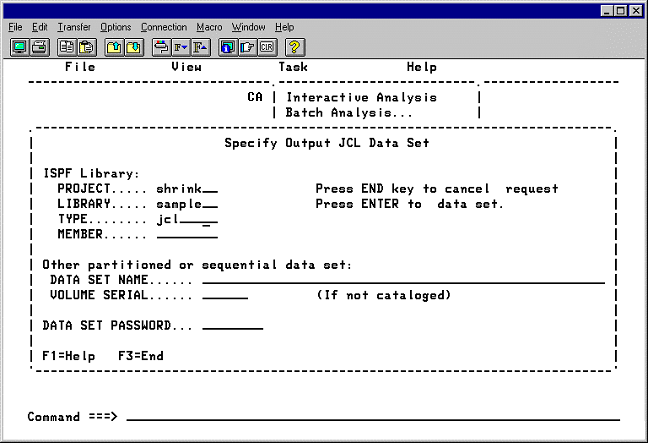
The process described below creates the JCL and control statements needed to run TCF Batch Analysis. The process can be started with or without a list created using the File option. For more information about TCF Batch Analysis, see the chapter Test Compression Facility in the CA Compress Reference Guide.
Note: If AUTO IMPLEMENT is specified in SYSTEM DEFAULTS and the default criteria are met, the data set is automatically implemented using mode SCHEDULED OPEN.
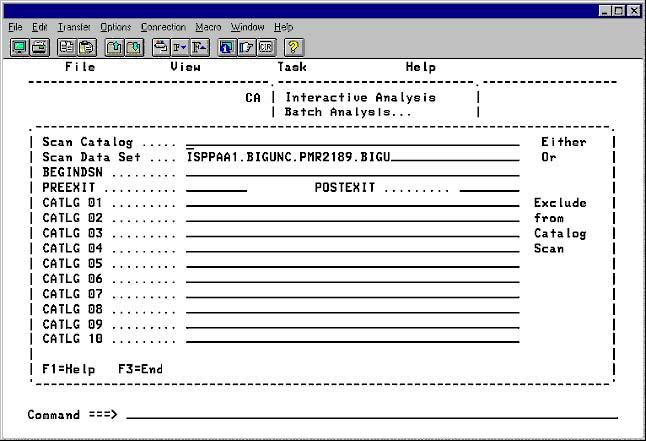
The following section describes the field names displayed in the Set Command panel and the contents.
The name of the catalog to scan. Select catalog or data set to scan, but not both.
The name of the data set to scan. If a list was created, this field contains the first data set name from the list.
Bypass all selected data sets prior to the one specified.
Access a user-created routine before analysis of a data set begins.
Access a user-created routine after analysis of a data set is complete.
Exclude the catalog names listed in the previous figure.
Exclude these catalog names.
In the Set Command Panel, select one of the following methods:
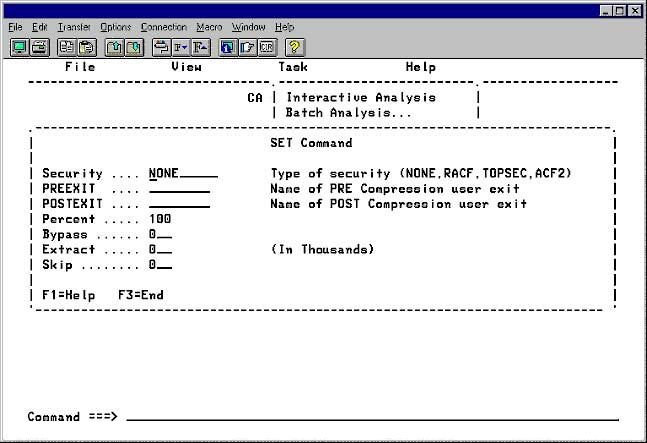
The following section describes the field names displayed in the Command (1) panel and the contents.
Verify that the user has READ authority for the data set to be processed. The valid entries are: NONE, RACF, TOPSEC, or ACF2. When one of the last three is specified, TCF checks with the security system to verify authorization to the data set.
Access a user-created routine before analysis of a data set begins.
Access a user-created routine after analysis of a data set is complete.
The percentage of records sampled during the test compression. Reducing the number of records test compressed lessens the impact on system resources. When Percent is used, the Bypass, Skip, and Extract parameters are ignored even if coded by the user.
The number of records to bypass at the start of a data set before the first record is test compressed.
The maximum number of records, in thousands, to be tested for any given data set. A value of zero indicates there is no limit.
Process every nth record encountered. For example, if SKIP=4 is specified, records one, two, and three are skipped and the fourth record is test compressed. Then records five, six, and seven are skipped and the eighth record is processed.
In the Select Command (1) panel, select one of the following methods:
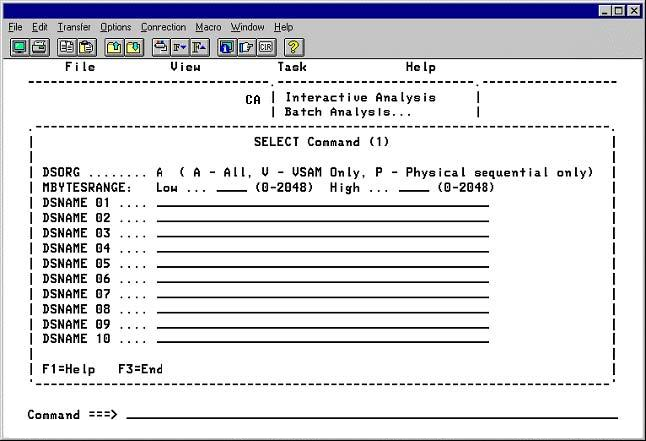
The following section describes the field names displayed in the Command (2) panel and the contents.
Select data sets for processing based on one of the following: A (All data sets), V (VSAM data sets only), P (Physical sequential data sets only).
Select data sets to be processed based on relative size. The MB value is based on the number of tracks or cylinders allocated to the data set, not the number of data bytes contained within the data set. If one size range limiter is used, both High and Low must be used, even if a value of zero is used.
The smallest data set eligible for selection. Data sets smaller than this minimum number will not be selected for processing.
The largest data set eligible for selection. Data sets larger than this maximum number will not be selected for processing.
Select for processing the names of up to 10 data sets.
In the Select Command (2) panel, select one of the following methods:
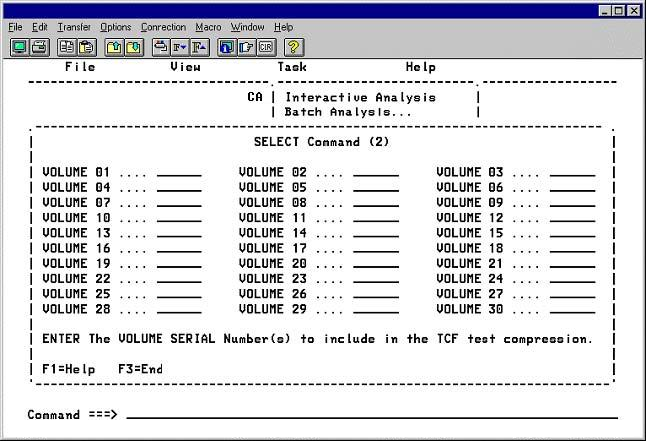
The following section describes the field names displayed in the Exclude Command (1) panel and the contents.
Select data sets for processing based on volume serial number.
In the Exclude Command (1) panel that follows, select one of the following methods:
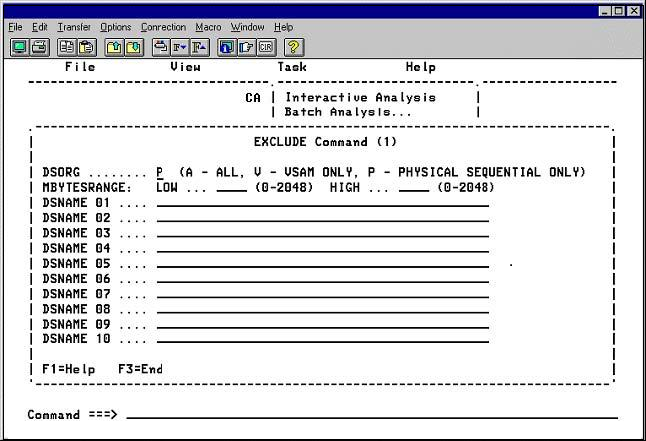
The following section describes the field names displayed in the Exclude Command (2) panel and the contents.
Exclude data sets from processing based on one of the following: A (All data sets), V (VSAM data sets only), P (Physical Sequential data sets only).
Exclude data sets from processing based on relative size. The megabyte value is based on the number of tracks or cylinders allocated to the data set, not the number of data bytes contained within the data set. If one size range limiter is used, both High and Low must be used, even if the value is zero.
The smallest data set eligible for exclusion. Data sets smaller than this minimum number will not be excluded from processing.
The largest data set eligible for exclusion. Data sets larger than this maximum number will not be excluded from processing.
Exclude from processing the names of up to 10 data sets.
In the Exclude Command (2) panel, select one of the following methods:
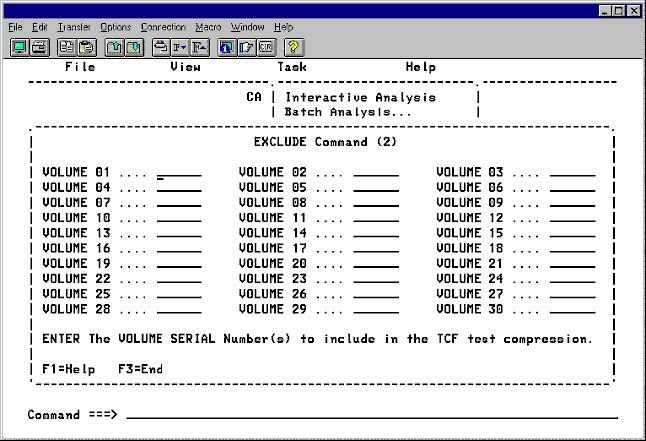
The following section describes the field names displayed in the Default ISPF Library Names and Job Card panel and the contents.
Exclude data sets from processing based on volume serial number.
In the Default ISPF Library Names and Job Card panel, check the default ISPF Library Names, change them if necessary, type the job card information, move the cursor to the command line, and select one of the following commands:
To submit the JCL without saving it, type SUBMIT and press Enter.
To save the JCL to a data set name you specify, type SAVE and press Enter. Type the name of the data set and member and press Enter.
To save the JCL to a data set name you specify and invoke the ISPF editor, type EDIT and press Enter. Type the name of the data set name and member and press Enter. The member is displayed in an ISPF edit session.
To exit without saving the JCL, type END and press Enter, or press PF3.
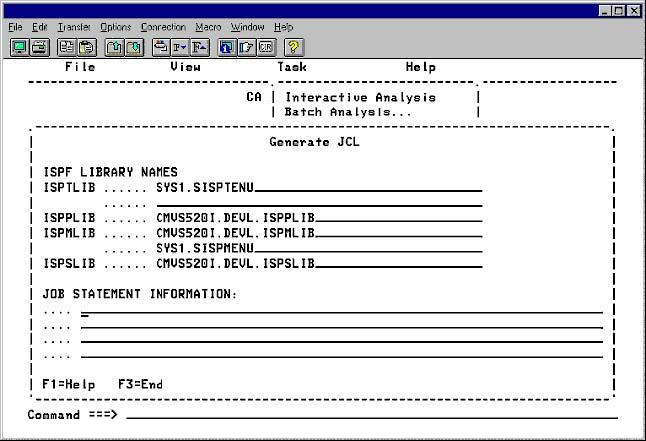
To save the JCL to a data set name you specify and invoke the ISPF editor, type EDIT and press Enter.
| Copyright © 2012 CA. All rights reserved. |
|