

CA ACF2 v2 is a Java connector that is installed with the CA IAM Connector Server. This chapter describes how to connect to a CA ACF2 v2 connector. You can use the CA ACF2 v2 connector to allow the following products to connect to a CA ACF2 endpoint:
In Identity Management, if you are replacing the CA ACF2 connector with the CA ACF2 v2 connector, use the migration tool to migrate account templates and their associations to objects in the CA ACF2 v2 connector. For more information, see Appendix A: How to Migrate Data from the Plug-in Connector section in this guide.
The following diagram shows the tasks that are required to connect to the endpoint, and who does each task.
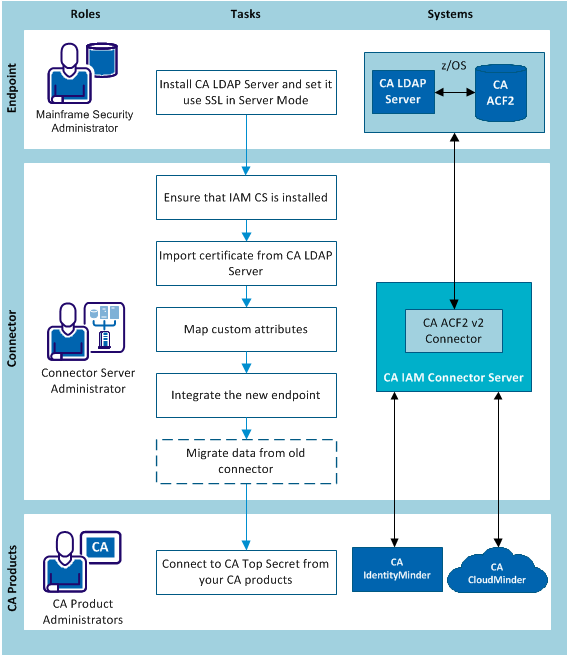
This procedure is for the mainframe security administrator.
To allow CA IAM Connector Server to communicate with the endpoint, install CA LDAP Server on the mainframe. To keep your data secure, configure CA LDAP Server to use SSL.
For information about CA LDAP Server, use the following links:
Follow these steps:
Instructions for CA LDAP r15 are in the CA LDAP Installation Guide.
Instructions for CA LDAP r14, are in the Installation chapter in the CA LDAP Product Guide.
Instructions are in "Client SSL Setup From the Command Line" in the CA LDAP Product Guide for CA LDAP r15 bookshelf.
These instructions also apply to CA LDAP r14.
|
Copyright © 2013 CA.
All rights reserved.
|
|