

Post Deployment › Add Touchpoints to the Domain Orchestrator
Add Touchpoints to the Domain Orchestrator
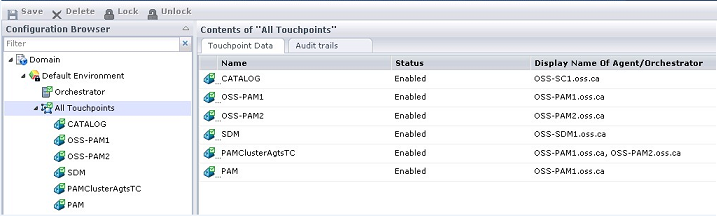
Touchpoint definitions allow CA Process Automation to refer to agents so they can interact during a process execution. The following instructions describe how to add the four required touchpoints.
Note: Ensure that the CA Process Automation agents are active before you add the touchpoints. Log in to the specific server and navigate from Administrative Tools, to Services, to ensure that the CA Process Automation Agent service is running on each box.
Follow these steps:
- Open the CA Process Automation user interface with the URL: https://oss-pam1.oss.ca/itpam.
- Log in with the pamadmin credentials.
- Click Configuration.
- From the left-side pane, expand Domain, right-click Default Environment, and select Lock.
- Right-click Default Environment and select Add Touchpoint.
The Add Touchpoint Default Environment window opens.
- Highlight the row with the corresponding hostname entry for the following touchpoints.
- OSS-SDM1.oss.ca and specify the value SDM in the Touchpoint Name field.
- OSS-PAM1.oss.ca and specify the value PAMClusterAgtsTC in the Touchpoint Name field.
- OSS-PAM2.oss.ca and specify the value PAMClusterAgtsTC in the Touchpoint Name field.
- OSS-SC1.oss.ca and specify the value CATALOG in the Touchpoint Name field.
- OSS-PAM1.oss.ca and specify the value OSS-PAM1 in the touchpoint name field.
- OSS-PAM2.oss.ca and specify the value OSS-PAM2 in the touchpoint name field.
- OSS-PAM1.oss.ca and specify the value PAM in the touchpoint name field.
- Click Save.
- Repeat steps from 5 through 7 to create all touchpoints.
- From the left-side pane, right-click Default Environment and select Unlock.
The touchpoints are added and you exit the CA Process Automation interface.
Copyright © 2014 CA.
All rights reserved.
|
|