

Post Deployment Tasks for Monitoring Service › Apply License to the CA Nimsoft Regional Hub
Apply License to the CA Nimsoft Regional Hub
During the deployment the IP address is changed. The change results in clearing the CA Nimsoft License in the regional hub. To enable the regional hub, copy the license information from the central hub and apply it to the regional hub.
Follow these steps:
- Log in to CA Nimsoft Infrastructure Manager as an administrator.
- Select MaaS-Central-Robot in the Console.
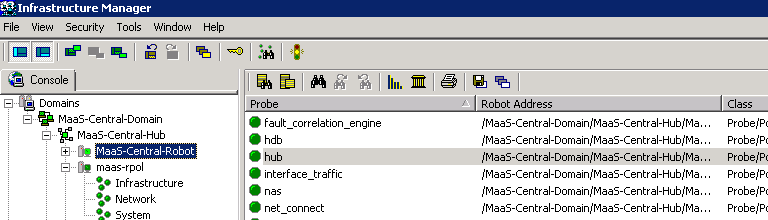
- Double-click hub in the Probe column.
The hub probe settings window opens.
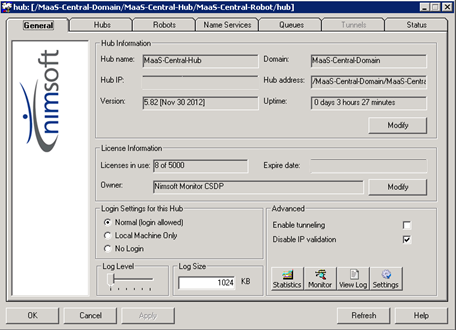
- Click Modify in the License Information section.
- Copy the license content from the Nimbus Hub License field and close the wizard.
- Select the robot for the regional hub in the Console from the CA Nimsoft Infrastructure Manager window, and select hub from the Probe column.
Note: Regional hub has a dynamic host name.
- Double-click the regional hub probe.
The hub probe settings window opens.
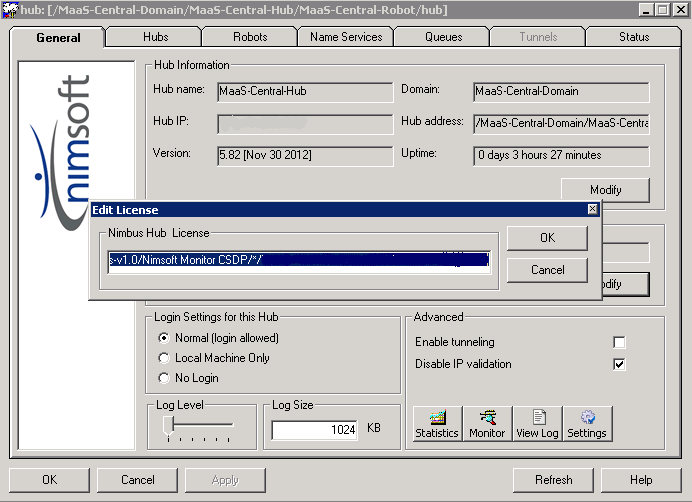
- Click Modify in the License Information section under the General tab.
- Paste the license content copied in Step 5 from the MaaS-Central-Robot hub in the Nimbus Hub License wizard.
- Click OK in the Edit License wizard and then in the Hub Settings window.
The license is applied to the regional hub.
- Select all the probes that are indicated in Red from the list of probes, right-click and select Security, Validate.
The probe is enabled and the color of the probe turns green. The license is applied to the regional hub.
Copyright © 2014 CA Technologies.
All rights reserved.
|
|