

How to Get Started with Portfolio Management
How to Get Started with Portfolio Management
Using portfolio management, you can create and review a collection of investments that interest stakeholders in your business. Once you create a portfolio, the system creates a snapshot of your investment data that is used for management and reporting purposes. You can set up a cadence for updating the data in this snapshot to match your latest investment information. Thereafter, you can create alternate versions or plans using the data. To explore alternatives for your investments, use these plans to create and compare what-if scenarios.
A portfolio is a collection of investments. Depending on your needs, you can create the following types of portfolios that are based on the following:
- Investments (for example, PMO projects, IT applications, new product development product lines).
- Specific investments (for example, all active projects).
- Organization (for example, IT plan of record, marketing initiatives, company ideas).
- Interest (for example, green initiatives, merger and acquisition proposals).
Example: IT Portfolio for Current Projects
Max, the PMO Director at Forward, Inc,. wants to create a portfolio of all the projects that the organization currently supports. A target amount of budget and resources exist that Max can use for the projects. With all of the projects in the portfolio, Max uses Portfolio Management to accomplish the following business goals:
- Understand how the costs and resource demand for each project compares to the overall targets.
- Prioritize the projects so that the most important tasks get done first.
- Stage the planning so that resources and costs are kept level throughout the planning periods.
The following diagram describes how a system administrator and a portfolio manager get started with portfolio management.
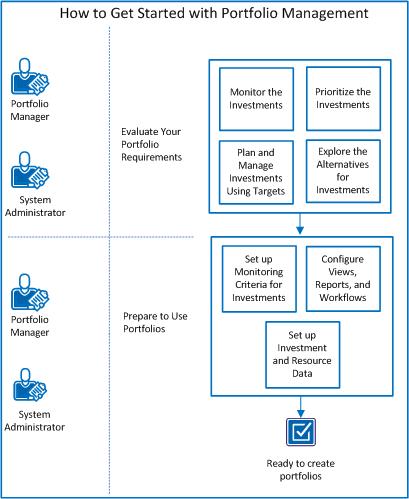
To get started with portfolio management, perform these steps:
- Evaluate Your Portfolio Requirements:
- Prepare to Use Portfolios:
Evaluate Your Portfolio Requirements
To understand the business goals that you want to accomplish using portfolio management, evaluate your portfolio requirements. To evaluate your specific portfolio requirements, consider the following generic assessments as guidelines:
Monitor the Investments
You can monitor investment data that interests you by configuring the portfolio views to display that data. Consider what investment data you want to view and what specific views of the data you are interested in.
For example, a user can set up a portfolio to view the following types of investment data:
- A view that monitors current investments and provides their latest status such as if they are running on time, ahead of the schedule, or late.
- A view that shows investments being considered for the next year planning cycle and the planned costs for these investments.
After determining the requirements for your specific views, you configure the default portfolio views to display your custom data.
You can leverage a number of portfolio views to monitor different aspects of your portfolio investments. However, the configuration of the default views does not provide all of the information you need. The default views do not display the custom data that you care about. For example, the Waterlines view allows you to load-balance your resources against set targets and a time line, in a what-if environment. This default is relevant only if you care about the resource data that requires the resource management setup in the product. Similarly, the Financials view is related to the specific financial management product setup. This view is relevant to users who want to monitor certain financial aspects of their investments. Plan to work with your system administrator to configure the default portfolio views to display the custom data that you need.
Note: The Waterlines, Plans, Investments, and Targets views are the only views that are available as part of the portfolio management. To access the remaining portfolio views, install and apply the PMO Accelerator add-in. For a detailed description of the add-in, add-in install instructions, and descriptions of the portfolio views, see the PMO Accelerator Product Guide.
Prioritize the Investments
An important part of managing a portfolio is understanding the relative priorities of investments by ranking them. The product provides an out-of-the box Waterlines view that allows you to view and rank your investments in a portfolio.
When you first access the Waterlines view, investments are prioritized based on the following criteria:
- Approval status. Investments are sorted first by their approval status. The approved investments are ranked higher than unapproved investments and appear at the top of the list.
- Finish date. Investments are sorted next by their finish dates. Investments with a more recent finish date are ranked higher than investments with a later finish date.
The approved investments with the most recent finish date sort to the top of the list. The unapproved investments with later finish dates sort to the bottom.
You can manually rank investments or set up rule-based ranking, which is based on the following deciding factors:
- Size of your revenue
- Impact of the identified risks on your business
Manually Ranking Investments
To prepare to rank investments manually on the Waterlines view, consider the following factors:
- Size of the organization. If your organization is relatively small and people generally understand their priorities, creating ranking rules for prioritization is not a good investment.
- Number of investments. If the number of investments is relatively small, it is easier to rank them manually.
- Business need. If there are no preset guidelines for ranking investments and it is done on a case-by-case basis, then manual ranking is a better option.
Setting Up Rule-Based Ranking
To prepare to set up ranking rules for investments by which to prioritize them on the Waterlines view, consider the following factors:
- The investment attributes that determine the ranking criteria for your investments (for example, project status, ROI, goal).
- The ranking logic for each key attribute. For example, If attribute "ROI" equals "20 percent" then move the project to top of the list.
- An overall weighted ranking for each investment attribute. For example, to apply relatively higher importance to a specific investment attribute, assign a greater weight to it compared to the other attributes.
Plan and Manage Investments Using Constraints
To define the boundaries and time lines within which you want to plan and manage your investments, set up targets for your portfolio. Targets allow you to analyze your portfolio objectives and goals by managing your investments in the following ways:
- Setting high-level portfolio targets or constraints and planning, tracking, or measuring portfolio performance against these constraints.
- Creating multiple versions of a plan using a subset of the portfolio data. For example, you can create a plan for the current planning year, and another plan for the following year. Each plan can include different targets for costs, benefits, and resources.
- Comparing and adjusting plan targets and implementing necessary changes to actual investments when plans get approved.
The following types of targets are available for any portfolio:
- Financial. Consider the following factors when determining what financial targets you can use to manage your portfolio:
- Currency. A portfolio can include investments that are planned in more than one currency. Work with your system administrator to set up a multi-currency system. In a multi-currency system, you can select a target currency for your portfolio. The target currency is based on the currencies that you have enabled in your system. Amounts in various currencies are aggregated and rolled up using the single portfolio currency.
- Costs. Users can plan for aggregated cost types such as total costs, capital costs, and operating costs. These costs are summarized and aggregated from all investments included in a portfolio. You can set targets for each of these cost types (capital and operating costs) and then view the demand for them coming from the investments. If you track actual costs against investments, you can view aggregated actual costs in the portfolio views.
- Benefits. Users can plan for aggregate benefits. You can set a total benefit target for the portfolio and then view the aggregated, planned benefits coming from the investments. If you track actual benefits against investments using benefit plans, you can view aggregated actual benefits in the portfolio views.
- Resource. Consider the following factors when determining what resource targets you can use to manage your portfolio:
- Unit. Think about whether you want to plan the capacity for your portfolio resources using hours or FTE (full-time equivalent) units.
- Granularity. Consider whether you want to plan based on the total resource capacity or by role-specific capacity. The role-specific capacities are based on existing roles. For example, you can view resource targets by Engineers or Quality Assurance roles.
Explore the Alternatives for Investments
You can define specific plans within the portfolio boundaries to determine how you can best accomplish your portfolio goals. With the larger content set defined, planning lets you perform iterative analysis on the portfolio. For example, you can create the following plans for the IT Projects portfolio that spans fiscal years 2013 and 2014.
- IT Projects Plan for FY2013
- IT Projects Plan for FY2014
You can create different plan versions or scenarios by altering specific parameters to explore different planning options going forward. Ultimately, you can choose to approve a Plan of Record.
To plan effectively, consider the following factors:
- Formal versus informal planning process. Understand if the planning process in your organization is formal, informal or a mix of both.
- In a formal planning process, plan reviews take longer and changes are implemented in a disciplined manner. This planning process is applicable when the recommended changes are extensive or the changes require more review before you can implement them. For example, approving an investment that requires more budget. Typically, in formal planning, there is a well-defined process of proposals and approvals to plans before you can change anything.
- In an informal planning process, organizations implement changes faster following the reviews. The changes are smaller and support existing goals. For example, slightly pushing out the start date of an investment. Informal planning can be as simple as someone going into the system and marking a change as approved without any formal approval.
- In a mixed planning process, organizations implement smaller changes following an informal planning process and more extensive changes following a more formal approval process.
- Planning horizon. Determine the time-span for your portfolio that specifies the planning range of data. To allow planning for current and future investments, verify that the portfolio horizon covers the planning horizons.
- Review cadence. Determine the cadence for your plan reviews. Then you can set up the sync schedule for your portfolio to reflect the actual investment data when you need it.
- Required data for portfolio reviews. Determine the type of data that is required for your reviews. Next, set up your portfolio to capture the required data from the investments. For example, to review cost and resource information, you can capture the following key metrics from your portfolio investments:
- Days Late
- Cost Variance
- Effort Variance
- Risk
- ROI
- Earned Value
Prepare to Use Portfolios
After you have determined the business goals that you want to accomplish using portfolio management, prepare the product so you can start creating portfolios. Creating a portfolio allows you to manage and plan for your investments at a higher level.
To prepare to use portfolios, complete the following tasks:
Set Up Monitoring Criteria for Investments
The portfolio provides a snapshot of the actual investment data. The portfolio data is updated with the latest data from the actual investments. The update is based on a sync schedule that you define in the portfolio properties. Whenever the Synchronize Portfolio Investments job runs based on the sync schedule, the latest data from the actual investments is reflected in the portfolio.
Not all investment data is reflected in a portfolio. As a portfolio manager who decides at higher levels, you care about reviewing only a summary of your investment data, specific to your business needs. For example, to review a portfolio that is focused on all approved IT project statuses, you do not care to track information about unapproved projects.
As you prepare to view the summarized investment data in a portfolio, consider the following factors in the recommended order:
- Define the monitoring criteria or summary data that you want to track for each investment type. Whenever the sync job runs, the latest data from the actual investments is updated in the portfolio investments. The data that gets updated is based on this predefined monitoring criteria.
For example, to manage a portfolio of all approved IT projects, define the following monitoring criteria to track the data that you are interested in:
- For each portfolio investment, select the attributes that you want to monitor in a portfolio and register those attributes for the Portfolio Investment object. When the Synchronize Portfolio Investments job runs, the portfolio investment data is updated based on the current registered attributes.
Note: The required Portfolio Investment attributes are displayed by default. Register any other Portfolio Investment attributes (stock or custom) that you want to display.
For more information about how to register attributes for the Portfolio Investment object, see the Studio Developer Guide.
Configure Views, Reports, and Workflows
After deciding what investment data you want to monitor in a portfolio, verify that you have configured the product to support that data. Configuring the product allows you to view the desired data on portlets and reports.
For example, verify that the following configurations exist:
- To view detailed project cost data by period, you have generated cost plans on projects.
- To surface risks and issues for projects, you have configured the project object to surface risks and issues.
- To record actual time that is spent on each project, you have set up timesheets.
Consider the following factors before you configure the product:
- The type of reports you want to generate and how often you want to distribute them.
- The types of standard processes you want to build into your implementation. For example, you can set up a plan review and approval process to approve and implement extensive changes to your actual investments.
To use Portfolio Management to its full capability, complete the following process:
- Review exactly what type of information you want to pull from your investments.
- Verify that the required information is available on your investments.
With the data and processes in place, you can then build views of this data to help manage your investments in a portfolio.
Out of the box, the product comes with many predefined portfolio views. We recommend that you review these views to decide the type of information you want to see in your portfolio views.
Set up Investment and Resource Data
To start using portfolios, research and verify that the required setup data exists in the product. The setup data allows you to view the desired investment information in the portfolio views.
Depending on the data that is relevant to your business, you can set up the following requirements in the product:
Financial Management Setup
- Multi-currency. To manage a portfolio of investments that are associated with different currencies, verify that multi-currency is enabled for the product.
For more information about multi-currency set up, see the Installation Guide.
- Cost types. To break down total cost by capital and operating costs in your portfolio, verify that these cost types are set up for your investments.
For more information about how to set up cost types, see the Financial Management User Guide.
Resource Management Setup
Project Management Setup
Copyright © 2013 CA.
All rights reserved.
|
|