Previous Topic: Create the Visualization and the NSQL Query

Next Topic: Set Up Flash Variables

Add the Connection Definition to Link to CA Clarity PPM Data

  1. In Xcelsius, Samantha opens the Data Manager and sets up the web service to establish the data connection with CA Clarity PPM.

    The following figure illustrates the completed external data settings:
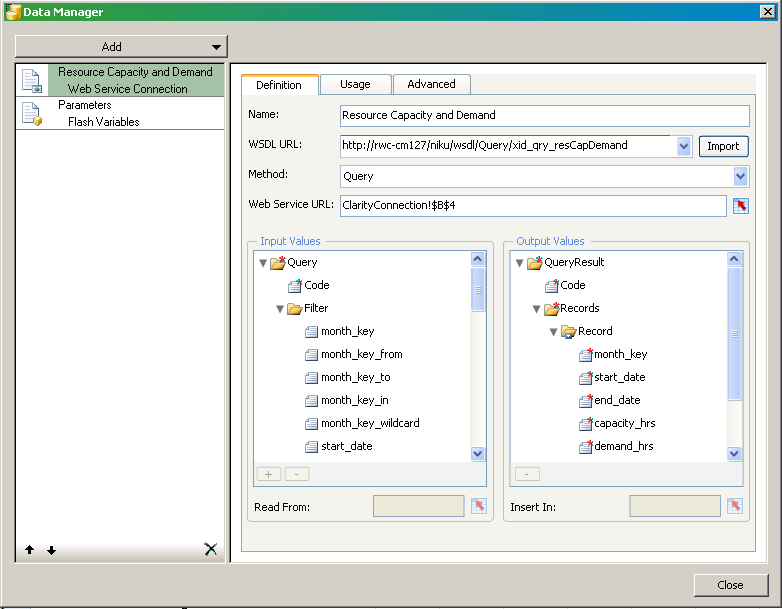
    Illustrates the set up for a Web Service Connection

  2. Samantha does the following:
    1. Adds a new Web Service Connection definition and names it: Resource Capacity and Demand.
    2. Enters the following WSDL URL and imports it:
      http://forward_Cl/niku/wsdl/Query/xid_qry_resCapDemand
      

      where forward_cl is replaced with your actual WSDL URL

    3. Selects the Method: Query.

      The method selected changes the attributes that appear in the Data Manager.

    4. Leaves the Data Manager open.

    The next series of steps involve linking or binding data to cells in the embedded spreadsheet.

  3. In the embedded spreadsheet, Samantha creates two worksheets and names them:
  4. In the ClarityConnection worksheet, Samantha does the following:
    1. Creates labels in the following cells, but does not enter a value in the corresponding B column:
      • cell A1: Clarity Connection Information
      • cell A2: Design-time Session ID
      • cell A3: Design-time URL
      • cell A4: Run-time Session ID
      • cell A5 URL
      • cell A6: NSQL Query
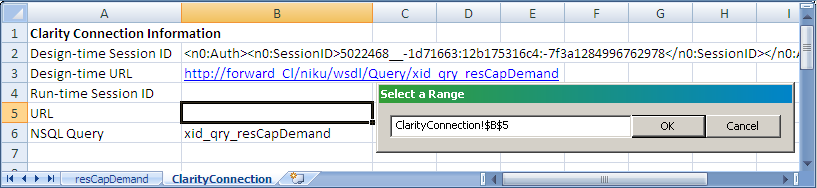
    2. In the Data Manager, Samantha clicks the Cell Selector to the right of the Web Service URL field.

      The Select a Range window appears.

      Illustrates the method for binding a cell to the WDSL Web URL

    3. Selects cell B5 and clicks OK.

      This cell range is added to the Web Service URL field. In a later step, Samantha creates a Flash variable (for example, pSessionID). She also creates a global parameter with the same name in the interactive portlet. At runtime, these combined settings allow the Web Service URL to pass a value from CA Clarity PPM using the Global parameter to the Flash variable. The Flash variable saves the value to the linked cell.

    4. Leaves cell B4 for the run-time session ID empty.

      In a later step, she links the SOAP header to the session ID.

  5. Using the same cell linking technique used for the Web Services URL, Samantha does the following:
    1. In Data Manager, links Code (from the Input Values section) to cell B6 of the ClarityConnection worksheet.

      This action links the query to the visualization.

    2. In the ClarityConnection worksheet cell B6, enters the name of the following query:
      xid_qry_resCapDemand
      

      The value of this cell is manually entered because once a query is created, it is absolute.

    3. In the ClarityConnection worksheet cell B2, enters an active CA Clarity PPM session ID in the following SOAP format:
      <n0:Auth><n0:SessionID>0000</n0:SessionID></n0:Auth>
      

      where 0000 is her current Clarity Session ID.

      Note: To get your current session ID, go to the About page in CA Clarity PPM, and copy and paste the session ID.

      This information will enable you to test the real-time CA Clarity PPM data connection from Xcelsius.

    4. In the ClarityConnection worksheet cell B3, enters the Web Service URL.

      This link is used at design-time to preview and test the connection from Xcelsius.

      The one remaining cell to define is the Run-time session ID. This cell is addressed in a later step when creating Flash variables.

    In the next set of steps, Samantha selects the data and selects a range of records. The range varies depending on the number of fields in the query and the number of records expected from the output.

    Best Practice: In the worksheet, reserve the first column and first row for labels. To optimize performance, keep the output to 20 rows.

  6. Samantha does the following to define the destination output for the data:
    1. (Optional) In the resCapDemand worksheet, creates the column labels and creates a border and background to identify the perimeter of the data range. For this example, the cell range is B2 to I21 (eight columns and 20 rows).
    2. In the Data Manager, links Record (from the Output Values section) using the Cell Selector to a range of cells in the resCapDemand worksheet.
  7. In the Data Manager, Samantha does the following:
    1. On the Usage tab, selects the Refresh Before Components Are Loaded option.
    2. On the Advanced tab, links the SOAP Header to cell B2 on the ClarityConnection tab.

Samantha creates Flash variables next.

More information:

CA Clarity PPM Web Service