Scrum Master, Team Members Scenarios › How to Manage Work Using Kanban Board › Add Backlog items to the Kanban Board › Add Backlog Items from the Product Backlog Queue on the Kanban Board
Add Backlog Items from the Product Backlog Queue on the Kanban Board
Michael can select the backlog items from the Product Backlog Queue and add them to the Kanban Board so that the team can work on them. He decides to add another two user stories to the Kanban Board:
- As an executive, I need consistent reporting across the system.
- As a director, I need an org chart that is updated quarterly.
Follow these steps:
- Click Agile, and from Kanban Tracking, click Kanban Board.
- Select the product, release, and the Kanban Board name from the drop-down lists.
- Click Expand backlog queue.
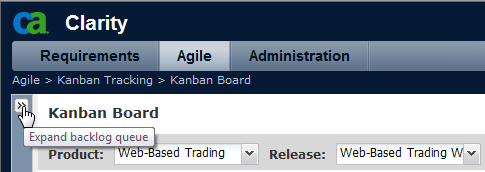
User stories identified for the release, but not assigned to any sprint or Kanban Board appears as story cards.
- Drag the story cards to the Kanban Board so that the team can start working on them.
Note: If the number of user stories in the lane exceeds the WIP limit, the header of the lane is highlighted.
|
Copyright © 2012 CA.
All rights reserved.
|
|

