

Sprints are a series of iterations in the product development lifecycle in which the items planned during release planning are delivered. Sprints are time bound iterations that are typically spread over two to four weeks. The scrum master collaborates with the scrum team to plan a sprint.
The following diagram describes how the scrum master and scrum team plan and track a sprint.
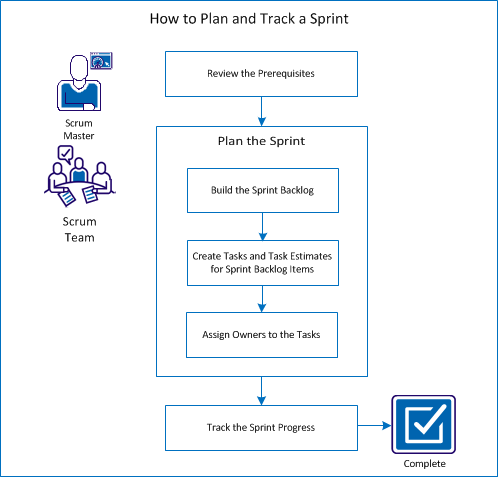
Perform these steps to plan and track a sprint:
Before you plan a sprint, verify that the following items are set up in the product.
At the beginning of each sprint, the scrum master and the scrum team meet to determine the scope of the planned work for the sprint. During the meeting, you identify the user stories that can be covered in the sprint. For example, your team determines that they can complete 60 points in the sprint. Select the user stories and issues, which are based on priority and capacity points that the team can commit to completing.
Perform the following tasks during sprint planning:
The sprint backlog includes the backlog items that the scrum team plan to work on during the sprint. During the sprint plans, you move the user stories and issues from the release backlog to the sprint backlog. For example, in the Parking Pass Management System product, the following user stories have been identified for the release:
You can select the user stories that you want to complete in the current sprint, and move them to the sprint backlog.
Follow these steps:
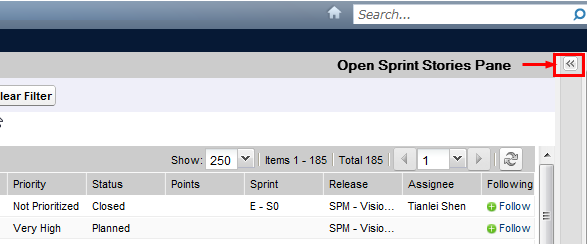
The pane displays the backlog items for the current sprint.
Note: Total points for the selected user stories are shown at the top of the backlog list.
Note: Filter the sprint backlog by team to display the velocity chart. The velocity chart shows the planned capacity against actual capacity. The chart helps the scrum team plan the number of user stories that they commit to during the sprint.
Create tasks to break down the work for user stories and issues to which the scrum team commits. You can also enter the estimated hours that are required to complete the task. For example, for the user story "As a commuter, I want to pay for a parking pass by credit card", you can break down the work into two tasks:
You estimate two hours to create the interface and one hour to test the interface.
The scrum team can also log the numbers of hours they worked for a user story at the task level.
Follow these steps:
Note: By default, the current sprint appears.
The User Story or Issue Details page opens.
Approximate hours to complete the task.
Assign an owner to each task to identify who takes the responsibility for completing the effort. You can assign more than one owner to a task.
For example, you can assign two developers as owners for the task to create an interface for purchasing a parking pass online. While one developer writes the code for the feature, the other developer reviews the code.
Follow these steps:
You can use the Sprint Backlog & Charts to track the progress of the sprint and identify any risk. The Sprint Backlog & Charts page displays hours burndown or points burndown to provide a comprehensive report.
Follow these steps:
The Burndown and Allocation Chart appears for the selected sprint.
An hours burndown chart compares the actual hours that the team burned on user stories against the expected burndown for the sprint.
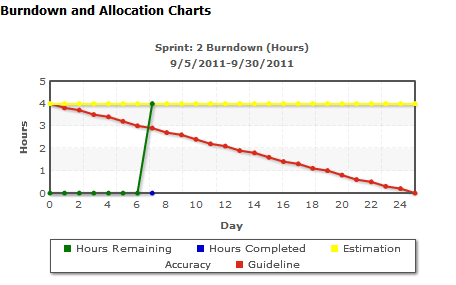
A points burndown chart compares the remaining story points that the team completed against the expected burndown.
You have successfully planned and tracked a sprint.
At the end of a sprint, update the status of the backlog items to closed or move the incomplete items to the next sprint. The scrum master conducts a retrospective meeting with the team to discuss and identify the steps to improve the process.
|
Copyright © 2013 CA.
All rights reserved.
|
|