

When a user creates and saves a requirement, a draft of the requirement is added to the list of requirements. The user that creates the requirement becomes the requirement owner. Version control enables you to create drafts and approved versions of requirements.
When the requirement owner becomes satisfied with the content of the requirement, they can create an approved version of the requirement. If Requirement Change Management (RCM) is enabled, the requirement owner must submit the draft for approval to create an approved version.
The following diagram describes how a requirement owner creates a requirement version.
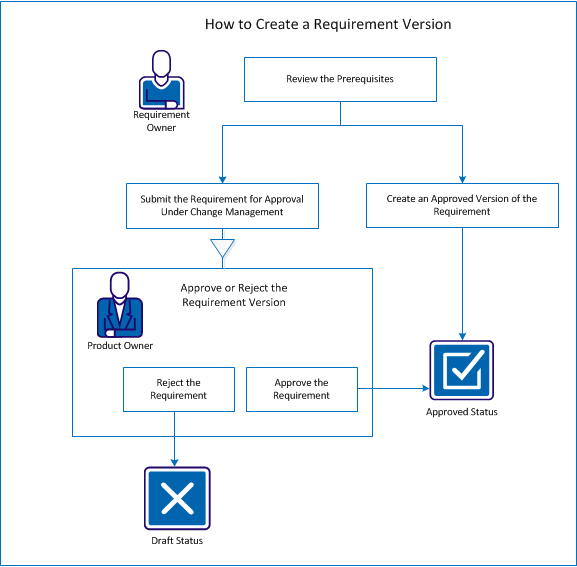
To create a requirement version, perform these steps:
To ensure that you can successfully create a requirement version, review the following prerequisites:
If RCM is not enabled, the requirement owner can create an approved version.
Follow these steps:
Specifies that the updates are small changes, such as editorial changes or field changes such as entering the Actual Effort. The version changes by one point (0.1).
Specifies that the updates are significant, such as changing the release associated with the requirement, or changing the scope of the requirement. The version changes by one full version number (1.0).
A new version of the requirement is created. The following fields or sections have updated values:
The value changes from Draft to Approved.
The value increases by a decimal point or whole number, which is specified by a minor or major version type.
A record is added to the Versions section, with the new version number and a time stamp.
When RCM is enabled, the requirement owner must go through an approval process to create an approved version.
Follow these steps:
The Submitting for Approval pop-up dialog opens.
Specifies that the updates are small changes, such as editorial changes or field changes such as entering the Actual Effort. The version changes by one point (0.1).
Specifies that the updates are significant, such as changing the release associated with the requirement, or changing the scope of the requirement. The version changes by one full version number (1.0).
Scroll to the Approval History section. An entry is added for the approval request, showing that the draft has been submitted and the status is Pending.
The product owner receives an email notification about the request.
After the requirement owner submits an approval request, the product owner receives an email indicating that a requirement needs approval. The email contains a URL link for the approval request.
The product owner reviews the request and either approves or rejects the requirement draft.
Follow these steps:
The Requirement Detail page appears.
Note: You can also click the link in the email and open the Requirement Detail page.
The Review Requirement page appears.
The status of the requirement updates depending upon whether the product owner approves or rejects the requirement. If the requirement is approved, the requirement has a status of Approved and a new version is created. If the requirement is rejected, the status appears as Draft and a new version is not created.
|
Copyright © 2013 CA.
All rights reserved.
|
|