

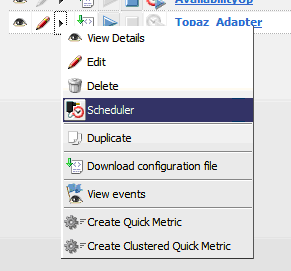
In addition to running the adapter, it is also possible to set a schedule for the adapter from the GUI. The adapter needs to be in the “Stopped” status to do this however. Once stopped you can set the schedule by viewing the context menu for the adapter and choosing “Scheduler”.
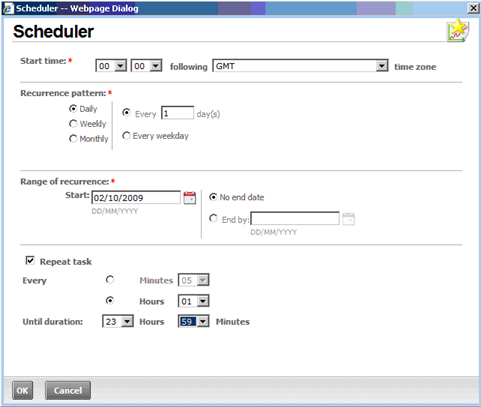
The schedule options are the same as those provided by the Windows Task Scheduler. Behind the scenes the Adapter Deployment service actually creates this schedule as an item in the Task Scheduler anyway.
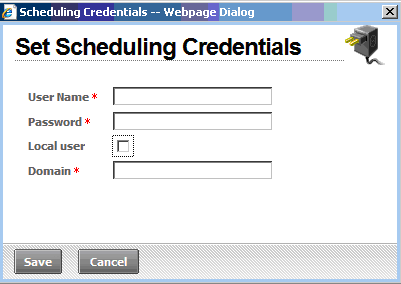
After a schedule is added, and when the adapter is next deployed, the user is prompted to enter the user credentials of the Account on the server that performs the task. This should be entered as the service account created to run the CA Business Service Insight system (default OblicoreSrv), or another administrative account if required.
This integrated scheduler is a very useful feature as it allows the user of the GUI to control the schedule of the adapter without having to directly access the desktop of the Application server (pending appropriate user permissions of course).
|
Copyright © 2013 CA.
All rights reserved.
|
|