

Implementation Guide › Implementation › Data Gathering (Data Source Expert) › How to Configure Adapters and Translations › Create an Adapter Using the CA Business Service Insight User Interface
Create an Adapter Using the CA Business Service Insight User Interface
Each Adapter configured to run within the CA Business Service Insight environment must be registered within the user interface in addition to being defined in the registry. The reason behind this step is mainly to establish the settings of the Adapter Listener side so that it is ready to receive events from the Adapter. During this step the all of the Adapter settings, such as, Translation tables and Event types are defined.
Follow these steps:
- Create the Adapter.
- Choose Resources/Adapters.
- Check the existing Adapters in the list to see that none are defined on the same port as your Adapter, that is, the same port that is defined in the configuration file of the Adapter in the directory OblicoreInterface\OnlineInterface\Port.
- Click Add new, and then select the method that you want to use to create the Adapter. There are a number of options:
- Create manually: Sets up the Adapter Listener to connect to the Adapter you have defined (or will define) manually.
- Using the Wizard: Allows creating the adapter using a screen-by-screen wizard interface. See the next section for details on this.
- From a template
- From an existing configuration file: Allows uploading a pre-configured adapter template which automatically fills in the fields of the adapter wizard with the options set in the configuration file specified.
- The resulting screen varies per chosen option.
- Fill in the fields:
Network address-enter the IP address of the Adapter. localhost in case it is local to the application server, otherwise enter the defined port.
- Click Save.
To create the necessary translation tables:
Note: These steps should be performed for each translation table defined in the configuration file:
- On the Design menu click Translation, Translation Tables and click the 'Add New' button.
- All the translation table settings should correspond to the equivalent table definition in the Adapter configuration file:
- Name: Should match the Name attribute in the configuration file Translation table, Name.
- Source fields: Should have all the fields from the TranslationField of the translation table. Add all fields. There may be a combination of two or more fields that make up the translation value. The following is an example of how this might look:
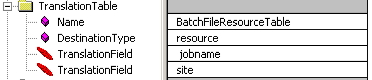
- Destination type: Should again correspond with the DestinationType attribute of the translation table definition in the configuration file. (resource, event_type, and so on).
- Registered Adapters: Add the Adapters that are to use this translation table. More then one Adapter can use a single translation table.
- Click Save.
- Import the Event type fields definition for each event type.
To be able to import the fields definition from a specific Adapter configuration file, this Adapter should have run and connected to CA Business Service Insight at least once. When the Adapter connects to CA Business Service Insight, it sends the configuration file to CA Business Service Insight which allows the system to use the fields definition from it.
Note: Alternatively, you can specify the field definitions manually to the event type.
- Activate the Adapter:
- On the Design menu, click Data Acquisition, Adapters.
- Click the Start button for the Adapter.
The following table contains the different statuses of the Adapters:
|
Status
|
Description
|
|
Inactive
|
Initial state. Adapter is inactive and has not yet been started.
|
|
Listener Inactive
|
Adapter listener (Dispatcher) Service is not started.
|
|
Starting
|
Adapter is starting.
|
|
Started
|
Adapter is started.
|
|
Stopping
|
Stopping.
|
|
Pausing
|
Pausing.
|
|
Paused
|
Paused.
|
|
Not running
|
Adapter is not running on Adapter's computer.
|
|
Error
|
Error in Adapter's configuration file; Adapter cannot start.
|
|
Connection error
|
Error connecting Adapter (wrong host/port), or before Adapter has run for first time and no signal was detected. Status when running Adapter for first time.
|
|
Blocked
|
Maximum number of rejected Events has been reached.
|
Copyright © 2013 CA.
All rights reserved.
|
|