

As a Service Consumer, your responsibilities require you to work with virtual machines. The self-service portal allows you to reserve virtual machines with Hyper-V, and manage their lifecycles. Use the self-service portal to:
Reservations and management requests are subject to approval by your service provider or administrator. You receive emails informing you on how to access your virtual machines and the status of your requests.
The following diagram illustrates how to reserve and manage virtual machines with Hyper-V.
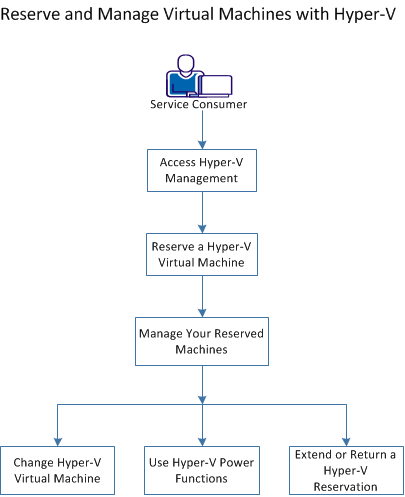
Perform the following tasks to reserve and manage a virtual machine:
The self-service portal is a web page from which you can reserve and manage virtual machines. The portal centralizes, expedites, and automates virtual-machine requests. The portal is accessible from CA Service Catalog with the URL and credentials that your Service Provider provides.
Follow these steps:
The available services list opens.
The Hyper-V Management page opens. You can use the page to request virtual machines and manage their lifecycles.
You reserve virtual machines based on your project or business requirements. Reserving a Hyper-V virtual machine provides the flexibility to select and deploy virtual machines automatically and add additional software packages. You also can request a virtual machine that is based on a selected virtual machine template. Configuration options include:
You can reserve the appropriate resource allocation for a specified period on one or more virtual machines. Ensure that you provide a unique reservation name as the system does not support duplicate names.
Follow these steps:
A web form opens with fields for defining the request.
Additional form fields populate.
A confirmation message displays. Your request is processed. You receive an email indicating whether your request was approved or declined. If approved, the email includes information about how to access your resources.
After successful reservation of virtual machines, you can manage their lifecycles from the self-service portal. You can:
You can request to increase or decrease the quantity of CPUs or amounts of memory.
You can request to power on, power off, or can reset the virtual machine to its original configuration.
If you need a machine longer than you originally requested, you can request to extend your reservation. If you no longer need a machine, you can return it back to the resource pool.
Your virtual machine requirements can change after your machine is available. You can increase or decrease the quantity of CPUs and amount of memory on the virtual machines you reserved. Your Service Provider sets the available configuration options. Additionally, configuration change requests are subject to approval by your Service Provider or Administrator.
Follow these steps:
A web form opens.
Additional form fields populate.
A confirmation message displays. Your request is processed. An Approving Manager reviews your reservation. You receive an email indicating whether your request was approved or rejected.
You can request to have your virtual machine powered on, powered off, or can reset the virtual machine to its original configuration.
Follow these steps:
A web form opens.
Additional form fields populate.
A confirmation displays indicating that your request was submitted successfully. The My Recent Requests pane updates showing your new and previous reservations.
This request does not require approval from your Approving Manager.
As your project and business requirements change, you can modify the durations of your virtual machine reservations. You can:
Extensions are subject to approval from your Service Provider or Administrator. Returning an unneeded reservation provides resources for new reservation requests.
Follow these steps:
A web form opens.
Additional form fields populate.
A confirmation message displays. Your request is processed. An Approving Manager reviews your reservation for extension. You receive an email indicating whether your request was approved or rejected.
Returned reservations are available in the resource pool.
Now you know how to reserve and manage virtual machines with Hyper-V. You can reserve machines, alter hardware configurations, and extend, or return the machines that you reserved.
|
Copyright © 2013 CA.
All rights reserved.
|
|