

Chargeback Services › Configure CA Service Catalog Credentials
Configure CA Service Catalog Credentials
You can configure the details of the components of the solution so that you can get the logs of the respective components. This information is used to fulfill your request for the logs.
Follow these steps:
- Log in to CA Service Catalog.
- Click Catalog, Configuration, Content Configuration.
- Click CA Embedded Entitlements Manager.
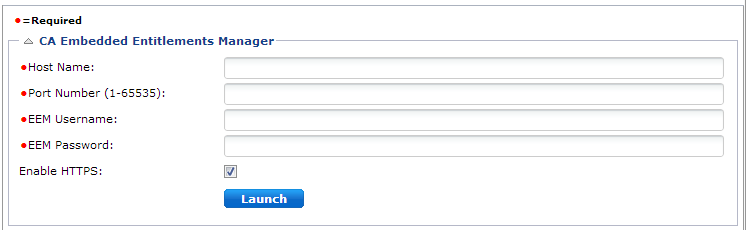
- Complete the following details:
- Enter the Host Name of the server where CA EEM is installed
- Enter the Port Number for CA EEM
Value: 5250
- Enter EEM User Name(Eiamadmin)
- Enter EEM Password
- Verify that Enable HTTPS is checked.
- Click Launch and log in to CA EEM and verify that the configuration is correct.
- Close CA EEM.
- Click Save.
- Click OK for the confirmation.
- Click CA Process Automation.
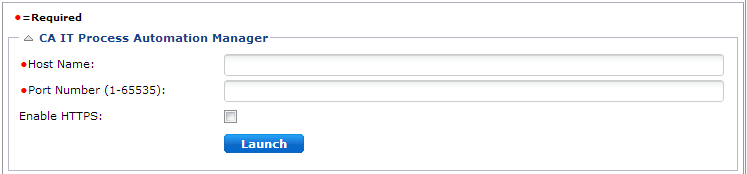
- Complete the following details:
- Enter the Host Name of the server where CA Process Automation is installed.
- Enter the Port Number for CA Process Automation.
Value: 8080
- Verify that Enable HTTPS is not checked.
- Click Launch and log in to CA Process Automation and verify that the configuration is correct.
- Close CA Process Automation.
- Click Save.
- Click OK to confirm.
- Click CA SLCM Configuration.
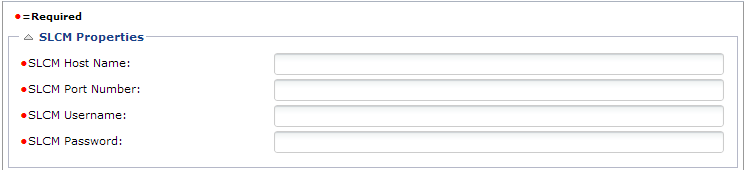
- Complete the following details:
- Enter the SLCM Host Name of the server where CA Service Catalog is installed.
- Enter the SLCM Port Number for CA Service Catalog.
Value: 8080
- Enter the CA Service Catalog Administrator user name in the SLCM Username field.
Value: spadmin
- Enter the password for the CA Service Catalog Administrator in the SLCM Password field.
- Click Save.
- Click OK for the confirmation.
- Click CA Spectrum Automation Manager.
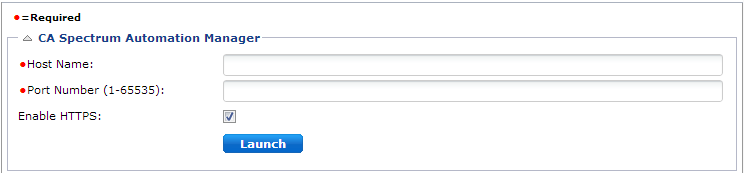
- Complete the following details:
- Enter the Host Name of the server where CA Server Automation is installed.
- Enter the Port Number for CA Server Automation.
Value: 8443
- Verify that Enable HTTPS is checked.
- Click Launch and log in to CA Server Automation and verify that the configuration is correct.
- Close CA Spectrum Automation Manager.
- Click Save.
- Click OK for the confirmation.
- Click CA Spectrum Reservation Manager.
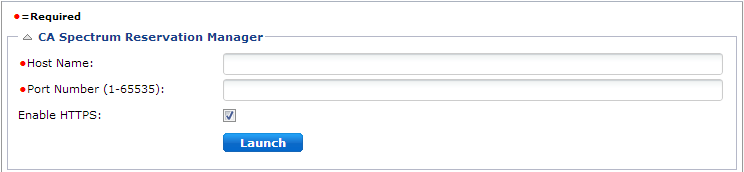
- Complete the following details:
- Enter the Host Name of the server where Reservation Manager is installed.
- Enter the Port Number for Reservation Manager.
Value: 8443
- Verify that Enable HTTPS is checked.
- Click Launch and log in to Reservation Manager and verify that the configuration is correct.
- Close CA Spectrum Reservation Manager.
- Click Save.
- Click OK to confirm.
- Close CA Service Catalog.
The CA Service Catalog configuration is complete.
Copyright © 2014 CA.
All rights reserved.
|
|