

Troubleshooting › Identify Impacted Networks from a Server Incident › Identify Users and Networks Impacted by an Incident
Identify Users and Networks Impacted by an Incident
To see the networks and user groups affected, follow this procedure:
- Click the link for an incident on the Server Incidents page to display more details about the incident:
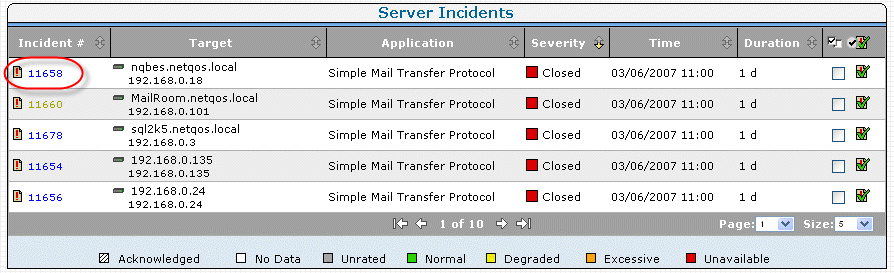
- Click the plus icon next to the Unrelated link to see the unaffected networks:

- To understand the specific users that were affected by the incident, click Explore.
- Click the Impacted Users tab to see a list of the IP addresses and host names (if available) for all the users who were accessing the application/server at the time of the incident.
- Close the Impacted Users report and click Links: Engineering to see the total number of users at the time the incident occurred and how the problem might have impacted the volume of users.
The Components Report page opens.
- Click QoS on Show Me menu.
- Scroll down to the Users view to see a visual representation of the number of users over time.
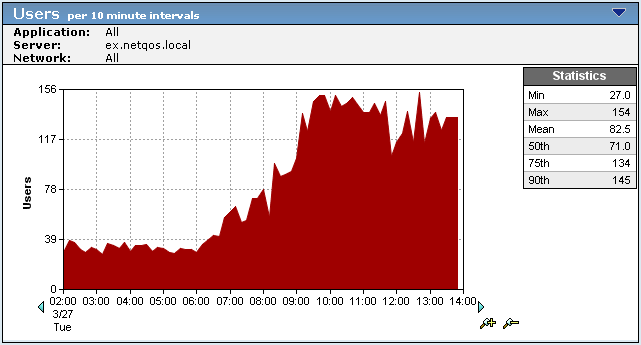
- Click Settings and select a network to see the users on a specific network.
Copyright © 2015 CA Technologies.
All rights reserved.
|
|