

From the Explore button on the Operations page, a management console administrator or network operator can change the threshold value for a particular metric. To change a threshold from the Operations page, isolate the problem by selecting the client network, server, application, and metric. Then, click Explore to edit the threshold for the selected metric.
If the selected network has an assigned network type, edits to the performance thresholds apply to all client networks that belong to the network type. For example, if you change the threshold for NRTT on the Sales application and you have selected a client network that belongs to the London network type, the threshold change applies to all client networks that are assigned to the London network type.
Note For more information about the Explore button, see the User Guide.
Follow these steps:
For information about specifying report settings, click Help.
Metrics Details opens.
If the selected network has an assigned network type, edits to the performance thresholds apply to all client networks that belong to the network type.
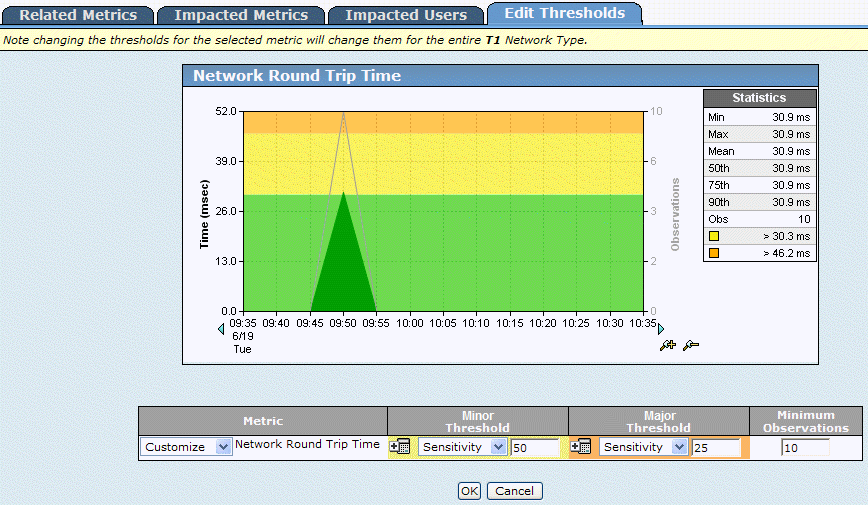
In the following example, the NetQoS LAN network is assigned to the T1 network type. Changes to the LDAP [Client] application performance threshold for NRTT apply to all networks that are assigned to the T1 network type.
|
Copyright © 2014 CA Technologies.
All rights reserved.
|
|