

View the NAM counter to display information about the netflows it receives.
To view the NAM counter window, you must log into the management console.
Important: Before you begin, synchronize the monitoring devices. The counter windows do not display until after you have synchronized data monitoring.
Troubleshoot a Cisco NAM to identify the cause of missing report data that should have been collected by the CA Standard Monitor. Keep in mind that after you add a Cisco NAM to the management console, it can take up to 10 minutes for the management console to report application performance data from the Cisco NAM.
Unlike other monitoring devices, a Cisco NAM does not generate session-level statistics, therefore, the management console does not report them. To see summary statistics about what the Cisco NAM sends to the management console, view the NAM counter statistics on the management console.
Follow these steps:
When using Remote Desktop to connect to a Windows Server 2003-based server, use the /admin switch to connect to the physical console session. The physical console session lets you view the feed receiver counters. For information about the /admin switch, see Microsoft KB 947723.
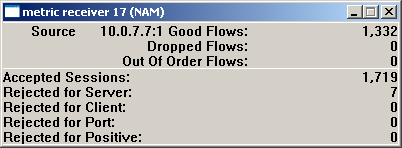
The NAM counter displays the statistics from all the Cisco NAM devices:
If the counter descriptions are not displayed properly, close the counter windows and reopen them by double-clicking the ADA Monitor Activity shortcut on the desktop.
If none of the feed receiver counters are displayed, verify the CA ADA Monitor service is running and verify the monitor is synchronized with the management console.
Identifies the number of Netflow packets that were received in the order they were sent.
Identifies the number of Netflow packets that were not processed by the CA ADA Monitor service. Response time data from any metric digests that were included in the dropped Netflow packets is not included in the management console reporting.
Identifies the number of Netflow packets that were received by the monitor, but were not received in the order they were sent.
Identifies the number of TCP sessions that match a valid application/server/network combination on the management console.
Identifies the server IPs that did not match a server subnet monitored by the management console.
Identifies the client IP that did not match the list of client networks to be monitored by the management console.
Identifies the server port matched the list of ports to be ignored by the management console.
Reserved for future use.
|
Copyright © 2014 CA Technologies.
All rights reserved.
|
|