

You can enter the general and visual information about your appliance. The most important parameters to define, at this point, are the name, instance name, and the icon color. As you think through how these parameters display on the grid, ask yourself what names would make this appliance understandable for other developers at a glance and what icon color scheme, such as indicating all gateways in red and servers in blue, would work for your use case. Keep in mind a catalog class appliance should work without any human intervention.
You can define the remaining parameters now or later depending on your use case.
The class name is the name that displays on the icon in the catalog.
The name of the instance is automatically generated when you drag the icon on the canvas. You can change the instance name. The name is a single word, case sensitive, consisting of alphanumeric characters and underscore ([A-Za-z0-9_]); the name must be unique within the containing assembly.
Unlike the class name, the instance should name the role of the appliance. For example, in the catalog, the TomCat Application Server has an instance name of srv. In addition, the instance name should not have numbers or attributes, such as srv64. The name should be the role, not the class.
The name and instance name template display on the icon as shown below:
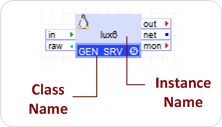
The first instance of the appliance uses the specified value, while subsequent instances use the name defined here, plus a numeric suffix. If no instance name is specified, the class name is used as the prefix for all appliances.
The appliance hostname is derived from the instance name. For information on disabling the default behavior of changing the hostname to a string derived from the instance name of the appliance, refer to the Customize Linux Appliance Behavior or Customize Windows Appliance Behavior.
This is free text used to group appliances in the catalogs. You can use this to define a set of classes by function, such as database appliances or storage, by vendor, or other criteria.
The description should describe the class and, typically, include the version of the main appliance package, such as TOMCAT appliance based on CentOS 6.3 64-bit and Apache Tomcat 6.
The location of the documentation, such as the class datasheet or class documentation. You can add the URL later, if needed.
You can select the color, size, and operating system for the icon. The color is frequently used to group classes with different functions. For example, application servers could be purple and network components gray. In addition, select the size with an idea of the number of terminals in order to size a reasonably proportioned icon.
For information on the virtualization and advanced functions, refer to the Advanced Virtualization Attributes section.
Advanced Virtualization Attributes
In the Advanced section of the General tab, the following attributes determine special and diagnostic features for the appliance class.
The type of virtualization, such as Xen HVM or Xen Paravirtualization, for the appliance class.
The default value of the boot timeout for the appliance. This is the time, in seconds, between the start of the appliance boot and when the appliance indicates that it has completed boot and is operational. We recommend that this setting remains empty to allow use of the system-wide default timeout. For additional details, refer to the Grid User Guide.
The default value of the shutdown timeout for the appliance. This is the time, in seconds, between the start of the appliance shutdown and the appliance indicates that it has shutdown. We recommend that this setting remains empty to allow use of the system-wide default timeout.
This is a numeric value that enables diagnostic or other special features for the appliance class. This setting affects all instances of the appliance. Do not enable this option unless directed by a support engineer.
Comma-separated list of name=value pairs that can be used for billing purposes. Reserved for future use. Please do not use.
The following advanced settings are available by clicking the Advanced button when the virtualization mode is set to paravirtualization:
Specifies the path to the file containing the OS kernel on the appliance boot volume. The path is relative to the boot volume root directory. If a kernel path is not specified, the appliance uses pygrub to start. For additional details on selecting the correct kernel, refer to the Grid User Guide.
Specifies the path to the file containing the boot initrd image on the appliance boot volume. This path is relative to the boot volume root directory. If an initrd path is not specified, the appliance uses pygrub to start. For additional details on selecting the correct initrd image, refer to the Grid User Guide.
Specifies the types of consoles the appliance supports. The value of this setting is a comma-separated list of one or more of the following:
ssh:port - access console through SSH on the port.
web:port - access management interface through HTTP on the port. It allows the appliance to expose a HTTP management interface on the default interface that is accessible using the manage operation in the Infrastructure Editor.
text - appliance exposes a text-based boot console. Supported only for Linux-based appliances.
In addition, you can prefix these strings with defaults that specify the subsequent console type is the default login console for the appliance. For example, ssh:22, default:text specifies the text boot console is the default login console for the appliance used in comp login comp-name. The default: prefix is not valid for web.
Specifies additional parameters on the kernel command line when the appliance boots. Use this setting to pass parameters to high-level drivers running in the appliance, such as file systems and network stacks. For Linux appliances, the kernel command line syntax is space-separated param=value pairs. This setting is optional and is typically empty.
In addition, you can set a universally unique identifier (UUID) for an appliance instance running under XEN. This can only be set in the Command Line field.
Note: If there are two instances of a class are started with the same UUID on the same physical server, the second instance fails to start.
To set a custom UUID:
1. In the General tab, select Advanced in the Virtualization section. The Virtualization Options page displays.
2. In the Options/Command Line field, enter the command: uuid=’unique id’. For example: uuid=c5ee52a3-1d12-4b85-24d1-c2c47bc723be
3. Click OK. The Class Definition page displays.
Specifies the schema by which the appliance operating system recognizes disk devices. For example, Linux recognizes disk devices as /dev/hda1, /dev/hda2 ... /dev/hdaX. The device schema is used to auto-assign devices to new volumes that are added to the appliance class. The devices are stored in the class descriptor and can be used by the appliance to access its volumes.
Specifies the mechanism by which the appliance retrieves its configuration. The following mechanisms are supported:
volfix - Appliance property settings and network configuration are applied directly to the appliance boot image during the application build process. This mode is currently valid only for Linux-based appliances.
dhcp - Appliance retrieves its configuration dynamically during its boot phase.
The following advanced settings are available by clicking the Advanced button.
Specifies the types of consoles the appliance supports. The value of this setting is a comma-separated list of one or more of the following:
ssh:port - access console through SSH on the port.
web:port - access management interface through HTTP on the port. It allows the appliance to expose a HTTP management interface on the default interface that is accessible using the manage operation in the Infrastructure Editor. For additional information, refer to the Class Editor Property Sheet Quick Reference.
text - appliance exposes a text-based boot console. Supported only for Linux-based appliances.
graphic - appliance exposes a graphic console, such as the Windows desktop.
In addition, you can prefix these strings with defaults that specify the subsequent console type is the default login console for the appliance. For example, ssh:22,default:text specifies the text boot console is the default login console for the appliance used in comp login comp-name. The default: prefix is not valid for web.
This setting is only available when the virtualization mode is set to Hardware Emulation. It consists of a space separated list of options in the format of option=val that affect how the appliance is started. The following options are supported:
acpi=val - Enables or disables Advanced Configuration and Power Interface. Default is 0.
apic=val - Enables or disables Advanced Programmable Interrupt Controller. Default is 1.
stdvga=val - Enables the use of a standard video graphics adapter inside the virtual machine. This option is valid only for HVM appliances. A value of 1=enabled and 0=disabled.
pae=val - Enables or disables Physical Address Extension. Default is 1.
ne2000=val - Enables or disables NE2000 support. Default is 0.
localtime=val - Enables or disables booting using localtime instead of UTC. Default is 1.
serial=val - Enables or disables BIOS serial console redirection. Default is 1.
diskemu=val - Enables or disables disk hardware emulation. Default is 1.
ethemu=val - Enables or disables NIC hardware emulation. Default is 1.
keymap=val - Sets a keymap option for the HVM appliance. Default is 'en-US'.
esx_os_name - Sets the OS that the appliance uses. For additional information on the specific operating systems, refer to the OS Installations section of the Appliance Developer Guide.
Specifies the schema by which the appliance operating system recognizes disk devices. For Hardware Emulated appliances, this setting must be set to hda,hdb,hdc,hdd. The device schema auto-assigns devices to new volumes that are added to the appliance class. The devices are stored in the class descriptor and can be used by the appliance to access the volumes.
Specifies the mechanism by which the appliance retrieves its configuration.
|
Copyright © 2013 CA Technologies.
All rights reserved.
|
|