

As a Backbone Administrator, you want to retrieve information about your BFC server with the BFC API. This information helps you understand the BFC configuration before you modify the environment. For example, you want to review the configuration before you add more grids. You create Python scripts that retrieve information about the BFC environment, including the product version, servers, configured networks, available grids, and discovery configuration.
Note: You can use a text editor to create the scripts as GET operations, and then execute these scripts in the BFC API.
The following diagram shows how you retrieve information about the BFC:
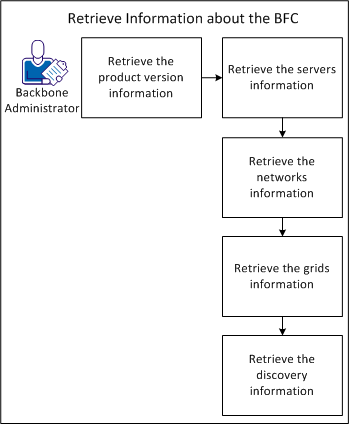
You can retrieve information about the set of version records currently available in the BFC. The version records indicate information such as the comp_id, esx_version, and hotfixes that you installed. You can review the versions in the resource_running_state to create CA AppLogic grids.
Follow these steps:
from httplib import HTTPSConnection
import json
import os
import sys
bfcHost = os.environ["BFC_HOST"]
conn = HTTPSConnection(bfcHost + ':8443')
conn.connect()
conn.request(method='POST', url='/BFC/1.1/login',
             body='{"username":"user1","password":"MyPassword"}',
headers={'Content-Type':'application/json'})
bfcSession = json.loads(conn.getresponse().read())
print "BFC_SESSION={0}".format(bfcSession)
The API displays your session ID.
For example, you create get_version.py.
from httplib import HTTPSConnection
import json
import os
import sys

bfcHost = os.environ["BFC_HOST"]
bfcSession = os.environ["BFC_SESSION"]
conn = HTTPSConnection(bfcHost + ':8443')
conn.connect()
conn.request(method='GET',
             url='/BFC/versions/',
             headers={'Content-Type':'application/json',
                      'Authorization':bfcSession})
r1=conn.getresponse()
server = json.loads(r1.read())
print 'HTTP Response Code: {0}'.format(r1.status)
print json.dumps(server, sort_keys=True, indent=4)
The API displays HTTP return code 200 and a list of version records:
[{'version': {
'comp_id': 1385,
'imported_esx_version': {
	'esx_version': {
		'version': '4.0', 'update': '2',
'build': '261974'}},
'name': '3.0.8', 'supported_esx_versions': [{
	'esx_version': {
		'version': '4.0',
		'update': '2', 'build': '261974'}}],
'required_bfc_version': '3.0.0', 'state': 'resource_running_state',
'hotfixes': [{
	'hotfix': {
		'comp_id': 1412, 'state': 'resource_running_state',
		'version_name': '3.0.8', 'name':'lp3561'}}, {
	'hotfix': {
		'comp_id': 1408, 'state': 'resource_running_state',
		'version_name': '3.0.8', 'name':'lp2668'}}, {
	'hotfix': {
		'comp_id': 1404, 'state': 'resource_running_state',
		'version_name': '3.0.8', 'name':'lp1248'}}],
	'esx_enabled': True}}]
For example, the BFC contains the lp3561, lp2668, and lp1248 hotfixes.
You can retrieve information about all servers in the system, such as the backbone server, external server, and power controller. For example, you want to view the server name, status, number of CPU cores, and IP addresses.
Follow these steps:
from httplib import HTTPSConnection
import json
import os
import sys

bfcHost = os.environ["BFC_HOST"]
bfcSession = os.environ["BFC_SESSION"]
conn = HTTPSConnection(bfcHost + ':8443')
conn.connect()
conn.request(method='GET',
             url='/BFC/servers',
             headers={'Content-Type':'application/json',
                      'Authorization':bfcSession})
r1 = conn.getresponse()
print 'HTTP Response Code: {0}'.format(r1.status)
servers = json.loads(r1.read())
print json.dumps(servers, sort_keys=True, indent=4)
The API displays HTTP return code 200 and a list of server records:
[{"server":{
"comp_id":1557,
"state":"resource_running_state",
"server_state_info":{
	"server_state_info":{
		"effective_state":
		"resource_running_state",
		"category_code_args":[],
	"category_code":"core/resources.compute_host.category_compute_host_power",
		"category_format":"Compute Host Power Status",
		"code":"core/resources.compute_host.compute_host_normal_powered",
		"format":"Functioning normally.",
		"inventorying":false,
		"applogic_server_name":"srv1",
		"applogic_server_state":"up",
		"applogic_server_enabled":true,
		"has_grid_controller":true}},
	"grid_name":"gridtest",
		"power_status":"on",
		"description":[],
		"discovery_date":1344988800000,
		"cpu_cores":4,"cpu_speed":3.0,"memory_size":4.0,"disk_count":1,
		"total_disk_space":146.81302272,"force_manual_power":false,
		"network_interfaces":[{
		  "network_interface":{
			"connectivity":"backbone",
			"ip_address":"192.168.0.x",
			"is_boot":true,
			"mac_address":"00:01:02:03:04:05",
			"name":"eth0","speed":1000}},{
		  "network_interface":{
			"connectivity":"external",
			"ip_address":"10.10.x.x",
			"is_boot":false,
			"mac_address":"00:01:02:03:AA:BB",
			"name":"eth1",
			"speed":1000}}],
			"disks": [{
			   "disk":{
			     "name":"/dev/sda",
			     "size":146.81302272}}],
		  "power_controllers":[{
			"power_controller":{
				"comp_id":1574,
				"ip_address":"10.10.x.x",
				"mac_address":"00:01:02:03:CC:DD",
				"type":"controlled",
				"username":"PowerAdmin__BFC",
				"password":"*****",
				"credential_set_time":134580.189,
				"power_status":"on"}
			}],
			"tags":["Blue","Green"]}}]%
For example, eth1 has the MAC address as 00:01:02:03:AA:BB.
You can retrieve information about all configured networks in the system. For example, you want to view the address spaces, available IP address ranges, gateway addresses, and type.
Follow these steps:
from httplib import HTTPSConnection
import json
import os
import sys

bfcHost = os.environ["BFC_HOST"]
bfcSession = os.environ["BFC_SESSION"]
conn = HTTPSConnection(bfcHost + ':8443')
conn.connect()
conn.request(method='GET',
             url='/BFC/networks',
             headers={'Content-Type':'application/json',
                      'Authorization':bfcSession})
r1 = conn.getresponse()
print 'HTTP Response Code: {0}'.format(r1.status)
servers = json.loads(r1.read())
print json.dumps(servers, sort_keys=True, indent=4)
The API displays HTTP return code 200 and a list of network records:
[{"network": {
            "address_space": {
                "ip_space": {
                    "address_pools": [
                        {"ip_pool": {
                                "available_ranges": [
                                    {"ip_range": {
                                            "end_address": "10.10.x.x",
                                            "size": 10,
                                            "start_address": "10.10.x.x"}}],
                                "num_addresses": 11,
                                "num_available": 10,
                                "num_used": 1,
                                "ranges": [
                                    {"ip_range": {
                                            "end_address": "10.10.x.x",
                                            "size": 11,
                                            "start_address": "10.10.x.x"}}],
                                "type": "hardware",
                                "used_ranges": [
                                    {"ip_range": {
                                            "end_address": "10.10.x.x",
                                            "size": 1,
                                            "start_address": "10.10.x.x"}}]}},
				{"ip_pool": {
                                "available_ranges": [],
                                "num_addresses": 4,
                                "num_available": 0,
                                "num_used": 4,
                                "ranges": [
                                    {"ip_range": {
                                            "end_address": "10.10.x.x",
                                            "size": 4,
                                            "start_address": "10.10.x.x"}}],
                                "type": "application",
                                "used_ranges": [
                                    {"ip_range": {
                                            "end_address": "10.10.x.x",
                                            "size": 4,
                                            "start_address": "10.10.x.x"}}]}}],
		  "available_ranges": [[
                            {"ip_range": {
                                    "end_address": "10.10.x.x",
                                    "size": 137,
                                    "start_address": "10.10.x.x"}},{
                                "ip_range": {
                                    "end_address": "10.10.x.x",
                                    "size": 101,
                                    "start_address": "10.10.x.x"}}],238]}},
            "base_address": "10.10.x.x",
            "cidr": 24,
            "comp_id": 1450,
            "gateway_addresses": [
                "10.10.75.1"],
            "ip_version": "ipv4",
            "usages": [
                "bbc/applogic_external_network"],
            "vlan_address_spaces": []}},{
        "network": {
            "address_space": {
                "ip_space": {
                    "address_pools": [{
                            "ip_pool": {
                                "available_ranges": [],
                                "num_addresses": 1,
                                "num_available": 0,
                                "num_used": 1,
                                "ranges": [{
                                        "ip_range": {
                                            "end_address": "10.10.x.x",
                                            "size": 1,
                                            "start_address": "10.10.x.x"}}],
                                "type": "power",
                                "used_ranges": [
                                    {"ip_range": {
                                            "end_address": "10.10.x.xx",
                                            "size": 1,
                                            "start_address": "10.10.x.x"}}]}}],
                    "available_ranges": [[{
					  "ip_range": {
                                    "end_address": "10.10.x.x",
                                    "size": 242,
                                    "start_address": "10.10.x.x"}},{
                                "ip_range": {
                                    "end_address": "10.10.x.x",
                                    "size": 10,
                                    "start_address": "10.10.x.x"}}],252]}},
            "base_address": "10.10.x.x",
            "cidr": 24,
            "comp_id": 1414,
            "gateway_addresses": [
                "10.10.x.x"],
            "ip_version": "ipv4",
            "usages": [
                "core/power_network"],
            "vlan_address_spaces": []}},{
        "network": {
            "address_space": {
                "ip_space": {
                    "address_pools": [
                        {"ip_pool": {
                                "available_ranges": [],
                                "num_addresses": 1,
                                "num_available": 0,
                                "num_used": 1,
                                "ranges": [
                                    {"ip_range": {
                                            "end_address": "192.168.x.x",
                                            "size": 1,
                                            "start_address": "192.168.x.x"}}],
                                "type": "hardware",
                                "used_ranges": [
                                    {"ip_range": {
                                            "end_address": "192.168.x.x",
                                            "size": 1,
                                            "start_address": "192.168.x.x"}}]}}],
                    "available_ranges": [ [
                            {"ip_range": {
                                    "end_address": "192.168.x.x",
                                    "size": 11,
                                    "start_address": "192.168.x.x"}},
                                "ip_range": {
                                    "end_address": "192.168.x.x",
                                    "size": 242,
                                    "start_address": "192.168.x.x"}}],253]}},
            "base_address": "192.168.x.x",
            "cidr": 24,
            "comp_id": 1367,
            "gateway_addresses": [],
            "ip_version": "ipv4",
            "usages": [
                "bbc/applogic_backbone_network"],
            "vlan_address_spaces": []}}]
For example, the base address of the backbone network is 192.168.x.x.
You can retrieve information about grids in the system. For example, you want to view the comp_id, grid configurations, grid IP ranges, and grid descriptions.
Follow these steps:
session = get_session()
conn = HTTPSConnection(bfcHost + ':8443')
conn.connect()
conn.request(method='GET',
             url='/BFC/grids',
             headers={'Content-Type':'application/json',
                      'Authorization':session})
grids = json.loads(conn.getresponse().read())
print grids
The API displays HTTP return code 200 and a list of grid records:
{"grid":{
  "comp_id":1234,"id":2,"name":"SimpleGrid2",
  "description":"SimpleGrid2 description",
  "state":"resource_allocated_state",
  "applogic_version":"3.1.2",
  "applogic_hotfixes":null,
  "enable_language_packs":false,
  "xen_config":{
	"grid_server_configuration":{
		"min":2,"target":2,"max":2,
		"selection_criteria":null}},
   "esx_config":{
	"grid_server_configuration":{
		"min":2,"target":2,"max":2,
	"selection_criteria":null}},
	"servers":[],"external_network":"127.x.x.0/24",
	"app_ips":[{
		"grid_ip_range":{
		subnet_id:2345,vlan:10,
		public_private:"public",
		ip_low:"127.x.x.2",
		ip_high:"127.x.x.11"}],
	"app_ip_count":10,
	"controller_ip":"127.10.10.1","default_vlan":1,
	"account_id":null,"account_key":null, "oem_kit":null,
	"global_user_dir":null,
	"grid_controller_name":null,
	"grid_controller_user":null,
	"grid_controller_password":null,
	"recovery_password":null,"additional_config":null}},
{"grid":{
	"comp_id":5678,"id":1,"name":"SimpleGrid1",
	"description":"SimpleGrid1 description",
	"state":"resource_allocated_state",
	"applogic_version":"3.1.1",
	"applogic_hotfixes":null,
	"enable_language_packs":false,
	"xen_config":{
		"grid_server_configuration":{
			"min":2,"target":2,"max":2,
			"selection_criteria":null}},
	"esx_config":{"
		grid_server_configuration":{
			"min":0,"target":0,"max":0,
			"selection_criteria":null}},
	"servers":[],"external_network":"127.x.x.0/24",
	"app_ips":[{"grid_ip_range":{
	subnet_id:1245,vlan:null,
	public_private:"public",
	ip_low:"127.x.x.13",ip_high:"127.x.x.22"}],
	"app_ip_count":10,
	"controller_ip":"127.x.x.12","default_vlan":1,
	"account_id":null,"account_key":null, "oem_kit":null,
	"vmware_license_key":"XXXXX-XXXXX-XXXXX-XXXXX-XXXXX",
	"global_user_dir":null,
	"grid_controller_name":null,
	"grid_controller_user":null,
	"grid_controller_password":null,
	"recovery_password":null,
	"additional_config":null,
	"external_storage":null}}]}
For example, SimpleGrid1 has the controller_IP as 127.x.x.12.
You can retrieve information about your discovery configuration. For example, you want to view the discovery mode of a server.
Follow these steps:
For example, you create get_discovery.py.
from httplib import HTTPSConnection
import json
import os
import sys

bfcHost = os.environ["BFC_HOST"]
bfcSession = os.environ["BFC_SESSION"]
conn = HTTPSConnection(bfcHost + ':8443')
conn.connect()
conn.request(method='GET',
             url='/BFC/admin/discovery',
             headers={'Content-Type':'application/json',
                      'Authorization':bfcSession})
r1 = conn.getresponse()
print 'HTTP Response Code: {0}'.format(r1.status)
servers = json.loads(r1.read())
print json.dumps(servers, sort_keys=True, indent=4)
print grids
The API displays HTTP return code 200 and the discovery configuration:
{"discovery":{
"enabled":"true',
"mode":"manual",
"mac_addresses":00:01:02:03:04:05,
"default_tags":"gold"}}
For example, the server with the 00:01:02:03:04:05 MAC address has manual discovery enabled.
You have successfully retrieved information about your BFC environment and can perform your planning or maintenance tasks.
|
Copyright © 2013 CA Technologies.
All rights reserved.
|
|