

You can create a new class by branching an appliance with similar functionality. The catalog provides ready-made appliances, such as databases, gateways, and web servers. In addition, you can view additional appliances on the Cloud Commons Marketplace as well as upload your own appliances to market.
The local or global catalogs contain classes that developers drag and drop on the canvas. This action instantiates the appliance inside the application. However, the catalog class still manages the appliance. When you update the catalog, all appliances that are instantiated from that class are partially re-imaged to match the updated class.
To create your own classes for delivery in the catalog, you must break the connection from the existing class. This break allows your development to exist independent of the original class. The breaking the connection is named branching the class. Branching the appliance creates a standalone entity that is named a singleton.
If you subsequently replace the catalog class with your singleton, any changes that you make persist in all applications that use that class. For example, if you specify a static value, that static value persists in any applications using that class. If you update the operating system in the singleton, then you replace the catalog class with your singleton, you automatically update the operating system in all applications based on this class.
You can create a new application to use as a sandbox application to configure your appliance. When complete, you can delete the sandbox application. You then select and drag an appliance with similar functionality to the canvas.
Create Sandbox Application
Follow these steps:
The New Application dialog displays. You can create a new application to use as a sandbox application to configure your appliance. When complete, you can delete the sandbox application.
The application names consist of alphanumeric characters, underscores, and dashes. No other special characters are permitted.
The creation message displays. When complete, the application displays in the Application List.
The application displays in the Infrastructure Editor. You can now set the class boundary.
Select Appliance
Follow these steps:
When the branch operation starts, the Class Branch dialog displays.
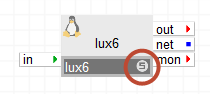
The new class displays an S to signify the class is now a singleton.
|
Copyright © 2013 CA Technologies.
All rights reserved.
|
|