

As a CA AppLogic operator, you provide applications on the grid to your customers. Often, you provide the same application to multiple users. The number of users and their requirements can change frequently. Therefore, your application must be deployable on demand as multiple instances.
For on-demand deployment in the CA AppLogic environment, you prepare a template application. Template applications are not fully configured and cannot be run. When you create an instance of the template application, you provide necessary configuration details, such as IP addresses and billing codes. These details are unique to each instance. Provisioning is the process of creating those unique instances on demand.
CA AppLogic includes many preconfigured template applications. One of these template applications is LAMP. This scenario uses LAMP as an example of a template application to provision. The acronym LAMP refers to first letters of the components of the solution stack composed entirely of free and open-source software, suitable for building high-availability heavy-duty dynamic web sites. CA AppLogic enables service providers to offer LAMP on demand.
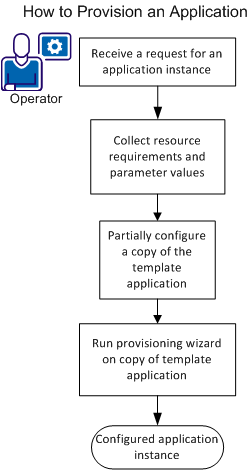
To provision an application, follow these procedures:
Note: You configure a copy of the template application so that the original template application is unaltered.
When the wizard is finished, you have a fully configured LAMP application instance.
Before you provision the LAMP application, verify that the following requirements are met:
This scenario assumes that you work for a SaaS provider. Your workflow involves receiving requests to provide application instances to customers. In this scenario, you fill the following sample request:
|
Parameter |
Value |
|---|---|
|
Software |
LAMP |
|
CustomerID |
SuperCo |
|
Billing Code |
205832 |
|
Customer resource requirements |
None specified (use default resource allocation) |
Other LAMP parameters are not mentioned in the customer request. In this example, either the customer sets these parameters through the LAMP administration interface or the default values are accepted. For example, the customer is given the administration IP and default password for the LAMP administration interface. After the application is provisioned, the customer logs in to this interface and changes the password.
This scenario walks you through configuring the mandatory parameters for provisioning LAMP. When you provision an application for your organization, before you begin, check the parameters that you configure. Discover whether parameters are mandatory or optional. Discover the permitted range of values. This information is available from the following sources:
app config application_name --boundary
The output from this command is similar to the contents of the data sheet but without as much explanatory text.
Applications have the following types of parameter:
Application instance name, description, and customer billing information.
Values: Arbitrary, depending on the procedures in your company.
In this scenario: You set application instance name and customer billing information.
System resources, such as CPUs and memory, that are allocated to your application instance.
Values: Default values are set in the template application. Change the default values only if your customer has requirements that exceed them.
In this scenario: Use the default values.
Application-specific settings that specialize the application instance for its role. Some properties are set for the template application. All instances inherit these property values. Other properties are set for each instance during provisioning.
Values: IP and IP-owned property values match grid values. Other property values depend on customer requirements.
In this scenario: You set only the IP and IP-owned properties, which are mandatory.
Some parameters have the same value for all instances of an application. For efficiency, set those values in the template application itself. All instances of that application inherit these values. You set the values only once instead of setting them every time you provision the application.
To follow best practice, copy the template application and set parameter values in that copy. By doing so, you always have an unaltered version of the template application.
Note: In this scenario, you set the template application gateway, netmask, and DNS properties. Use the values from your grid. These properties are the same for all applications on your grid.
Follow these steps:
Note: The properties with red fields are mandatory. However you give values to some of these fields later, when you provision the application. A template application does not have all parameters configured.
These values apply to all applications on this grid.
You have a copy of the LAMP template application. That copy is now configured and ready for provisioning.
Each time you provision a template application, you create a unique instance for an end user. This procedure explains how to use the provisioning wizard in the UI. Here you provision the template application copy that you created and configured.
Follow these steps:
A best practice is to include the customer name (in this case, SuperCo) in the instance name.
The Configure Resources page opens.
In the Configure Resources page, the CPU, Memory, and Bandwidth sliders all have default values. Disk volumes also have default sizes.
CA AppLogic assigns volumes and default sizes that are based on the template application configuration. You cannot add or delete a volume but you can change the volume size.
This page refers to raw interfaces, and this application has no raw interfaces.
The IP field values are under Application IP Range in the Dashboard tab.
The instance inherits the values for the gateway, netmask, and dns1 from the template application.
f a selected IP address is in use, you receive an error message.
The application launches when provisioning is complete. When the provisioning is complete, you have a running instance of LAMP accessible at the IP addresses you specified in the provisioning wizard. Point a browser window to the user IP address and the LAMP console appears.
|
Copyright © 2013 CA Technologies.
All rights reserved.
|
|