

As an operator, you want to migrate data to another grid. This task requires the security level that the grid_administrator permission provides. Regular data backups can help to ensure availability against sudden hardware problems. You set up a trust between grids and migrate the appliance class, catalog, and application data from the source grid to a target grid.
The following diagram shows how to migrate data to another grid:
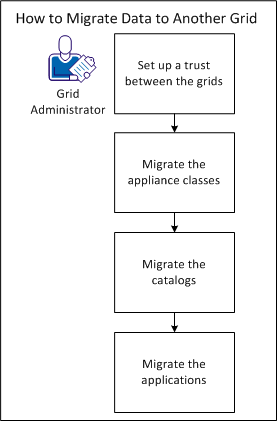
You set up a trust between grids before you can migrate data between the grids. You can install an SSH agent to access the grid through a Secure Shell. Agent forwarding passes the user credentials to the remote server. You can then pass the credentials to another server where you installed your public key. You set up bidirectional trust so that you can migrate the appliance classes, catalogs, and applications.
Follow these steps:
3t grid info -v
For example, the following SSH key appears:
ssh-rsa AAAAB3NzaC1yc2EAAAABIwAAAQEAtdsF6rxRPvi3aKciQ1J+7yZTgAXDVkNZDRzZPzpEtAak+tnroXS6RvwUOv8Oa9toCjlEIol1EuvaYBryzmRqH5cdm9UKXJjNZ5fnF7fhz928wcCHrHYebtOWGdqXi03MFt0Q4ytZI0+xnjS5iZkaJLW1IAoNLVQdrjUWhH4f+GIJ58jg7xpp3aORQ/zCnXWzxMJs78rX3LkbVW5EftzUZZowVSRVrO6JRq3/7sMzktKDHbB4Am2WoxzceA36NxPQsg7gcao5BPGAvJg2B1MnBdVBIy5gSYuPNtjjpfHboZWWd4cywZ+uIlOFIJy0GGIizrdza351MX7PuZ/YZulffw==
user create sourcegrid@ca.com pwd=mypassword sshkey="ssh-rsa AAAAB3NzaC1yc2EAAAABIwAAAQEAtdsF6rxRPvi3aKciQ1J+7yZTgAXDVkNZDRzZPzpEtAak+tnroXS6RvwUOv8Oa9toCjlEIol1EuvaYBryzmRqH5cdm9UKXJjNZ5fnF7fhz928wcCHrHYebtOWGdqXi03MFt0Q4ytZI0+xnjS5iZkaJLW1IAoNLVQdrjUWhH4f+GIJ58jg7xpp3aORQ/zCnXWzxMJs78rX3LkbVW5EftzUZZowVSRVrO6JRq3/7sMzktKDHbB4Am2WoxzceA36NxPQsg7gcao5BPGAvJg2B1MnBdVBIy5gSYuPNtjjpfHboZWWd4cywZ+uIlOFIJy0GGIizrdza351MX7PuZ/YZulffw=="
grid modify_acl local:user:sourcegrid@ca.com=app_developer
Important! To use the import option for backups (such as appliance classes), you must complete this step.
The trust relationship between both grids is established.
An appliance specifies a self-contained virtual environment that provides a particular function inside an application. You can migrate the appliance class to a backup grid. Backup grids only require a small amount of CPU and RAM, and a large amount of inexpensive, direct-attached storage. Using this backup strategy provides the benefit of not requiring a specific backup time window because you can back up appliance classes at any time. This strategy reduces administrative overhead because it lets you centralize backup management on a remote backup grid.
Follow these steps:
class migrate remote_grid class [ .name=newclass ] [ --export | --import ] [ --nocompress ] [ --nocleanup ] [ --debug ]
Specifies the name of remote grid.
Specifies the name of the class that you want to migrate.
The class can be in a global or local catalog, or can be a singleton.
(Optional) Specifies the new name for the migrated class.
The name can refer to a global, local catalog, or a singleton.
Migrates the class to the remote grid.
Note: If you do not specify this option, the class migrates from the remote grid.
Migrates the class from the remote grid.
Note: If you do not specify this option, the class migrates from the remote grid.
Specifies not to compress class volumes during migration.
Note: To reduce the migration time, use this option when you migrate classes that have large volumes.
Skips cleanup upon failure or completion (use for troubleshooting).
Displays debug information during migration (use for troubleshooting).
In this example, you want to migrate the WIN0864E class from the system_ms category in the global catalog to grid5.
Important! Verify that the class you want to migrate does not exist on the destination grid. If the class exists, an error appears.
class migrate grid5 /system_ms:WIN0864E .name=/system_ms:WIN0864E --export
The following output appears:
Verifying access to remote grid...

Verifying access to remote grid...
Verifying that entities are not locked...

Retrieving needed class descriptors and volumes...
	Transferring class WIN0864E... Done
	Transferring volume boot... Done

class migration completed (9 min 51 sec)
The appliance class data is migrated and backed up.
Catalogs store appliance and assembly classes as library packages. You can back up the catalog with the catalog migrate command.
Follow these steps:
catalog migrate remote_grid catalog [ .name=new-name ] [ --export | --import ] [ --nocompress ] [ --nocleanup ] [ --debug ]
In this example, you want to migrate the BKPCAT catalog from the current grid (grid4) to grid5 as a catalog named BACKUPCAT.
catalog migrate grid5 /BKPCAT .name=/BACKUPCAT --export
The following output appears:
Verifying access to remote grid...

Verifying access to remote grid...
Verifying that entities are not locked...

Retrieving needed class descriptors and volumes...
	Transferring catalog class IIS... Done
	Transferring catalog class SQL... Done
	Transferring volume IIS.boot... Done
	Transferring volume SQL.boot... Done

catalog migration completed (26 min 40 sec)
The catalog data is migrated and backed up.
Applications contain appliances and the full infrastructure, configuration, and user data. You can back up the application and can migrate it to another grid with the application migrate command.
Note: If the source application is running, it stops before the migration begins. After the migration completes, the application starts again. If the original application is not running, the migrated application does not start.
Follow these steps:
application migrate remote_grid appname [ .name=appname ] [ --export | --import ] [ --nocompress ] [ --nocleanup ] [ --debug ] [ (prop=val)* ]
Specifies configuration parameter pairs that you use for the application config command.
Preserve the application ACL if it is present.
Preserve local principals in the application ACL.
Preserve global principals in the application ACL.
In this example, you want to migrate the MY_APP application from the current grid (grid4) to remote grid5.
application migrate grid5 MY_APP .name=MY_APP --export
The following output appears:
Verifying access to source grid...

Verifying access to source grid...
Verifying source application state...

Stopping application MY_APP
	main.SQL stopped
	main.USR stopped
	main.mon stopped
	main.IIS stopped
Releasing application resources...
Application MY_APP stopped

Creating application 'MY_APP'...
	Creating descriptors for application 'MY_APP'...
Retrieving application 'MY_APP' class descriptors and volumes...
	Transferring class IIS... Done
	Transferring class SQL... Done
	Transferring class main... Done
	Transferring volume dbase ... Done
	Transferring volume IIS.boot ... Done
	Transferring volume mon ... Done
	Transferring volume SQL.boot ... Done
	Transferring volume data ... Done
Starting migrated application MY_APP...
Building application...
	Creating volume MY_APP/volcache:main.mon.boot...Done
	Creating volume MY_APP/volcache:main.USR.boot...Done
	Configuring application...Done

Loading application...
Scheduling application...
Starting application MY_APP
	main.USR started
	main.mon started
	main.SQL started
	main.IIS started

Application MY_APP started successfully

Application migration completed (38 min 6 sec)
The application data is migrated and backed up.
You have successfully set up a trust between grids, and you migrated appliance classes, catalogs, and applications.
It is possible to migrate applications between grids of different architectures (x86 as opposed to s390x) if the following conditions are met:
|
Copyright © 2013 CA Technologies.
All rights reserved.
|
|