

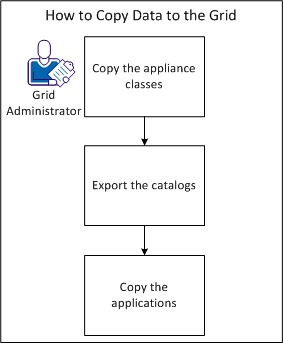
As an operator, you want to back up grid data as a copy, also known as a hot backup. This task requires the security level that the grid_administrator permission provides. A hot backup includes an identical copy on the same grid because this backup represents a data snapshot in time. You perform regular and sufficient grid infrastructure backups as a crucial aspect of grid maintenance. If a problem with the grid occurs, this maintenance helps ensure that you have available data. You copy the appliance classes, export the catalogs, and copy the applications to complete the backup.
The following diagram shows how to back up data as a copy:
Appliances let you emulate physical hardware such as servers, switches, routers, and load balancers. Each appliance executes in its own virtualized environment, and each appliance boots its own operating system, application services, and other required software. The appliance also has a boundary which isolates the appliance interior from the exterior. This boundary defines both the structure of the appliance, and how it interacts with other CA AppLogic components, including the grid.
An appliance class specifies a reusable device definition with boundary attributes. You can modify these attributes to adapt to the behavior of the device for a specific purpose. For example, after you drag a web server appliance class from the catalog onto the canvas, you can create a singleton instance of that web server class. Then, you can modify the boundary properties to suit your particular environment. You can also save these changes as a new class.
Follow these steps:
class copy source_name dest_name
Specifies the name of class that you want to copy.
Specifies the name of the new class.
In this example, you want to copy the WIN03 class from the global catalog system_ms to a backup global catalog system_msbkp on the same grid.
class copy /system_ms:WIN03 /system_msbkp:WIN03
The class is backed up as a copy.
You use catalogs for logically arranging and securing group appliance classes. For example, you can arrange all Windows servers in the same catalog. The catalog stores appliance and assembly classes. Once you create an appliance class, you can add that class to the local catalog where the application can use it. You can also add the class to the global catalog, where other applications and users can access the catalog.
Follow these steps:
cat export <catalog> <dir> [--force] [--nocompress] [ --preserve_acl | --preserve_local_acl | --preserve_global_acl ]
The name of catalog to export. You specify one of the following catalogs:
The name of the exchange directory relative to /vol/_impex where you want to export the catalog.
The option that lets you export the catalog class even if it is already present (for example, each class is removed, and then exported)
The option to disable compression of volume images.
Preserve the global catalog ACL if it is present.
Preserve local principals in the global catalog ACL.
Preserve global principals in the global catalog ACL.
Note: this option is not available on CA AppLogic® for System z.
In this example, you want to export the global WIN03CAT catalog.
cat export /WIN03CAT WIN03CAT_BKP
The catalog data is exported.
The application contains appliances and the full infrastructure, configuration, and user data. You can use applications as templates or instances. The copy is a snapshot of an application instance or template. An application template is a partially-configured application used as a template for provisioning application instances.
app stop CA_SpecIM_9_2_1
app copy source dest [--fscpy [-prefill]] [--novols]
The name of the application that you want to copy.
The name of the copied application.
Copies volumes with the filesystem-level copy instead of the block-level copy.
Note: You can use this option when you have large volumes that contain little stored data.
Allocates all blocks of copied application volumes.
Note: You can only use this option if you specify --fscpy.
Does not copy application volumes.
Note: This option does not require stopping the application initially, but only copies the descriptors.
In this example, you want to copy the CA_SpecIM_9_2_1 application as CA_SpecIM_9_2_1_Backup on the same grid.
app copy CA_SpecIM_9_2_1 CA_SpecIM_9_2_1_Backup
The operation copies the application code, all user data, and application configuration.
Important! Do not run the original application and the copy simultaneously. You must change the IP addresses in one of the applications.
You have successfully copied the WIN03 appliance class, exported the WIN03CAT catalog, and copied the CA_SpecIM_9_2_1 application.
|
Copyright © 2013 CA Technologies.
All rights reserved.
|
|