

|
|
|
From the Browse File Copies option or the Find Files/Folders to Restore option, you can click the Configure button to display the Cloud Configuration dialog.
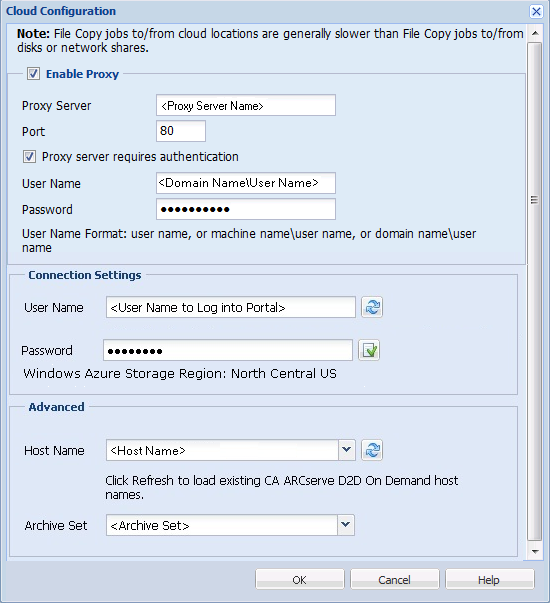
The Enable Proxy setting allows you to set proxy access for CA Cloud Storage. If you select this option, you must also include the IP address (or machine name) of the proxy server and the corresponding port number that used by the proxy server for internet connections. If your proxy server requires authentication, you can also select this option. You then must provide the corresponding authentication information (User name and Password) that is required to use the proxy server.
Enter a valid User Name. This user name must have an active ARCserve On Demand Portal account to log into the portal.The User email address will be used to verify the authenticity of the request to access this location.
Enter the Password. After you input the password, click the Verify button on the right side of the Password field to verify the password.
Note: If the access credentials are verified, the Windows Azure Storage Region will display the selected region from the ARCserve On Demand Portal.
Select the host name (server) containing the files/folders to be restored.
All files and folders moved or copied to the CA Cloud are stored and organized by your machine host name. By default, your local machine is selected. You can use the drop-down menu to select a different CA ARCserve D2D On Demand server for restoring data. The host name drop-down menu lists all host names related to your subscription (account) in the CA Cloud. You can click the refresh button to update this drop-down list.
When you select a host name which you want to restore, the Archive Set drop-down menu refreshes to list all available CA Cloud data center archive sets where this host name has data stored. You can then select the archive set where you want your data to be restored from.
By default, the archive set displayed will be the same archive set you selected when you configured your File Copy settings. However, you can select a different region from drop-down menu if you previously performed a file copy to another archive set for that selected host name.
Archive sets allow you to select the geographical bucket where CA Cloud stores your data. You should select an archive set that provides you with fast access to your data and allows you to optimize latency, minimize costs, or address regulatory requirements.
Note: For the restore configuration, the Archive Set drop-down list will only be available if you validate the user in advance.
| Copyright © 2012 CA. All rights reserved. | Tell Technical Publications how we can improve this information |