

As a storage administrator, you are responsible for keeping the tape catalog up-to-date and monitoring the processing of the CA 1 daily utilities. This scenario describes how to create an alert and send an email when too many tape files are uncataloged in one run of TMSCLEAN. In this scenario, the storage administrator has specified 1,000 data sets being uncataloged as an uncommonly high number and indicative of a possible problem.
The following illustration shows how to send an email when too many tapes are uncataloged:
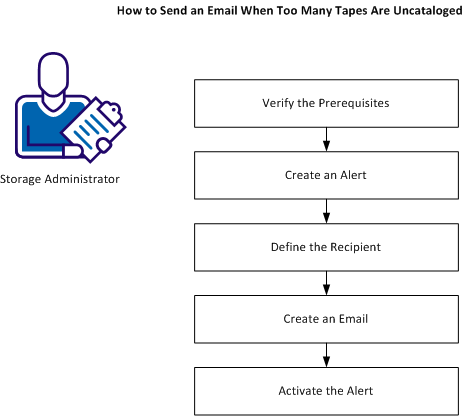
To send an email when too many tapes are uncataloged, do the following:
To be able to monitor the number of uncataloged tapes and send an email notification when the number exceeds certain threshold, verify the following prerequisites:
Note: For more information about these prerequisites, see the Installation Guide.
To be notified when TMSCLEAN uncatalogs a high number of tape files in one run, define the alert named High_Uncatalog_Activity.
Follow these steps:
The VPM Alert List Panel opens.
The VPM Alert Add Panel opens.
The member name must match the member name that you specify when creating the email.
Note: For complete information about the options for this panel, see the Administration Guide.
To define a recipient of an email notification that is sent by the alert, create a variable to use in the email. Using a variable also enables you to change the recipient of the email easily.
Follow these steps:
The CTS Variable Type menu opens.
Create the contents of the email to send when the alert condition has been met.
Follow these steps:
EDIT       SYS3.CA1.SEND(UNCAT2HI) - 01.00                   Columns 00001 00072
Command ===>                                                  Scroll ===> CSR
****** ***************************** Top of Data ******************************
000001 EMAIL
000002 x-TO: &Lead_tape_librarian&
000003 x-TITLE: Investigate TMSCLEAN Uncatalog Activity
000004 In the most recent run of TMSCLEAN on
000005 &TMSCLEAN_JOB_COMPLETION_DATE& run on System &SYSID& there
000006 were &CTS_Alert_Variable_Value&
000007 files UNCATALOGED in that run. TMSCLEAN does not normally
000008 uncatalog that many files in a daily run.
000009 &BL&
000010 This condition should be investigated to insure that we don’t have
000011 a problem.
000012 &BL&
000013 Note - do not reply to this email.
****** **************************** Bottom of Data ****************************
Note: You can extensively customize the emails. For more information, see the Administration Guide.
To add the new alert to the list of alerts that the VPM subtask monitors, activate the alert.
Follow these steps:
S CTS
F CTS,SET TASK(VPM) PGM(CTSVPM)
F CTS,START VPM
F CTS,MSG,VPM,UPDATE
The VPM reads the VDB and adds the new alert to the list of the alerts that the VPM monitors.
You have successfully set the notification threshold for uncataloged data sets. When the VPM subtask discovers that TMSCLEAN has uncataloged more than 1,000 tape files in one run, the lead tape librarian receives an email notification. The email is sent once every 12 hours while the condition is still true.
Note: The interval that the VPM subtask uses to check for activity in the CA 1 Audit file is controlled by the option variable OPT_VPM_TIMER. Review the default 30-minute setting for OPT_VPM_TIMER and insure that it is appropriate for your site.
If the interval is set to 30 minutes and TMSCLEAN completes after the last time that the interval expired, there can be up to a 30-minute delay until the interval expires again and the updated value for TMSCLEAN_JOB_FILES_UNCATALOGED is read from the CA 1 Audit file.
|
Copyright © 2013 CA Technologies.
All rights reserved.
|
|