

As a storage administrator, you are responsible for monitoring scratch tapes availability to ensure that you have enough space for data that needs to be stored. To monitor scratch availability for a set of volumes that is defined in the tape management catalog (TMC), use the Volume Pool Monitor feature (VPM). In this example scenario, the daily batch cycle typically uses 200 scratch tapes. The users want to be notified if the number of available scratch volumes falls below 500.
The following illustration shows how to monitor scratch tapes in a volume pool:
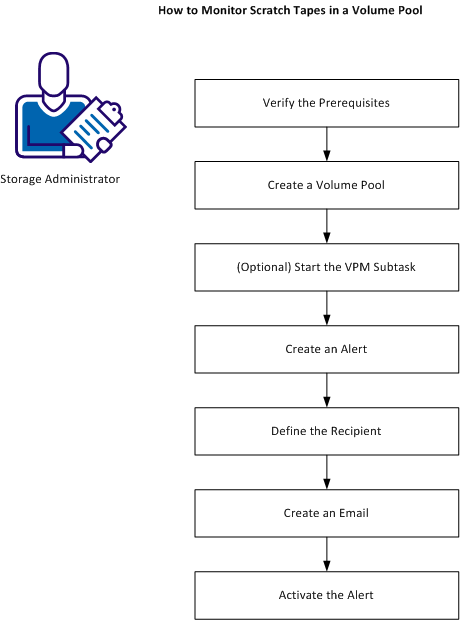
To monitor scratch tapes in a volume pool, do the following:
To be able to define volume pools and monitor the number of scratch tapes available in a volume pool, verify the following prerequisites:
Note: For more information about these prerequisites, see the Installation Guide.
To define a range of tapes that you can monitor and perform actions on, create a volume pool.
Follow these steps:
The Volume Pool List panel opens.
Note: If you have already defined at least one volume pool, you can enter A in the CMD line for any row in the displayed list of volume pools.
The VPM Range Add Panel opens.
The volume pool named Production_Range_1 is created. The volume pool includes volumes with serial numbers from 010000 through 019999.
To send alerts, the VPM subtask must be started. If you added the VPM subtask to the CTS started task and you started the Common Tape System (CTS) started task, the VPM subtask is already running.
Follow these steps:
S CTS
F CTS,SET TASK(VPM) PGM(CTSVPM)
F CTS,START VPM
The CTS started task and the VPM subtask is running.
Note: To start the VPM subtask each time CTS is started, add the following commands to the CTSSTART member in hlq.CTAPOPTN:
SET TASK(VPM) PGM(CTSVPM)
START VPM
To monitor scratch availability in the Production_Range_1 volume pool so that you know if you are reaching the critical threshold, define an alert with the name Scratches_Running_Low.
Follow these steps:
The VPM Alert List Panel opens.
The VPM Alert Add Panel opens.
Note: The Alert ID can be any name. The Pool ID must be the name of the volume pool that you want to monitor. For complete information about the options for this panel, see the Administration Guide.
To define a recipient of an email notification that is sent by the alert, create a variable to use in the email. Using a variable also enables you to change the recipient of the email easily.
Follow these steps:
The CTS Variable Type menu opens.
You can enable automatic sending of an email when the alert condition is met. The person responsible gets email notifications in a timely manner.
Follow these steps:
EDIT       SYS3.CA1.SEND(SCRLOW) - 01.00         Columns 00001 00072
Command ===>                                        Scroll ===> CSR
****** ************************ Top of Data ************************
000001 EMAIL
000002 x-TO: &Lead_tape_librarian&
000003 x-TITLE: Scratch tapes are low!
000004 Warning! There are only &CTS_Alert_Variable_Value& tapes
000005 left in volume pool
000006 &CTS_Alert_Pool_ID&.
000007 Please take action now to insure we have sufficient tapes for
000008 daily processing. Note - do not
000009 reply to this email.
****** ********************** Bottom of Data **********************
Note: You can extensively customize the emails. For more information, see the Administration Guide.
To have the email sent when the condition that you defined in the alert is met, activate the alert.
To have the VPM subtask activate the alert, issue the following command:
F CTS,MSG,VPM,UPDATE
The VPM subtask reads the CA 1 Audit file and updates the counters that are associated with the Production_Range_1 volume pool.
The VPM subtask reads the CA 1 Audit file in user-specified intervals. You can set this interval in the option variable OPT_VPM_TIMER. As tapes change status, the accumulators for the Production_Range_1 are updated. The VPM subtask also tests the alert condition in this interval. If the condition is met, the email that is defined in SCRLOW is sent.
|
Copyright © 2013 CA Technologies.
All rights reserved.
|
|