Deploying the CA Threat Management Agent › Install the CA TM Agent from the Product CD
Install the CA TM Agent from the Product CD
Use this procedure if you want to install the ITM Agent on your local machine only. If you want to install the agent to multiple machines, use the Remote Install Utility. (See Install the CA TM Agent Using Remote Install.)
- Insert the eTrust ITM CD into the CD drive.
- Select the installation language when prompted, and then click OK.
- Click the I Agree button to accept the Install Notice.
Note: You must scroll to the end of each notice to enable the I Agree button.
- Click the I Agree button to accept the CA License Agreement.
- Click the I Agree button to accept the Third Party License Agreements.
- (Optional) If you are going to manage the client machine from an ITM Server, skip the User Registration dialog. You will license the client machine from the ITM Server later.
If you are not going to manage this client from the ITM Server, enter your User Registration information, and then click Next.
Note: This password only provides access to the user registration information. Your password can be anything you choose.
- If you did not provide registration information, you will be prompted to install a live trial. Click Yes.
- In the Option Selection window, click Install eTrust Integrated Threat Management Suite, r8.1.
- On the Installation Type window, click Agent, and then click Next.
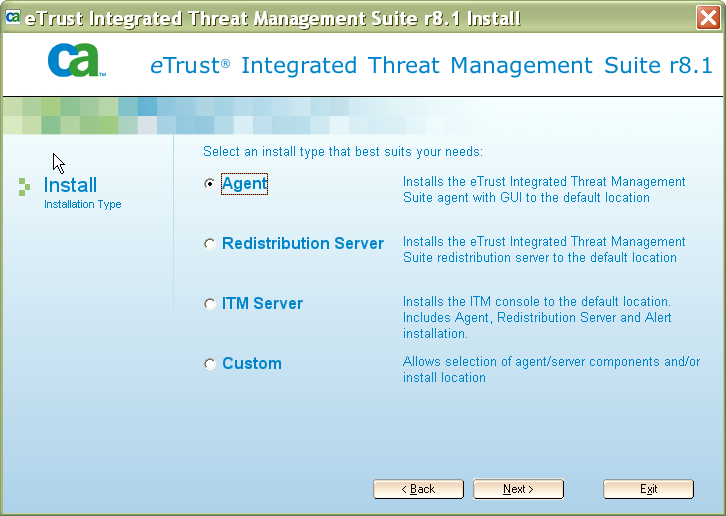
- Review or change the installation path and click Next.
- On the Finish window, review the installation components, and then click Finish.
The installation begins and displays the installation status.
Note: You must reboot the local machine when the installation is complete.
Copyright © 2008 CA.
All rights reserved.