Install the CA TM Agent Using Remote Install

  1. Select Start, Programs, CA, eTrust, eTrust ITM, Remote Install.
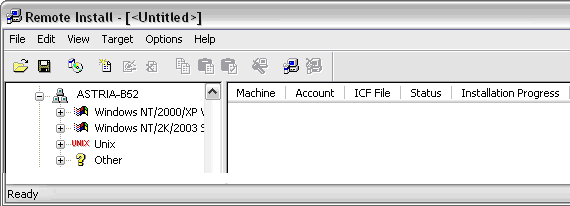
  2. In the Remote Install window, expand Microsoft Windows Network.
  3. Select the Domain, expand one of the displayed operating systems, and then choose the target installation machines.

    Select Domain Remote Install

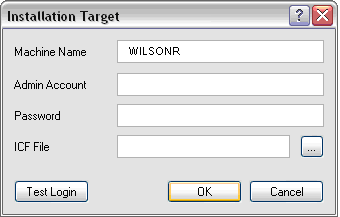
  4. Select the target machine to install to by highlighting them, and selecting Target, Add.
  5. In the Installation Target window, enter the Domain\Admin_user_name and password, and then select the modified inoc6.icf file to use.

    Select Machine Remote Install

  6. Click Test Login.
  7. When the test has successfully competed click OK.
  8. Highlight the machines on which you want to install the ITM Agent and then select Target, Start.

    Note: The Start button is the blue computer icon.
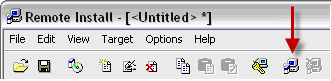
    Start Install Button

  9. In the Confirm Installation dialog, click Yes.
  10. When you are prompted to set the proper permissions, click Yes.

    The installation Status and Installation Progress is shown for each machine:

    Installation Status

    The installation progress will display Copying build to remote, Installing build, and Installation Successful.


Copyright © 2008 CA. All rights reserved.